跳转到主内容

Battery Disconnection

仅作为前提条件
本指南仅提供前提条件!本指南是另一个程序的一部分,不能单独使用。

你所需要的

  1. Battery Disconnection, Prepare your laptop for disassembly: 步骤 1 中的图像 1,3 Battery Disconnection, Prepare your laptop for disassembly: 步骤 1 中的图像 2,3 Battery Disconnection, Prepare your laptop for disassembly: 步骤 1 中的图像 3,3
    • Before starting this repair, allow your laptop's battery to drain below 25%. A charged battery may catch fire if damaged.

    • Unplug all cables and fully shut down your laptop.

  2. Battery Disconnection, Flip your laptop over: 步骤 2 中的图像 1,3 Battery Disconnection, Flip your laptop over: 步骤 2 中的图像 2,3 Battery Disconnection, Flip your laptop over: 步骤 2 中的图像 3,3
    • Close your laptop and lay it down so the rubber feet are facing up.

  3. Battery Disconnection, Remove the feet: 步骤 3 中的图像 1,3 Battery Disconnection, Remove the feet: 步骤 3 中的图像 2,3 Battery Disconnection, Remove the feet: 步骤 3 中的图像 3,3
    • Gently slide one arm of your angled tweezers into the recess near the upper right edge of one of the feet.

    • You can also use the point of a spudger. However, you're more likely to damage the foot, if you're reusing it.

    • Use your tweezers to pry up and remove the foot.

    • The feet may eject very quickly—be careful not to lose them.

    • Repeat the process to remove the remaining feet.

    • To install a foot, align the pegs on the bottom with their cutouts in the frame and press the foot into place.

  4. Battery Disconnection, Remove the lower case screws: 步骤 4 中的图像 1,2 Battery Disconnection, Remove the lower case screws: 步骤 4 中的图像 2,2
    在这个步骤中使用的工具:
    FixMat
    $36.95
    • Throughout this repair, keep track of each screw and make sure it goes back exactly where it came from.

    • While the Surface Laptop 7 uses Torx Plus screws, standard Torx bits work. Make sure to apply constant, downward force to prevent stripping.

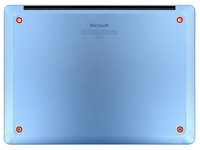
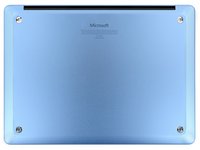
    • Use a Torx Plus 5IP screwdriver to remove the four 4.5 mm‑long screws (with washers) securing the lower case.

  5. Battery Disconnection, Detach the lower case: 步骤 5 中的图像 1,3 Battery Disconnection, Detach the lower case: 步骤 5 中的图像 2,3 Battery Disconnection, Detach the lower case: 步骤 5 中的图像 3,3
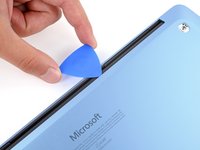
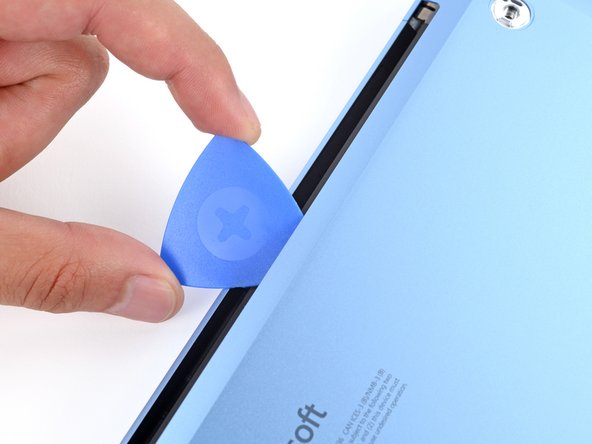
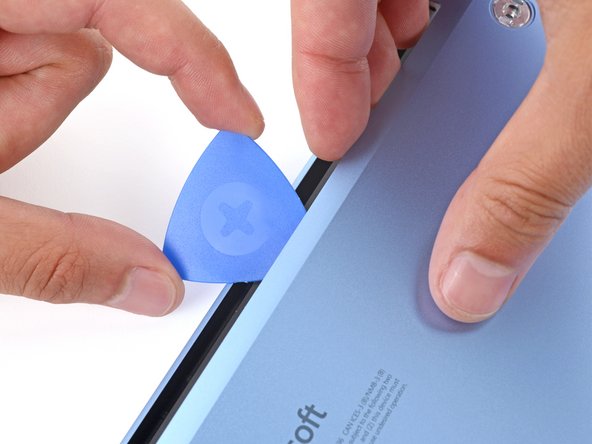
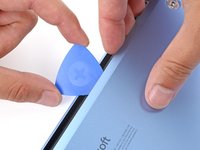
    • Insert the tip of an opening pick under the top edge of the lower case, about an inch (2.5 cm) to the left or right of the Microsoft logo.

    • Don't insert the pick near the outer edges or you'll damage the antenna bar.

  6. Battery Disconnection: 步骤 6 中的图像 1,3 Battery Disconnection: 步骤 6 中的图像 2,3 Battery Disconnection: 步骤 6 中的图像 3,3
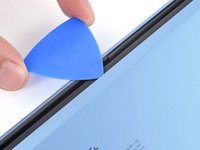
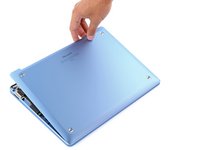
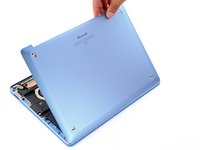
    • Twist the pick to lift the lower case enough that you can grip it with your hand.

  7. Battery Disconnection, Remove the lower case: 步骤 7 中的图像 1,3 Battery Disconnection, Remove the lower case: 步骤 7 中的图像 2,3 Battery Disconnection, Remove the lower case: 步骤 7 中的图像 3,3
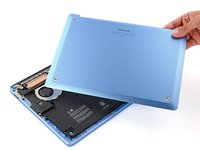
    • Lift the lower case and remove it.

  8. Battery Disconnection, Disconnect the battery: 步骤 8 中的图像 1,3 Battery Disconnection, Disconnect the battery: 步骤 8 中的图像 2,3 Battery Disconnection, Disconnect the battery: 步骤 8 中的图像 3,3
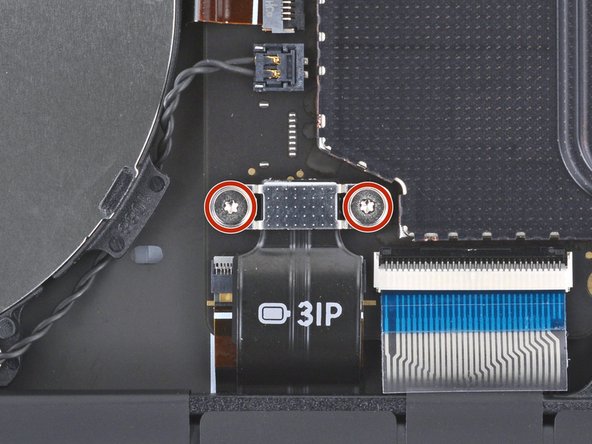
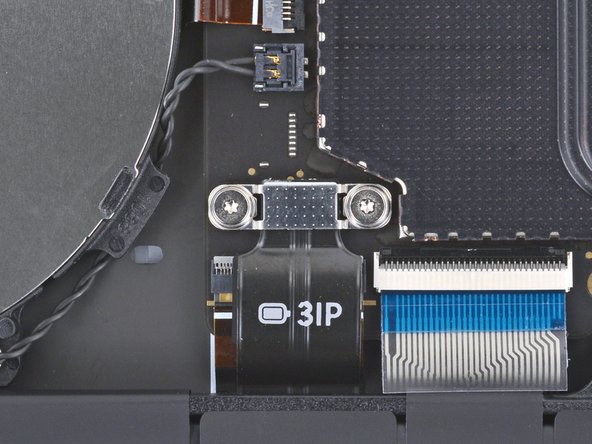
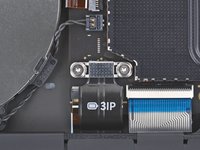
    • Use a Torx Plus 3IP screwdriver to remove the two 2.3 mm‑long screws securing the battery connector cover.

  9. Battery Disconnection: 步骤 9 中的图像 1,2 Battery Disconnection: 步骤 9 中的图像 2,2
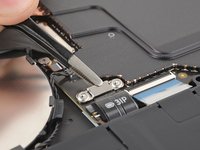
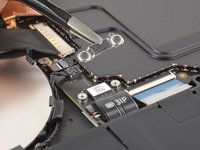
    • Use tweezers or your fingers to remove the battery connector cover.

  10. Battery Disconnection: 步骤 10 中的图像 1,2 Battery Disconnection: 步骤 10 中的图像 2,2
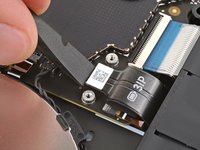
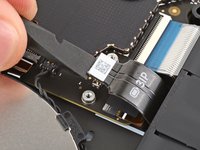
    • Insert the flat end of a spudger under the top edge of the battery press connector and pry up to disconnect it.

    • To reconnect a press connector, align it over the socket and gently press down on one side until it clicks into place, then press down on the other side. It may take a few tries to align the connector—don't try to force it into place.

终点

Spencer Day

于09/14/22注册

155,533 声望

创作了1,033篇指南

团队

iFixit iFixit 的会员

Staff

123 名成员

创作了23,791篇指南

0指南评论

添加评论

浏览统计数据:

过去 24 小时: 0

过去 7 天: 1

过去 30 天: 2

总计 41