跳转到主内容

Battery Disconnect

仅作为前提条件
本指南仅提供前提条件!本指南是另一个程序的一部分,不能单独使用。

你所需要的

  1. Battery Disconnect, Prepare your laptop for disassembly: 步骤 1 中的图像 1,2 Battery Disconnect, Prepare your laptop for disassembly: 步骤 1 中的图像 2,2
    • Allow your laptop's battery to drain below 25% before starting this repair—a charged battery may catch fire if damaged.

    • Unplug all cables, fully shut down your laptop, and close the lid.

  2. Battery Disconnect, Unfasten the back cover: 步骤 2 中的图像 1,2 Battery Disconnect, Unfasten the back cover: 步骤 2 中的图像 2,2
    • Use a T5 Torx driver to remove the ten 3.8 mm‑long screws securing the back cover.

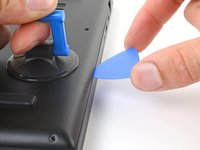
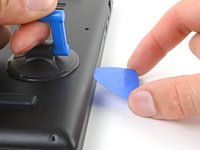
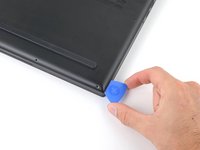
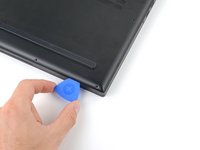
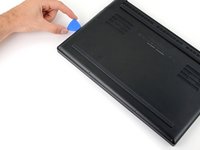
  3. Battery Disconnect, Insert an opening pick: 步骤 3 中的图像 1,3 Battery Disconnect, Insert an opening pick: 步骤 3 中的图像 2,3 Battery Disconnect, Insert an opening pick: 步骤 3 中的图像 3,3
    • Depending on the age and condition of your laptop, the back cover may come off sooner than this guide instructs. If it feels loose, remove it at any time.

    • Apply a suction handle to the middle of the back cover's right edge, between the lower rubber foot and the middle screws.

    • Pull up on the suction handle to create a small gap between the back cover and the frame.

    • Insert an opening pick into the gap.

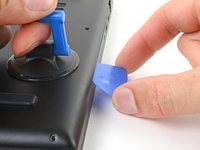
  4. Battery Disconnect, Angle the opening pick: 步骤 4 中的图像 1,3 Battery Disconnect, Angle the opening pick: 步骤 4 中的图像 2,3 Battery Disconnect, Angle the opening pick: 步骤 4 中的图像 3,3
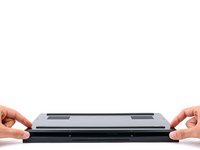
    • Angle your opening pick upward, away from the frame. Keep it angled upward as long as it's between the back cover and the frame.

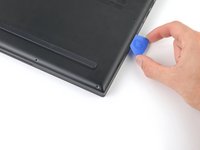
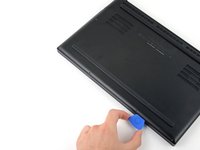
  5. Battery Disconnect, Free the bottom right corner: 步骤 5 中的图像 1,3 Battery Disconnect, Free the bottom right corner: 步骤 5 中的图像 2,3 Battery Disconnect, Free the bottom right corner: 步骤 5 中的图像 3,3
    • Slide your opening pick around the bottom right corner of the back cover to free it from the frame.

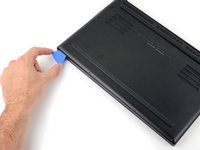
  6. Battery Disconnect, Free the front edge: 步骤 6 中的图像 1,3 Battery Disconnect, Free the front edge: 步骤 6 中的图像 2,3 Battery Disconnect, Free the front edge: 步骤 6 中的图像 3,3
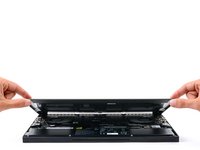
    • Slide your opening pick along the front edge and around the front left corner of the back cover to free it from the frame completely.

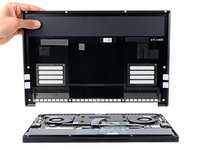
  7. Battery Disconnect, Remove the back cover: 步骤 7 中的图像 1,3 Battery Disconnect, Remove the back cover: 步骤 7 中的图像 2,3 Battery Disconnect, Remove the back cover: 步骤 7 中的图像 3,3
    • Remove the back cover.

    • Lay the back cover down on its rubber feet to avoid damaging the thermal pads.

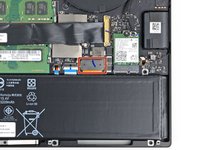
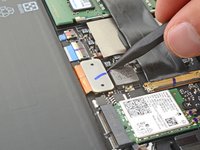
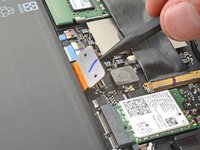
  8. Battery Disconnect, Disconnect the battery: 步骤 8 中的图像 1,3 Battery Disconnect, Disconnect the battery: 步骤 8 中的图像 2,3 Battery Disconnect, Disconnect the battery: 步骤 8 中的图像 3,3
    • Insert the point of a spudger under the middle of the battery connector's long edge.

    • Lift and disconnect the battery press connector from its socket on the motherboard.

    • This will require some force. Don't pry against any resistors or chips.

    • To re-attach press connectors like this one, carefully align and press down on one side until it clicks into place, then repeat on the other side. Don't press down in the middle. If the connector is misaligned, the pins can bend and cause permanent damage.

结论

To reassemble your device, follow these instructions in reverse order.

Spencer Day

于09/14/22注册

155,533 声望

创作了1,033篇指南

团队

iFixit iFixit 的会员

Staff

123 名成员

创作了23,791篇指南

0指南评论

添加评论

浏览统计数据:

过去 24 小时: 0

过去 7 天: 0

过去 30 天: 1

总计 49