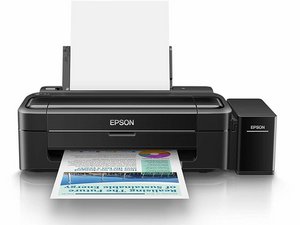

Why the printer couldn't feed the paper, it feeding sideways, so it ge
feeding paper problem, it feeding the paper sideways.

You can try those steps first
1. Check the paper guides
Open the paper tray and look at the adjustable guides on the sides.
Make sure they’re snug against the paper, but not too tight — if they’re loose, the paper can skew; if too tight, it can jam.
Also, ensure the paper stack is even and not curled or bent.
Over time, dust or paper debris can make the rollers lose grip.
Turn off and unplug the printer.
Open the back or front where you can access the feed rollers (usually grey rubber wheels).
Use a lint-free cloth slightly dampened with water or isopropyl alcohol to gently clean them.
Let dry before closing.
Don’t overload the tray — load only the recommended number of sheets.
Use paper that matches the printer’s specs (wrong thickness or size can cause skewing).
Fan the paper stack before loading to prevent sheets from sticking.
Shine a light into the paper feed path (from the rear tray and the output side).
Look inside the tray and paper path for bits of torn paper, labels, or foreign objects.
Carefully remove any obstruction with tweezers if needed.
Most printers have a self-test or alignment page option in the menu.
Run that after cleaning — if it feeds straight, the issue is likely solved.
In some cases, software settings for paper size or type can cause feed errors.
Check your printer driver or settings panel to ensure the selected paper type matches what’s loaded.
Open Epson Printer Utility on your PC.
Go to Maintenance → Printer and Option Information → Reset Printer.
这个答案有帮助吗?
过去 24 小时: 0
过去 7 天: 2
过去 30 天: 14
总计 46
