跳转到主内容

why! N131WU Screen Replacement

你所需要的

  1. why! N131WU Screen Replacement, Remove the Screws: 步骤 1 中的图像 1,1
    • Remove the case screws (red) and the keyboard screws (green).

    • Be sure not to lose these screws. You will need them to reassemble your laptop.

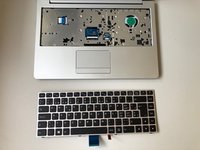
  2. why! N131WU Screen Replacement, Remove the Keyboard: 步骤 2 中的图像 1,3 why! N131WU Screen Replacement, Remove the Keyboard: 步骤 2 中的图像 2,3 why! N131WU Screen Replacement, Remove the Keyboard: 步骤 2 中的图像 3,3
    • Using the hole provided under the case (see picture), push the keyboard out using a thin screwdriver or some other solid object.

    • Hold onto the keyboard as you push the keyboard so as not to damage the two cables still attached.

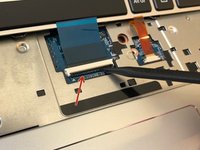
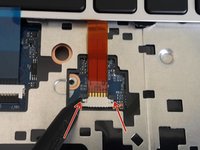
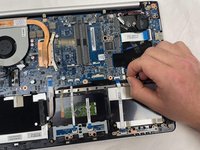
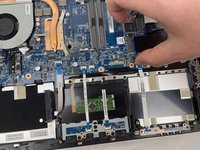
  3. why! N131WU Screen Replacement, Remove Keyboard Connections: 步骤 3 中的图像 1,3 why! N131WU Screen Replacement, Remove Keyboard Connections: 步骤 3 中的图像 2,3 why! N131WU Screen Replacement, Remove Keyboard Connections: 步骤 3 中的图像 3,3
    • (Blue Cable) Push up on the thin black portion on the connector and gently pull out the blue ribbon cable until it comes out.

    • (Orange Cable) Remove the orange cable by sliding the gray part of the connector towards the screen, then gently pull on the ribbon cable.

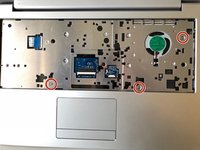
  4. why! N131WU Screen Replacement, Remove the upper screws: 步骤 4 中的图像 1,2 why! N131WU Screen Replacement, Remove the upper screws: 步骤 4 中的图像 2,2
    • Unscrew the three screws that were under the keyboard. Be sure to hold onto these.

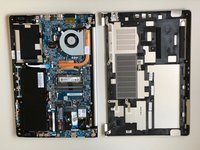
    • After these are removed, you can now remove the lower part of the case from the rest of the computer.

  5. why! N131WU Screen Replacement, Remove the SSD: 步骤 5 中的图像 1,3 why! N131WU Screen Replacement, Remove the SSD: 步骤 5 中的图像 2,3 why! N131WU Screen Replacement, Remove the SSD: 步骤 5 中的图像 3,3
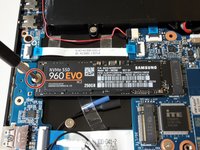
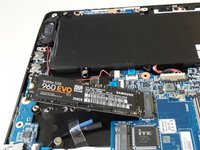
    • Remove the screw holding in the ssd.

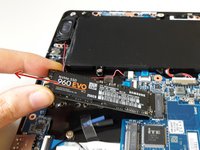
    • Carefully remove the SSD from the connector.

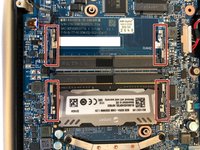
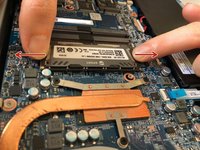
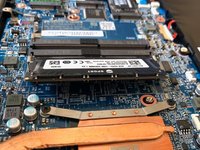
  6. why! N131WU Screen Replacement, RAM (Memory): 步骤 6 中的图像 1,3 why! N131WU Screen Replacement, RAM (Memory): 步骤 6 中的图像 2,3 why! N131WU Screen Replacement, RAM (Memory): 步骤 6 中的图像 3,3
    • Gently pull outwards on the clips to free the RAM stick.

    • Remove the RAM Stick from its slot.

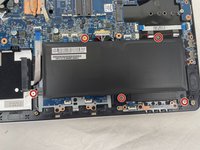
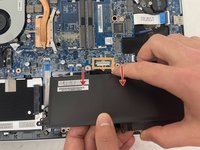
  7. why! N131WU Screen Replacement, Battery: 步骤 7 中的图像 1,2 why! N131WU Screen Replacement, Battery: 步骤 7 中的图像 2,2
    • Remove the five Phillips screws securing the battery.

    • Unplug the power connector and lift the battery out in the direction of the arrows to remove it.

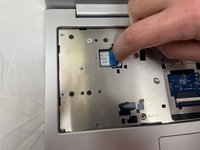
  8. why! N131WU Screen Replacement, Motherboard: 步骤 8 中的图像 1,3 why! N131WU Screen Replacement, Motherboard: 步骤 8 中的图像 2,3 why! N131WU Screen Replacement, Motherboard: 步骤 8 中的图像 3,3
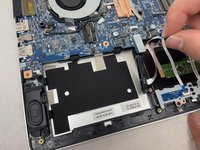
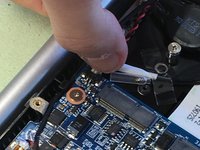
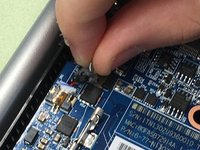
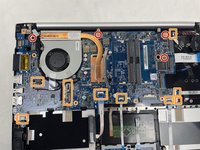
    • Lift the retaining latch and unplug the ZIF cable found under the keyboard.

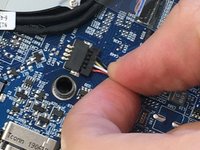
    • Disconnect the nine marked cables as detailed in the following steps.

    • Remove the four screws securing the motherboard to the case.

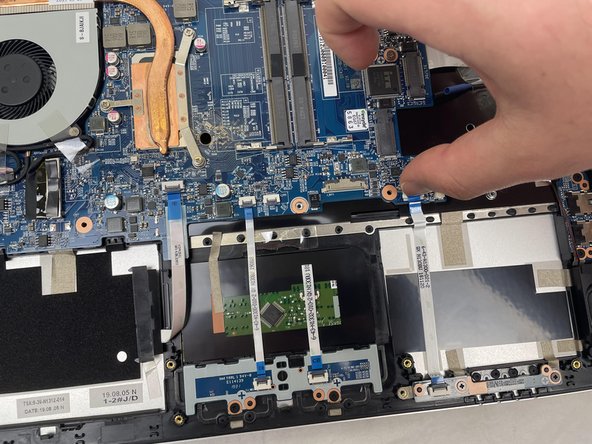
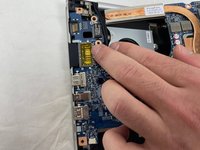
  9. why! N131WU Screen Replacement, ZIF Connectors: 步骤 9 中的图像 1,3 why! N131WU Screen Replacement, ZIF Connectors: 步骤 9 中的图像 2,3 why! N131WU Screen Replacement, ZIF Connectors: 步骤 9 中的图像 3,3
    • The cables with the blue reinforcing tabs are ZIF connectors that require you to lift the retaining lever before removing the cable.

  10. why! N131WU Screen Replacement, SATA Cable: 步骤 10 中的图像 1,3 why! N131WU Screen Replacement, SATA Cable: 步骤 10 中的图像 2,3 why! N131WU Screen Replacement, SATA Cable: 步骤 10 中的图像 3,3
    • Remove the SATA3 cable from the motherboard after disconnecting it.

  11. why! N131WU Screen Replacement, Motherboard (continued): 步骤 11 中的图像 1,2 why! N131WU Screen Replacement, Motherboard (continued): 步骤 11 中的图像 2,2
    • Don't forget to remove these cables.

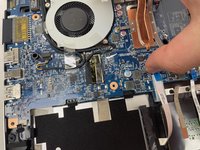
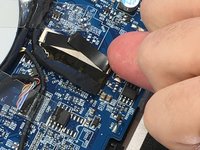
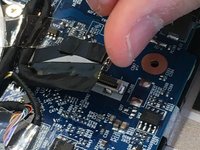
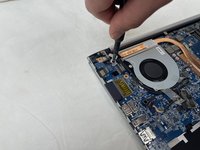
  12. why! N131WU Screen Replacement, Display Connector: 步骤 12 中的图像 1,2 why! N131WU Screen Replacement, Display Connector: 步骤 12 中的图像 2,2
    • Note: The original instructions call for inserting your thumbnail firmly under the base of the display connector

    • However, the proper way to remove the display connector is to grasp the plastic strap on top of the connector and use it to pull the connector straight up.

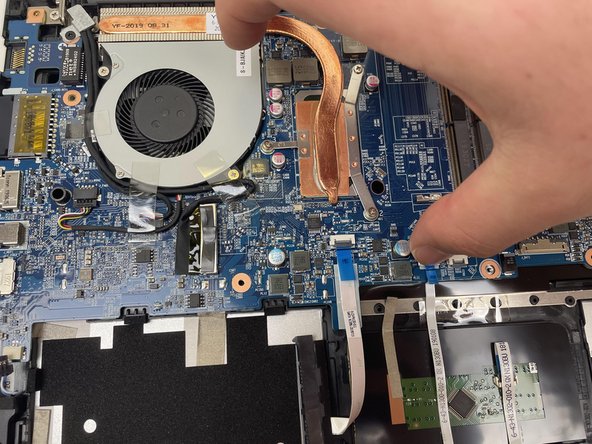
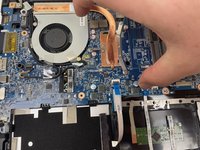
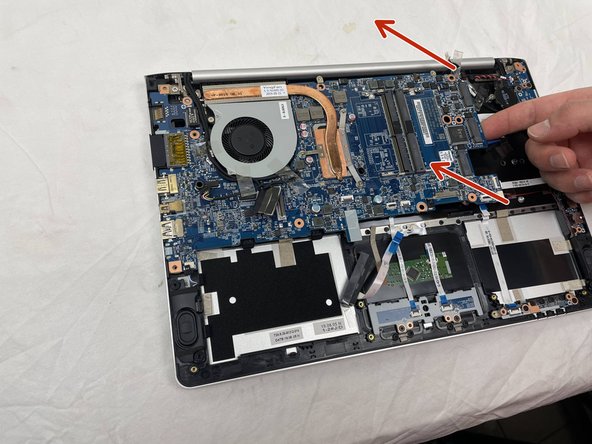
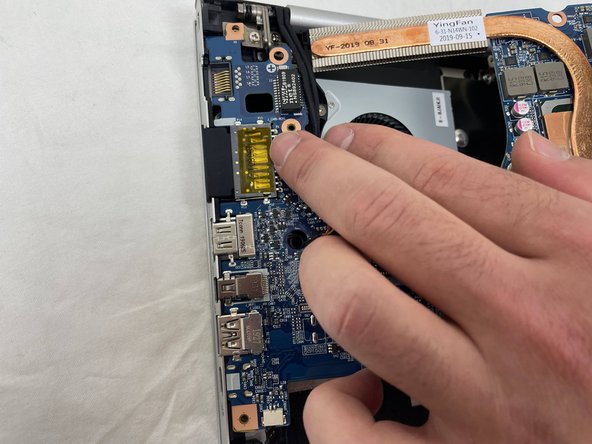
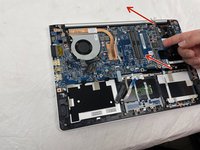
  13. why! N131WU Screen Replacement, Remove the Motherboard: 步骤 13 中的图像 1,3 why! N131WU Screen Replacement, Remove the Motherboard: 步骤 13 中的图像 2,3 why! N131WU Screen Replacement, Remove the Motherboard: 步骤 13 中的图像 3,3
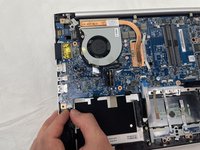
    • Once the screws have been removed, carefully lift the motherboard from the end indicated by the arrows.

    • Remember to disconnect the cables near the fan.

  14. why! N131WU Screen Replacement, Motherboard (continued): 步骤 14 中的图像 1,1
    • The motherboard has been successfully removed.

  15. why! N131WU Screen Replacement, Screen: 步骤 15 中的图像 1,3 why! N131WU Screen Replacement, Screen: 步骤 15 中的图像 2,3 why! N131WU Screen Replacement, Screen: 步骤 15 中的图像 3,3
    • Unclip the display bezel from the frame starting at the top.

    • To remove the lower part, open the display as far as possible.

    • Warning, the frame of the screen may be glued at the bottom. When pulling as shown, there is a big risk of damaging the screen. You may want to use a plastic tab to separate it gradually.

  16. why! N131WU Screen Replacement: 步骤 16 中的图像 1,2 why! N131WU Screen Replacement: 步骤 16 中的图像 2,2
    • The LCD is secured with adhesive. Use an opening pick to separate the LCD from the display lid.

    • Carefully lay the LCD down on the keyboard.

    • Unplug the display connector at the bottom of the screen.

结论

To reassemble your device, follow these instructions in reverse order.

由衷感谢以下译者:

fr en

100%

这些译者帮助我们修补全世界! 您也想加入吗?
开始翻译 ›

Felice Suglia

于06/15/13注册

33,538 声望

创作了283篇指南

5指南评论

bonjour, pourriez-vous rajouter la manière dont on débranche le cable EDP entre carte mère et écran,

je n'ose pas tirer et je ne sais dans quelle direction! merci!

Didier Chakchouka - 回复
Step 14 of the why! N131WU Motherboard Replacement guide shows how to unplug the other end of the display cable from the motherboard. You will need to follow the first four steps of that guide in order to gain access to it.

Jerry Wheeler -
merci! je vais regarder cela!

Didier Chakchouka - 回复

Bonjour ,

Il n'est pas nécessaire de retirer la carte mère , seules les étapes 15 et 16 sont nécessaire pour changer l'écran

EkimiaMichel - 回复

En effet, il n'est pas nécessaire de retirer la carte mère, mais il faut tout de même suivre l'étape 12 si on veut changer le câble EDP. Il n'est pas exclu que nous devrions mettre à jour certains de nos tutos.

Felice Suglia -

添加评论

浏览统计数据:

过去 24 小时: 0

过去 7 天: 0

过去 30 天: 7

总计 583