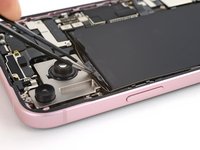
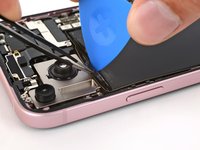
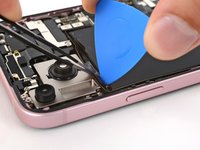
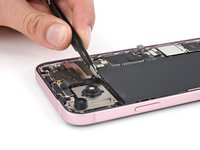
跳转到主内容

此翻译可能不反映源指南的最新更新。 帮助更新翻译查看源指南

iPhone 15 Plus 电池更换

你所需要的

  1. iPhone 15 Plus 电池更换, 準備拆卸您的手機: 步骤 1 中的图像 1,2 iPhone 15 Plus 电池更换, 準備拆卸您的手機: 步骤 1 中的图像 2,2
    • 請讓手機電池電量降至 25% 以下,因為充電的鋰離子電池有潛在的安全隱患。

    • 拔下手機上所有電線。

    • 按住電源鍵和任一音量鍵並滑動螢幕上的關機滑桿以關閉手機電源。

  2. iPhone 15 Plus 电池更换, 用膠帶覆蓋任何破裂處: 步骤 2 中的图像 1,2 iPhone 15 Plus 电池更换, 用膠帶覆蓋任何破裂處: 步骤 2 中的图像 2,2
    • 如果您的螢幕或後玻璃已嚴重破裂,請使用膠帶黏貼在玻璃上以保護自己並使拆卸更容易。

    • 請確保底部邊緣附近有一個足夠大的光滑區域,可以讓吸盤吸附。

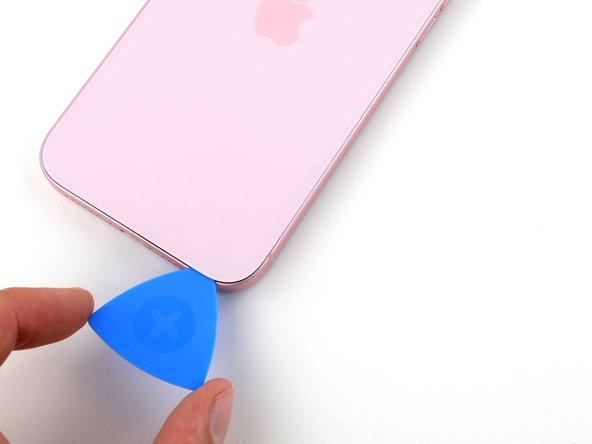
  3. iPhone 15 Plus 电池更换, 标记你的三角撬片: 步骤 3 中的图像 1,3 iPhone 15 Plus 电池更换, 标记你的三角撬片: 步骤 3 中的图像 2,3 iPhone 15 Plus 电池更换, 标记你的三角撬片: 步骤 3 中的图像 3,3
    • 如果插入太深,三角撬片可能会损坏你的设备。 按照此步骤标记撬片并防止损坏。

    • 从尖端测量 3 毫米,并用永久性记号笔标记三角撬片。

    • 你还可以将其他角用不同的长度标记

    • 或者,将一枚硬币 如图所示地 粘在距撬片尖端 3 毫米处。

  4. iPhone 15 Plus 电池更换, 卸下五角螺钉: 步骤 4 中的图像 1,1
    • 用 P2 五角螺丝刀卸掉充电端口两侧的两颗 7.7 毫米长的螺丝。

  5. iPhone 15 Plus 电池更换, 加热底部边缘: 步骤 5 中的图像 1,1
    • 使用吹风机热枪加热背面玻璃的底部边缘,直到摸到热。

    • 小心不要将手机加热得比这更热——电池很容易受到热损伤。

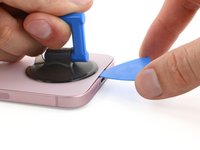
  6. iPhone 15 Plus 电池更换, 插入塑料拆机片: 步骤 6 中的图像 1,3 iPhone 15 Plus 电池更换, 插入塑料拆机片: 步骤 6 中的图像 2,3 iPhone 15 Plus 电池更换, 插入塑料拆机片: 步骤 6 中的图像 3,3
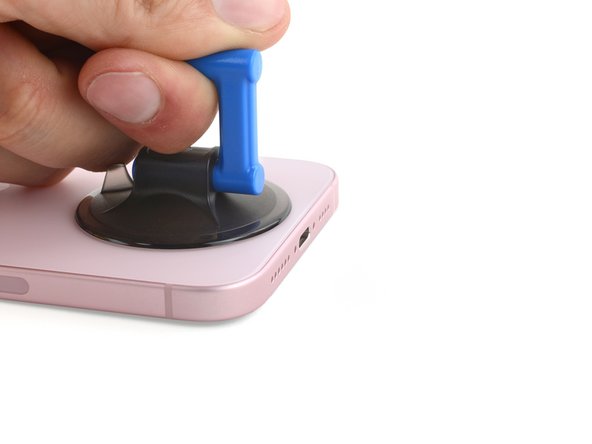
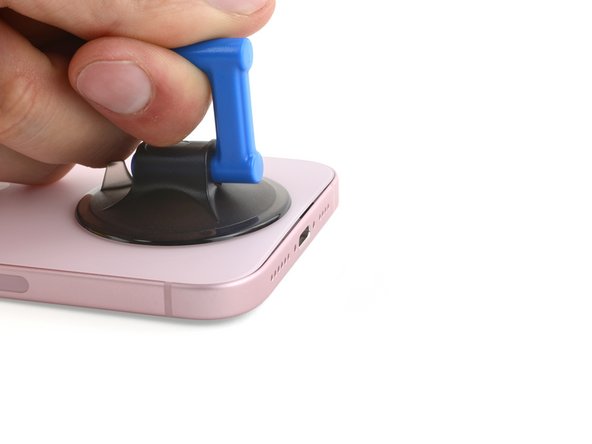
    • 在背面玻璃的底部边缘贴上吸力手柄。

    • 用力、稳定地拉起手柄,在后玻璃和框架之间形成间隙。

    • 将塑料拆机片的尖端插入间隙。

  7. iPhone 15 Plus 电池更换, 背面玻璃信息: 步骤 7 中的图像 1,1
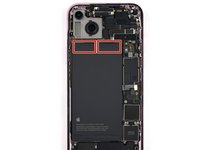
    • 在接下来的步骤中,在切割固定背面玻璃的粘合带时,请注意以下区域:

    • 音量调高按钮旁边有一根脆弱的电缆将背面玻璃连接到手机。不要在这里插入塑料拆机片,以免切入电缆。

    • 手机周边有多个弹簧触点。格外小心,不要在每个步骤中将拆机片插入超过建议的深度,以免弯曲这些触点。

  8. iPhone 15 Plus 电池更换, 分离底部边缘粘合带: 步骤 8 中的图像 1,3 iPhone 15 Plus 电池更换, 分离底部边缘粘合带: 步骤 8 中的图像 2,3 iPhone 15 Plus 电池更换, 分离底部边缘粘合带: 步骤 8 中的图像 3,3
    • 不要将塑料拆机片插入底部边缘超过5毫米

    • 沿着底部边缘来回滑动,以分离粘合剂。

    • 将您的拆机片插入右下角,以防止粘合剂重新密封。

  9. iPhone 15 Plus 电池更换, 加热右边缘: 步骤 9 中的图像 1,1
    • 加热背面玻璃的右边缘,直到摸到热。

  10. iPhone 15 Plus 电池更换, 分离右下角粘合带: 步骤 10 中的图像 1,3 iPhone 15 Plus 电池更换, 分离右下角粘合带: 步骤 10 中的图像 2,3 iPhone 15 Plus 电池更换, 分离右下角粘合带: 步骤 10 中的图像 3,3
    • 不要将塑料拆机片插入右边缘超过7毫米

    • 围绕右下角旋转拆机片,然后将其滑到右边缘的中部,或直到您感觉到固定背面玻璃的卡扣产生的阻力时停止。

    • 不要在音量按钮附近滑动拆机片,以免损坏无线充电线。

    • 将塑料拆机片留在此处,以防止粘合剂重新密封。

  11. iPhone 15 Plus 电池更换, 加热左边缘: 步骤 11 中的图像 1,1
    • 加热背面玻璃的左边缘,直到摸得热。

  12. iPhone 15 Plus 电池更换, 分离左边缘粘合剂: 步骤 12 中的图像 1,3 iPhone 15 Plus 电池更换, 分离左边缘粘合剂: 步骤 12 中的图像 2,3 iPhone 15 Plus 电池更换, 分离左边缘粘合剂: 步骤 12 中的图像 3,3
    • 不要将塑料拆机片插入左边缘超过5毫米

    • 在底部边缘插入第二个塑料拆机片。

    • 围绕左下角旋转第二个拆机片。

    • 将此拆机片滑到左上角,以分离粘合带。

    • 将此拆机片留在此处,以防止粘合剂重新密封。

  13. iPhone 15 Plus 电池更换, 加热顶部边缘: 步骤 13 中的图像 1,1
    • 加热背面玻璃的顶部边缘,直到用手触摸可以感到热。

  14. iPhone 15 Plus 电池更换, 分离顶部边缘粘合剂: 步骤 14 中的图像 1,3 iPhone 15 Plus 电池更换, 分离顶部边缘粘合剂: 步骤 14 中的图像 2,3 iPhone 15 Plus 电池更换, 分离顶部边缘粘合剂: 步骤 14 中的图像 3,3
    • 不要将塑料拆机片插入顶部边缘超过3毫米

    • 围绕左上角旋转第二个拆机片,然后将其滑到右上角,分离粘合带。

    • 当前两个卡扣释放时,你可能会听到和感觉到咔嗒声。

    • 将此拆机片留在原位,以防止粘合剂重新密封。

  15. iPhone 15 Plus 电池更换, 加热右上角: 步骤 15 中的图像 1,1
    • 加热背面玻璃的右上角,直到摸到热。

  16. iPhone 15 Plus 电池更换, 分离右上角粘合带: 步骤 16 中的图像 1,3 iPhone 15 Plus 电池更换, 分离右上角粘合带: 步骤 16 中的图像 2,3 iPhone 15 Plus 电池更换, 分离右上角粘合带: 步骤 16 中的图像 3,3
    • 不要将塑料拆机片插入右边缘插入超过4毫米

    • 围绕右上角旋转第二个塑料拆机片,然后将其滑到调高音量按钮处,以分离粘合带。

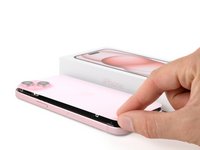
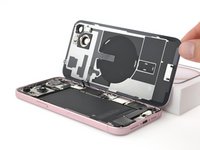
  17. iPhone 15 Plus 电池更换, 摆动打开后盖玻璃: 步骤 17 中的图像 1,2 iPhone 15 Plus 电池更换, 摆动打开后盖玻璃: 步骤 17 中的图像 2,2
    • 轻轻地打开手机右侧的背面玻璃。

    • 如果尝试掀开玻璃时感受到阻力,请沿四周检查是否有未分离的粘合剂或卡扣。

    • 将背面玻璃靠在凸起的表面上,这样就不会拉伤电缆。

  18. iPhone 15 Plus 电池更换, 解开下方连接器护盖: 步骤 18 中的图像 1,2 iPhone 15 Plus 电池更换, 解开下方连接器护盖: 步骤 18 中的图像 2,2
    在这个步骤中使用的工具:
    FixMat
    $31.41
    • 在整个维修过程中,跟踪每个螺丝,并确保它准确地回到原处。

    • 使用三点 Y000 螺丝刀卸下固定下部连接器盖的两颗 1.3 毫米长的螺丝。

  19. iPhone 15 Plus 电池更换, 拆下下部连接器护盖: 步骤 19 中的图像 1,3 iPhone 15 Plus 电池更换, 拆下下部连接器护盖: 步骤 19 中的图像 2,3 iPhone 15 Plus 电池更换, 拆下下部连接器护盖: 步骤 19 中的图像 3,3
    在这个步骤中使用的工具:
    Tweezers
    $4.99
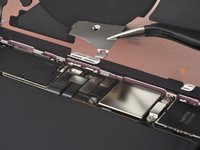
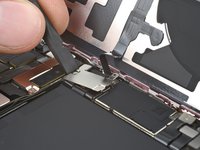
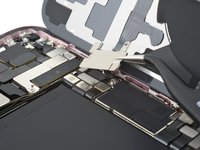
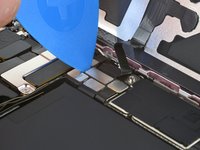
    • 镊子 将护盖滑向手机顶部,以将其从主板上拉开。

    • 取下盖子。

    • 在重新组装期间,先将护盖的顶部边缘闩锁到主板上的插槽上,然后再用螺丝固定护盖。

  20. iPhone 15 Plus 电池更换: 步骤 20 中的图像 1,3 iPhone 15 Plus 电池更换: 步骤 20 中的图像 2,3 iPhone 15 Plus 电池更换: 步骤 20 中的图像 3,3
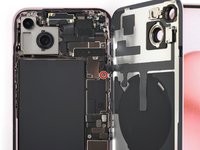
    • 用一只手直握住后玻璃,然后向左旋转底部边缘,以显示音量按钮下方的电池按压连接器

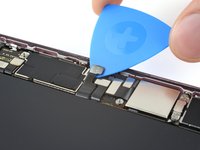
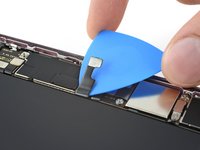
    • 用塑料拆机片的尖端撬起并断开电池按压器连接器与主板的连接。

    • 这个连接器的头部上印有加号和减号。

    • 要重新连接按压连接器,请将其对齐其插座,轻轻向下按压一侧,直到它卡入到位,然后向下按另一侧。确保它平放,因为插座周围的绝缘橡胶可能会阻止它完全连接。

  21. iPhone 15 Plus 电池更换, 卸除中间的排线盖板: 步骤 21 中的图像 1,2 iPhone 15 Plus 电池更换, 卸除中间的排线盖板: 步骤 21 中的图像 2,2
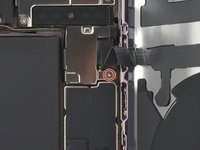
    • 使用三点式 Y000 螺丝刀卸下固定中间排线盖板的 0.9 毫米螺丝。

  22. iPhone 15 Plus 电池更换, 取下盖子: 步骤 22 中的图像 1,3 iPhone 15 Plus 电池更换, 取下盖子: 步骤 22 中的图像 2,3 iPhone 15 Plus 电池更换, 取下盖子: 步骤 22 中的图像 3,3
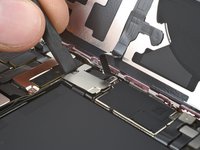
    • 用撬棒扁平一端或手指将保护盖推向手机底部,使其顶部边缘翘起。

    • 取下保护盖。

    • 在重新组装过程中,将保护盖放在 主板上的卡扣 后面。用一根手指向下按压,然后向前滑动盖子以接合卡扣。

  23. iPhone 15 Plus 电池更换, 断开无线充电线圈的连接: 步骤 23 中的图像 1,2 iPhone 15 Plus 电池更换, 断开无线充电线圈的连接: 步骤 23 中的图像 2,2
    • 使用翘片来断开无线充电线圈和NFC线圈的连接

  24. iPhone 15 Plus 电池更换: 步骤 24 中的图像 1,1
    • 取下后玻璃。

    • 重新组装期间:

    • 在将手机密封之前,这是一个测试维修的好时机。暂时重新连接电池和后玻璃,打开手机电源,确保它正常工作。关闭电源并继续重新组装。

    • 使用本指南 重新涂抹粘合剂并安装后玻璃。

  25. iPhone 15 Plus 电池更换, 分离电池排线: 步骤 25 中的图像 1,2 iPhone 15 Plus 电池更换, 分离电池排线: 步骤 25 中的图像 2,2
    • 轻微的胶粘剂将电池排线固定在主板上。

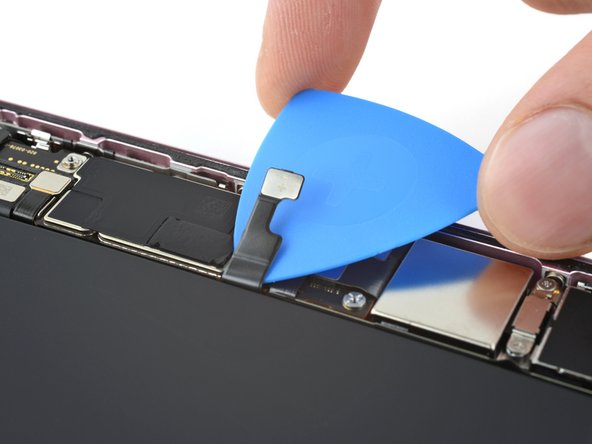
    • 将拆机撬片滑入电池排线下方,以将其从主板上分离。

    • 注意不要折弯排线或用工具压损电池。

  26. iPhone 15 Plus 电池更换, 揭起拉拔胶条的一角: 步骤 26 中的图像 1,3 iPhone 15 Plus 电池更换, 揭起拉拔胶条的一角: 步骤 26 中的图像 2,3 iPhone 15 Plus 电池更换, 揭起拉拔胶条的一角: 步骤 26 中的图像 3,3
    在这个步骤中使用的工具:
    Tweezers
    $4.99
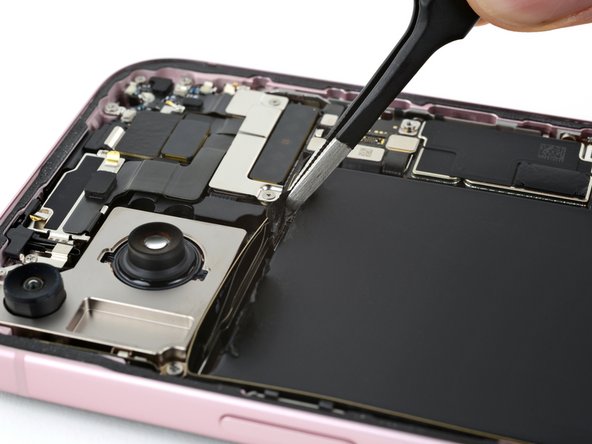
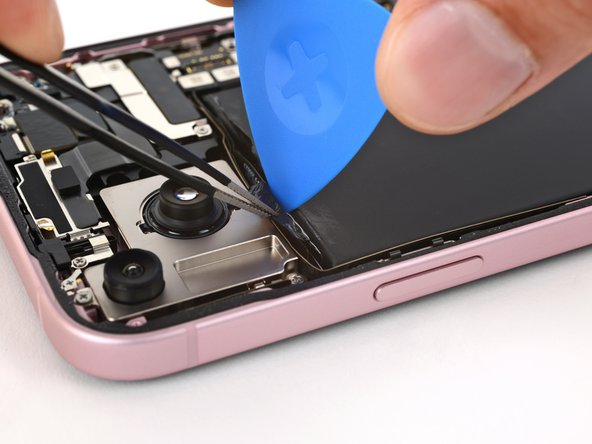
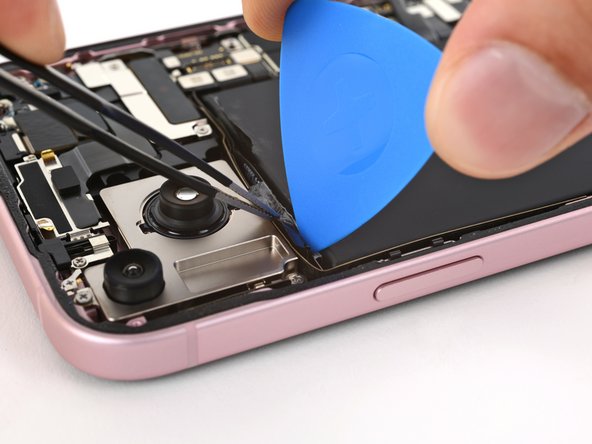
    • 你的 iPhone 电池是通过两条拉伸释放胶条固定的。接下来的四个步骤将展示如何移除这些胶条并释放电池。

    • 小心不要压损或刺穿电池,并避免在电池附近使用尖锐工具。

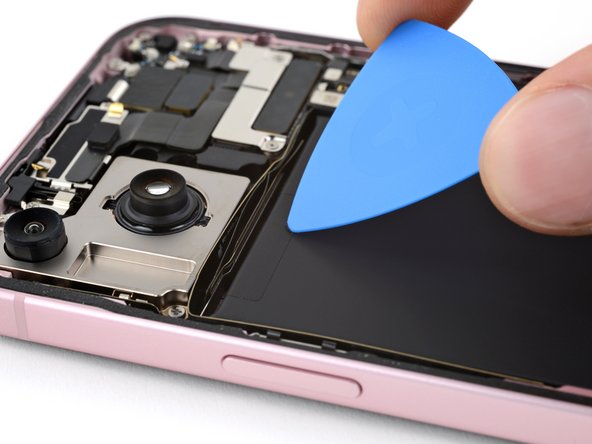
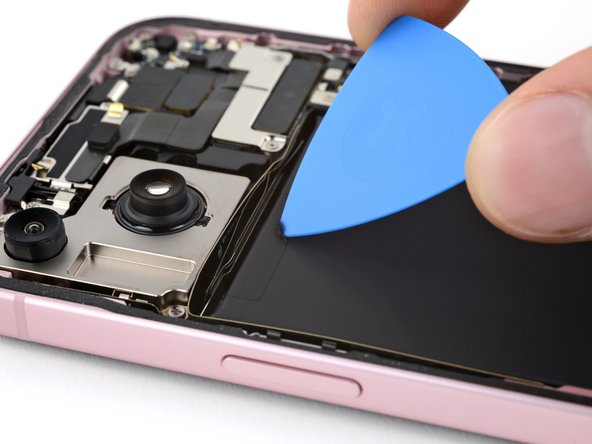
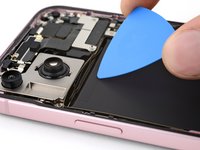
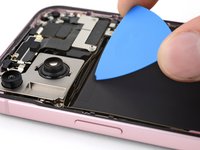
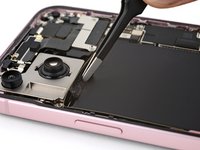
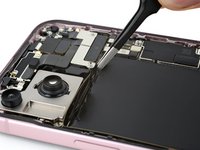
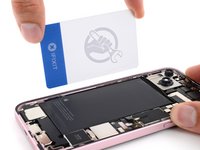
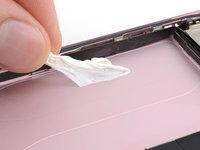
    • 使用拆机撬片的尖端,从电池顶部轻轻刮起每条拉伸释放胶条的一边,直到可以用钝头镊子夹住胶条。

  27. iPhone 15 Plus 电池更换, 拉起胶条: 步骤 27 中的图像 1,2 iPhone 15 Plus 电池更换, 拉起胶条: 步骤 27 中的图像 2,2
    • 使用钝头镊子夹住一条拉拔胶条,并将其从电池上撕起。

    • 此时不要尝试将胶条从电池下方拉出。

    • 对另一条胶条重复此操作。

  28. iPhone 15 Plus 电池更换, 释放电池顶部边缘: 步骤 28 中的图像 1,3 iPhone 15 Plus 电池更换, 释放电池顶部边缘: 步骤 28 中的图像 2,3 iPhone 15 Plus 电池更换, 释放电池顶部边缘: 步骤 28 中的图像 3,3
    • 拉伸释放胶粘剂缠绕在电池顶部边缘,必须在移除胶条前将其分离。

    • 使用镊子将其中一条拉拔胶条远离电池。

    • 使用拆机撬片切断固定胶条与电池顶部边缘的胶粘剂。

    • 对另一条拉拔胶条重复此操作。

  29. iPhone 15 Plus 电池更换, 移除拉伸释放胶粘剂: 步骤 29 中的图像 1,3 iPhone 15 Plus 电池更换, 移除拉伸释放胶粘剂: 步骤 29 中的图像 2,3 iPhone 15 Plus 电池更换, 移除拉伸释放胶粘剂: 步骤 29 中的图像 3,3
    • 使用钝头镊子夹住胶条拉拔标签的整个长度。

    • 扭动镊子,使胶条自我卷起,然后以低角度缓慢、均匀地从电池下方拉出。

    • 给胶条足够的伸展时间。拉出时避免将其拖过排线或元件。

    • 如果使用手指,应经常重新夹持胶条,以避免不均匀拉伸导致撕裂。

    • 对另一条胶条重复上述操作。

    • 如果某条胶条断裂,尝试从电池下方取出残留部分。如无法取出,也无需担心!继续下一步,使用替代方法。

  30. iPhone 15 Plus 电池更换, 替代方法:移除电池: 步骤 30 中的图像 1,2 iPhone 15 Plus 电池更换, 替代方法:移除电池: 步骤 30 中的图像 2,2
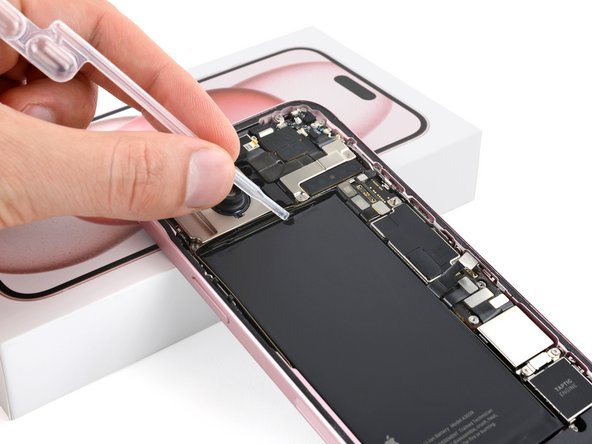
    • 如果你已经移除了两条拉伸释放胶条,恭喜——现在可以取出电池了!如果没有,请按照下面三步使用异丙醇和塑料卡片移除电池。

    • 将手机右侧(带音量按钮的一侧)抬起。

    • 使用移液管或注射器,在电池内侧边缘滴几滴高浓度(90%以上)异丙醇。

    • 将手机顶部边缘抬起,对电池上缘重复上述操作。

    • 等待一分钟,让异丙醇渗入电池下方并软化胶粘剂。

  31. iPhone 15 Plus 电池更换, 插入塑料卡片: 步骤 31 中的图像 1,3 iPhone 15 Plus 电池更换, 插入塑料卡片: 步骤 31 中的图像 2,3 iPhone 15 Plus 电池更换, 插入塑料卡片: 步骤 31 中的图像 3,3
    在这个步骤中使用的工具:
    Plastic Cards
    $2.99
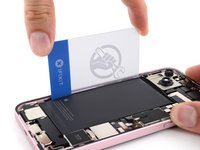
    • 不要折弯或弄皱电池。如果感觉卡住,可再滴几滴异丙醇后重试

    • 塑料卡片的长边插入电池左侧边缘与机身框架之间。

    • 固定手机,并撬起电池。

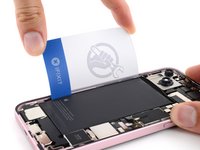
    • 根据胶粘剂的强度,这可能需要一些时间。持续施加压力,最多持续一分钟,直到胶粘剂松动。

  32. iPhone 15 Plus 电池更换, 撬起电池: 步骤 32 中的图像 1,2 iPhone 15 Plus 电池更换, 撬起电池: 步骤 32 中的图像 2,2
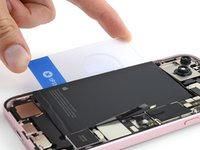
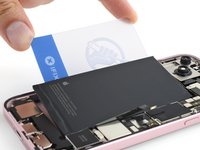
    • 将塑料卡片更深入地滑入电池下方,直到可以撬起电池。

    • 抬起电池,直到可以用手指抓住它。

  33. iPhone 15 Plus 电池更换, 移除电池: 步骤 33 中的图像 1,3 iPhone 15 Plus 电池更换, 移除电池: 步骤 33 中的图像 2,3 iPhone 15 Plus 电池更换, 移除电池: 步骤 33 中的图像 3,3
    在这个步骤中使用的工具:
    Stretch Release Battery Adhesive
    $3.99

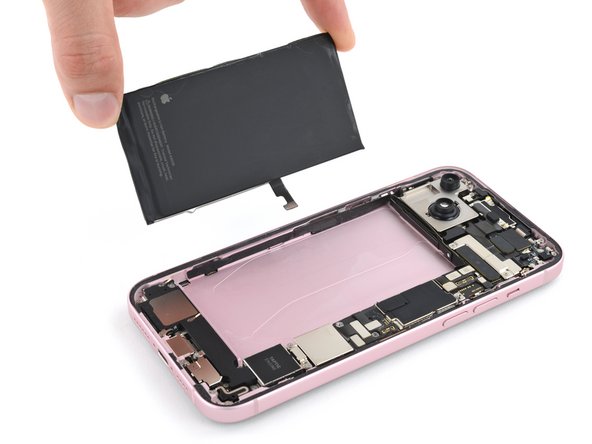
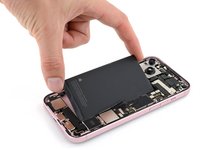
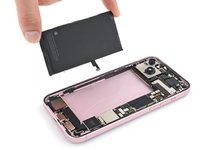
    • 移除电池。

    • 要安装新电池:

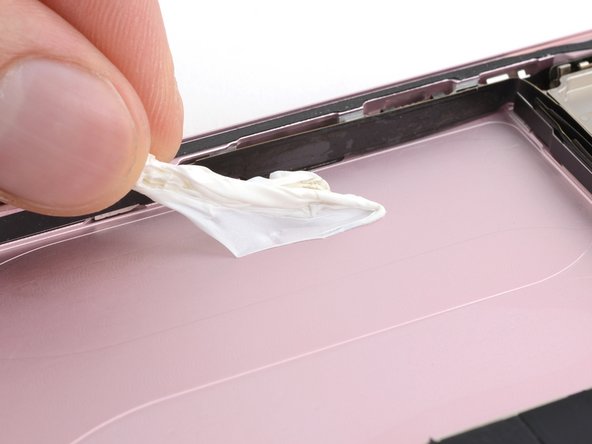
    • 使用异丙醇和无绒或微纤维布清洁机身框架。

    • 在粘贴胶前,先临时连接新电池并将其放入电池槽,检查是否合适且排线能达到主板插座。然后断开电池连接再继续。

    • 如果更换电池未预装胶条,请按照本指南安装新的拉伸释放胶条

    • 如果没有拉伸释放胶条,请使用薄双面胶带固定电池。

结论

要重新组装手机,请按照相反的顺序操作这些说明。

维修完成后,根据更换的零件,你可以通过 Apple 的 维修助手 进行校准(适用于 iOS 18 及更新版本)。请更新设备,前往 设置 通用 关于本机 零件与服务记录,点击“重新启动并完成维修”,然后按照屏幕提示操作。

为获得最佳性能,请在完成本指南后校准新安装的电池

请将电子废弃物送往R2 或 e-Stewards 认证的回收机构

维修没有按计划进行?请尝试一些基本故障排除,或向我们的 Answers 社区 寻求帮助。

8等其他人完成本指南。

由衷感谢以下译者:

en zh

95%

这些译者帮助我们修补全世界! 您也想加入吗?
开始翻译 ›

Clay Eickemeyer

于09/19/22注册

95,437 声望

创作了465篇指南

团队

Guide Team Guide Team 的会员

Staff

10 名成员

创作了15,768篇指南

3指南评论

I guess I don't get the rationale here. We come to iFixit, ostensibly to save money. Apple will replace the battery of virtually any iPhone for $69-$99, right? So, I buy an iFixit battery kit for $50. Then I have to purchase a heat gun or hair dryer, another $20-$25, then the back panel adhesive (which I can't find here for a 15 plus), so that's another $6, then I possibly need some 90% isopropyl alcohol for the battery adhesive (which is also a run to a store with time and money spent), and those things alone come to $85-$90. Which brings me to the point: Why would I bother to do a 1 hour (minimum) repair with all the fiddlies, and all the possibility of messing it up, when for about $10 service cost above the iFixit cost, I can just have a CERTIFIED GUARANTEED repair done at Apple. Right?

mothera - 回复

Everyone has a hair dryer in the house. And the apple repair is mor like 99 than 69, at least in my country. And I would pay no problem but they expect me to leave the phone and after that they order the battery and until it is delivered and repaired it takes a total of 10 days or so time where I don’t have my phone. Last time I just bought a new phone because of this but I got the ifixit battery replaced for a friend and he was very happy that it took 2 hours and he has the phone available same day. So yea… maybe it is not for you but it certainly is for a lot of people. Thank you ifixit for having an alternative.

Andrei Mihailescu -

So, do I not need to order a new adhesive seal for the back glass when my device is reassembled?

How about Step 19? Those photos don’t clearly illustrate the process of sliding that bracket up to remove it? Please be more clear with your photos if there is a specific “process” to be followed. You did a great job a few steps later with the other bracket.

I’ve done this before so it won’t be so confusing, but, I can imagine someone who’s never done this being super confused and worried they’re going to mess up their iPhone because of us unclear instructions.

To those saying this saves you no money due to the tools - fine, don’t do it. Go pay Apple extra $50 to have them do it. The tools that come with this kit are practically given away compared to the price of a battery alone and the heat gun or hair dryer can easily be substituted with anything that can heat up enough to soften the adhesive. I’ve used heating pads and microwaveable rice bags to do this.

Just read the instructions, be patient, and GO SLOW.

jsolan81 - 回复

添加评论

浏览统计数据:

过去 24 小时: 43

过去 7 天: 262

过去 30 天: 1,153

总计 14,036