跳转到主内容
加入维修社区 - 创建账户

iMac G5 20" Model A1076 Left Fan Replacement

你所需要的

    1. iMac G5 20" Model A1076 Left Fan Replacement, Rear Panel: 步骤 1 中的图像 1,1
      • Lay the iMac display-side down on a flat surface (putting a cloth under the screen to protect it from bumps).

      • Loosen the three Phillips screws securing the rear panel to the iMac.

      • These screws are captive in the iMac. The center screw will stop turning after about 3.5 turns and the outer screws will stop turning after about 5.5 turns. Do not try to remove these screws from your iMac.

      添加评论

    2. iMac G5 20" Model A1076 Left Fan Replacement: 步骤 2 中的图像 1,2 iMac G5 20" Model A1076 Left Fan Replacement: 步骤 2 中的图像 2,2
      • Lift the rear panel slightly near the bottom of the iMac.

      • Pull the rear panel toward yourself and remove it from the iMac.

      询问修复机器人

      添加评论

    1. iMac G5 20" Model A1076 Left Fan Replacement, Left Fan: 步骤 3 中的图像 1,1
      • Remove the two 9.7 mm shouldered T8 Torx screws from the left fan.

      询问修复机器人

      添加评论

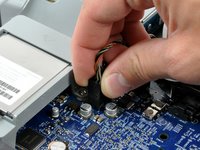
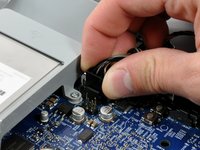
    2. iMac G5 20" Model A1076 Left Fan Replacement: 步骤 4 中的图像 1,2 iMac G5 20" Model A1076 Left Fan Replacement: 步骤 4 中的图像 2,2
      • Disconnect both fans by pulling their connectors straight up off the logic board.

      • The connector for the left fan requires a considerable amount of force to remove. If you bend the pins on the logic board, use the fan connector as a guide to bend them straight.

      询问修复机器人

      添加评论

    3. iMac G5 20" Model A1076 Left Fan Replacement: 步骤 5 中的图像 1,1
      • Lift the left fan out of the chassis, minding any cables that may get caught.

      询问修复机器人

      添加评论

结论

To reassemble your device, follow these instructions in reverse order.

取消:我没有完成这个指南。

2等其他人完成本指南。

0指南评论

添加评论

浏览统计数据:

过去 24 小时: 1

过去 7 天: 6

过去 30 天: 37

总计 6,986