跳转到主内容
加入维修社区 - 创建账户

Wii U GamePad LCD Display Replacement

已存档的指南
本指南只作为历史记录保留。请使用指南的最新版本来进行维修。

你所需要的

视频概述

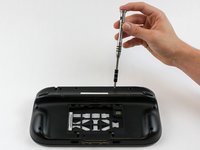
    1. Wii U GamePad LCD Display Replacement, Battery: 步骤 1 中的图像 1,1
      • Place Gamepad face down and remove the two 4.7 mm screws with a Phillips size #00 screwdriver.

      添加评论

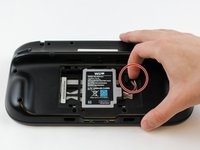
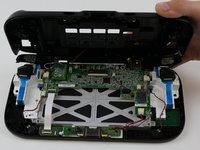
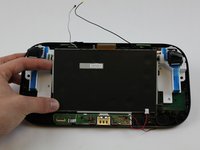
    2. Wii U GamePad LCD Display Replacement: 步骤 2 中的图像 1,1
      • Lift and remove the battery plate.

      询问修复机器人
      添加评论

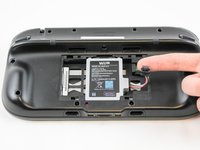
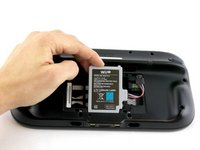
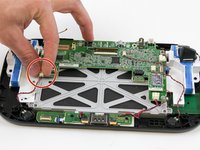
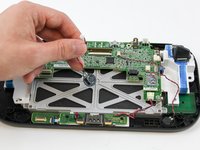
    3. Wii U GamePad LCD Display Replacement: 步骤 3 中的图像 1,3 Wii U GamePad LCD Display Replacement: 步骤 3 中的图像 2,3 Wii U GamePad LCD Display Replacement: 步骤 3 中的图像 3,3
      • With your finger, press down and pull back on the battery connector plug.

      • Remove the battery from the battery case.

      添加评论

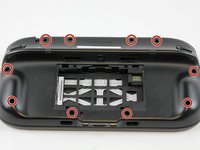
    1. Wii U GamePad LCD Display Replacement, Outer Case: 步骤 4 中的图像 1,3 Wii U GamePad LCD Display Replacement, Outer Case: 步骤 4 中的图像 2,3 Wii U GamePad LCD Display Replacement, Outer Case: 步骤 4 中的图像 3,3
      • Remove 10 9mm screws with Tri-Wing size Y1 screwdriver around the outer case.

      • Lift up on the back of case.

      • Lift gently because the rumble motor in the back of the case is still connected by a cable to the motherboard.

      添加评论

    2. Wii U GamePad LCD Display Replacement: 步骤 5 中的图像 1,1
      • Unplug outer case rumble motor connector from the motherboard with your fingers.

      • Do not pull on the wires as shown in this picture, they will likely break off. Pull directly on the plug (NOT the receptacle)

      添加评论

    1. Wii U GamePad LCD Display Replacement, Speakers: 步骤 6 中的图像 1,2 Wii U GamePad LCD Display Replacement, Speakers: 步骤 6 中的图像 2,2
      • With your fingers, unplug the left speaker cable from the motherboard.

      添加评论

    2. Wii U GamePad LCD Display Replacement: 步骤 7 中的图像 1,2 Wii U GamePad LCD Display Replacement: 步骤 7 中的图像 2,2
      在这个步骤中使用的工具:
      Tweezers
      $4.99
      • Remove the right speaker cable that's connected to the motherboard with the tweezers.

      添加评论

    1. Wii U GamePad LCD Display Replacement, Wi-Fi Board: 步骤 8 中的图像 1,3 Wii U GamePad LCD Display Replacement, Wi-Fi Board: 步骤 8 中的图像 2,3 Wii U GamePad LCD Display Replacement, Wi-Fi Board: 步骤 8 中的图像 3,3
      在这个步骤中使用的工具:
      Tweezers
      $4.99
      • Open the top and bottom clasp that connects the white flex cable to the motherboard with the tweezer.

      • Remove the white flex cable with the tweezers.

      添加评论

    2. Wii U GamePad LCD Display Replacement: 步骤 9 中的图像 1,2 Wii U GamePad LCD Display Replacement: 步骤 9 中的图像 2,2
      • With your fingers, lift and remove Wi-Fi board.

      • Remove the board carefully as there are still two wires attached.

      添加评论

    3. Wii U GamePad LCD Display Replacement: 步骤 10 中的图像 1,2 Wii U GamePad LCD Display Replacement: 步骤 10 中的图像 2,2
      • Disconnect the black and white wires off of the back of the Wi-Fi module.

      添加评论

    4. Wii U GamePad LCD Display Replacement: 步骤 11 中的图像 1,1
      • Lift and remove the Wi-Fi module.

      添加评论

    1. Wii U GamePad LCD Display Replacement, Motherboard: 步骤 12 中的图像 1,1
      在这个步骤中使用的工具:
      Tweezers
      $4.99
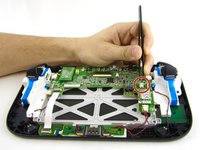
      • Disconnect the analog connector with tweezers.

      添加评论

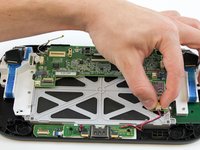
    2. Wii U GamePad LCD Display Replacement: 步骤 13 中的图像 1,2 Wii U GamePad LCD Display Replacement: 步骤 13 中的图像 2,2
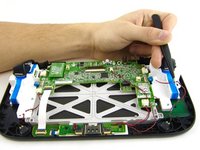
      • Remove the blue connector using tweezers.

      添加评论

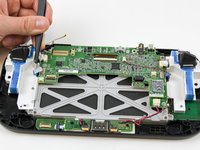
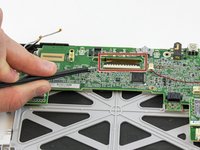
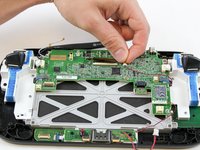
    3. Wii U GamePad LCD Display Replacement: 步骤 14 中的图像 1,2 Wii U GamePad LCD Display Replacement: 步骤 14 中的图像 2,2
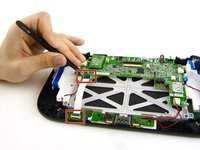
      • Carefully lift the black clasp. It is prone to breaking if only lifted from one point. Remove the brown ribbon by using the tweezers.

      • Unclasp and release the small digitizer ribbon cable to the left of the brown ribbon.

      • Be careful, the small clasp breaks easily.

      添加评论

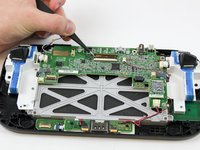
    4. Wii U GamePad LCD Display Replacement: 步骤 15 中的图像 1,1
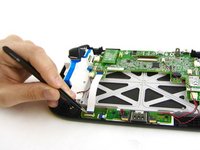
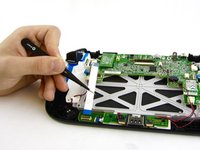
      • Remove the small orange ribbon with the tweezers.

      添加评论

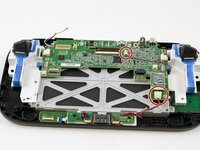
    5. Wii U GamePad LCD Display Replacement: 步骤 16 中的图像 1,3 Wii U GamePad LCD Display Replacement: 步骤 16 中的图像 2,3 Wii U GamePad LCD Display Replacement: 步骤 16 中的图像 3,3
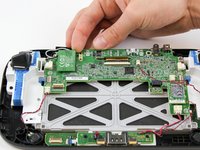
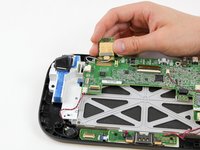
      • Remove these two connectors to the motherboard with your fingers.

      询问修复机器人
      添加评论

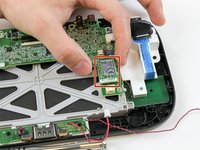
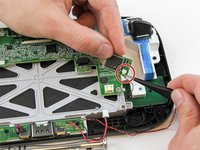
    6. Wii U GamePad LCD Display Replacement: 步骤 17 中的图像 1,2 Wii U GamePad LCD Display Replacement: 步骤 17 中的图像 2,2
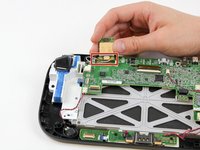
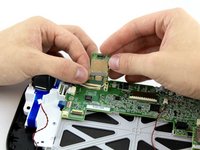
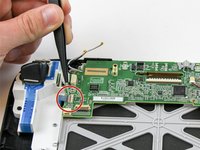
      • Remove the NFC communicator.

      • When removing the NFC communicator, be careful with the small connector on the back side.

      • Remove the small connector plug-in on the back.

      添加评论

    7. Wii U GamePad LCD Display Replacement: 步骤 18 中的图像 1,3 Wii U GamePad LCD Display Replacement: 步骤 18 中的图像 2,3 Wii U GamePad LCD Display Replacement: 步骤 18 中的图像 3,3
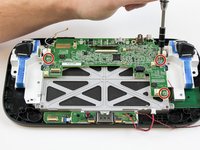
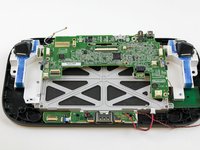
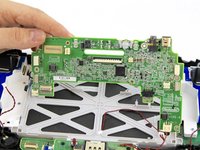
      • Remove the remaining three 5.1 mm screws using the Phillips size #0 screwdriver.

      • Lift and remove the mother board.

      添加评论

    1. Wii U GamePad LCD Display Replacement, LCD Display: 步骤 19 中的图像 1,2 Wii U GamePad LCD Display Replacement, LCD Display: 步骤 19 中的图像 2,2
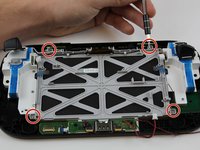
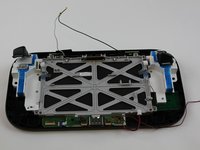
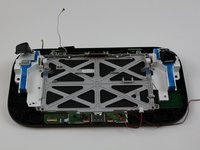
      • Remove the four 5.1mm screws using Phillips size #0 screwdriver.

      • Pull the white and black cables away from the display case.

      询问修复机器人

      添加评论

    2. Wii U GamePad LCD Display Replacement: 步骤 20 中的图像 1,2 Wii U GamePad LCD Display Replacement: 步骤 20 中的图像 2,2
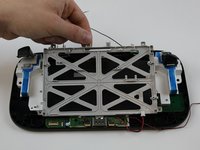
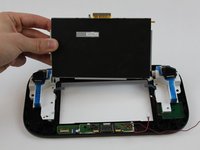
      • Lift and remove the grey display case with your fingers.

      添加评论

    3. Wii U GamePad LCD Display Replacement: 步骤 21 中的图像 1,2 Wii U GamePad LCD Display Replacement: 步骤 21 中的图像 2,2
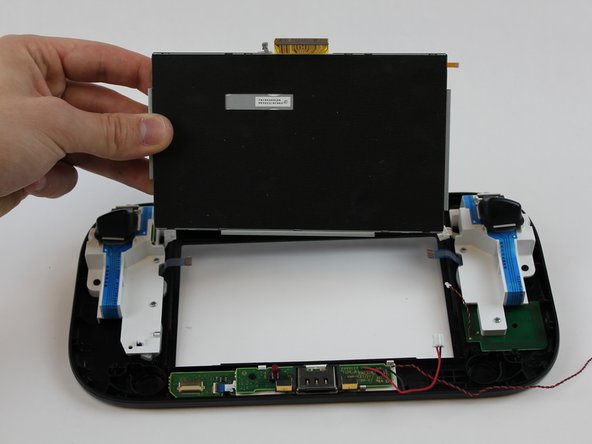
      • Gently with your fingers, press on the front of the display and it will lift up.

      • Remove the display with your fingers.

      添加评论

结论

To reassemble your device, follow these instructions in reverse order.

取消:我没有完成这个指南。

88等其他人完成本指南。

团队

USF Tampa, Team 1-6, Sullivan Spring 2016 USF Tampa, Team 1-6, Sullivan Spring 2016 的会员

USFT-SULLIVAN-S16S1G6

4 名成员

创作了77篇指南

20指南评论

was really perfect to repair my device. Thank you very much for this help

Bernd Dietrich - 回复 分享

In step 14 - what does the small gray ribbon do? The replacement LCD display that I got in the mail did not have it.

Stacey Hoggard - 回复 分享

Its the touch screen cable. The screen I ordered did not come with one. I had to carefully remove it from my broken display and put it on the new one. Thankfully the touchscreen still works for me.

Terry Moenkhaus - 回复 分享

Very happy with your manual! I've fixed it.

Paulus 68 - 回复 分享

Mine did not come with the touch screen either.

Edwin Kahn - 回复 分享

添加评论

浏览统计数据:

过去 24 小时: 30

过去 7 天: 240

过去 30 天: 1,046

总计 118,397