跳转到主内容

此翻译可能不反映源指南的最新更新。 帮助更新翻译查看源指南

Why! NH57ADS Bottom Case Replacement

你所需要的

  1. Why! NH57ADS Bottom Case Replacement, Battery: 步骤 1 中的图像 1,3 Why! NH57ADS Bottom Case Replacement, Battery: 步骤 1 中的图像 2,3 Why! NH57ADS Bottom Case Replacement, Battery: 步骤 1 中的图像 3,3
    • Remove the two screws holding the battery in place.

    • Slip your finger into the finger hole provided at the top of the battery.

    • ...and lift to remove it

  2. Why! NH57ADS Bottom Case Replacement, Bottom Cover: 步骤 2 中的图像 1,3 Why! NH57ADS Bottom Case Replacement, Bottom Cover: 步骤 2 中的图像 2,3 Why! NH57ADS Bottom Case Replacement, Bottom Cover: 步骤 2 中的图像 3,3
    • Remove the five Phillips screws securing the bottom to the case.

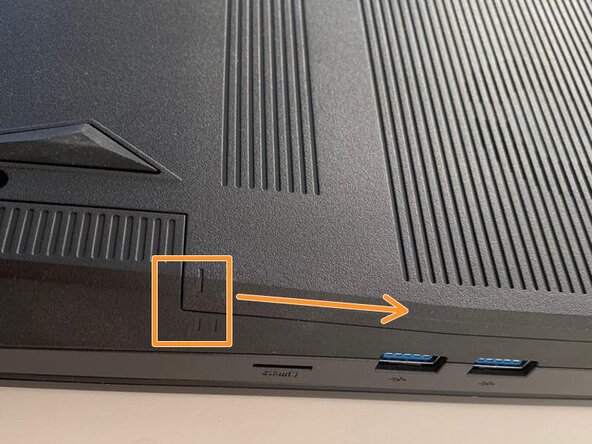
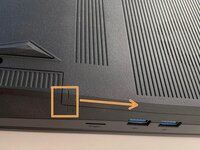
    • Slide the cover up slightly to release the clips holding it in place. This is the view on the right. The mark on the cover should now line up with the second mark on the case of the computer.

  3. Why! NH57ADS Bottom Case Replacement, Removing the Bottom Cover: 步骤 3 中的图像 1,3 Why! NH57ADS Bottom Case Replacement, Removing the Bottom Cover: 步骤 3 中的图像 2,3 Why! NH57ADS Bottom Case Replacement, Removing the Bottom Cover: 步骤 3 中的图像 3,3
    • This is the view on the left before and after sliding the cover. The mark on the cover should now line up with the second mark on the case of the computer.

    • Slide the bottom cover to remove it.

  4. Why! NH57ADS Bottom Case Replacement, Keyboard: 步骤 4 中的图像 1,3 Why! NH57ADS Bottom Case Replacement, Keyboard: 步骤 4 中的图像 2,3 Why! NH57ADS Bottom Case Replacement, Keyboard: 步骤 4 中的图像 3,3
    • Remove the two Phillips screws with the keypad symbol next to them.

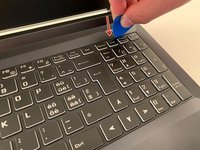
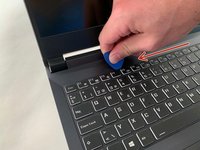
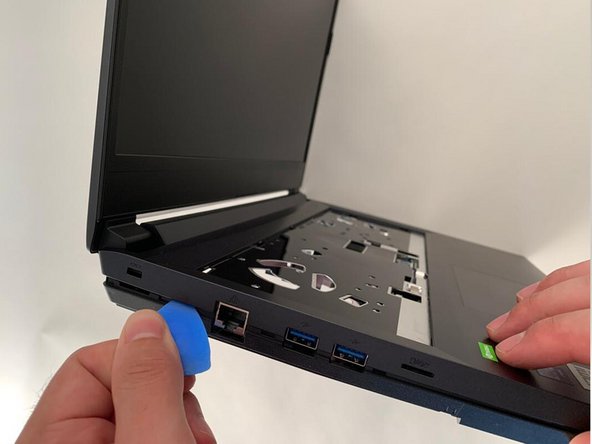
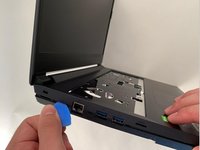
    • Insert an iFixit opening pick into the upper slot of the keyboard and slide it to the end.

  5. Why! NH57ADS Bottom Case Replacement, Remove the Keyboard: 步骤 5 中的图像 1,3 Why! NH57ADS Bottom Case Replacement, Remove the Keyboard: 步骤 5 中的图像 2,3 Why! NH57ADS Bottom Case Replacement, Remove the Keyboard: 步骤 5 中的图像 3,3
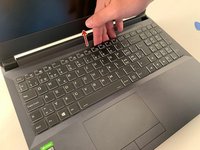
    • Carefully lift the keyboard.

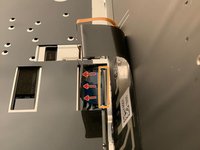
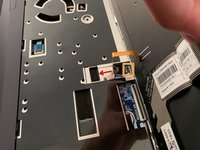
    • Gently flip up the retaining latch on the black keyboard cable and slide it out of the connector.

    • Repeat with the (orange) backlight cable.

  6. Why! NH57ADS Bottom Case Replacement, Fan: 步骤 6 中的图像 1,3 Why! NH57ADS Bottom Case Replacement, Fan: 步骤 6 中的图像 2,3 Why! NH57ADS Bottom Case Replacement, Fan: 步骤 6 中的图像 3,3
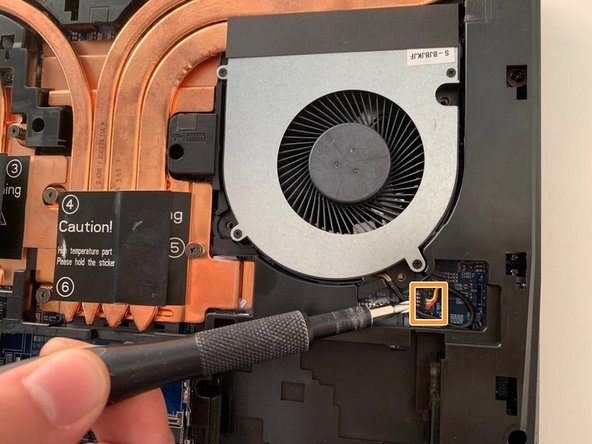
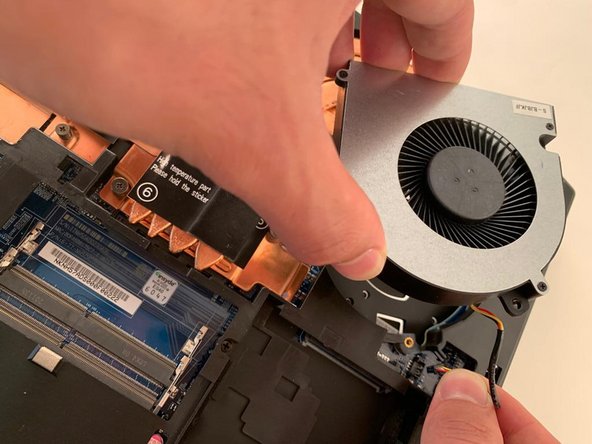
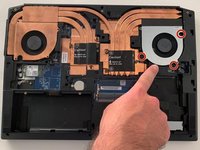
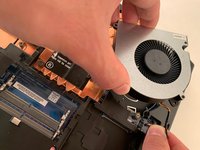
    • Remove the three Phillips screws securing the fan on the right.

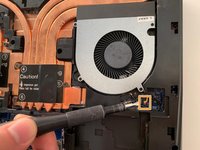
    • Carefully unplug the fan's power connector.

    • Remove the first fan.

  7. Why! NH57ADS Bottom Case Replacement, Fan and Heatsink Assembly: 步骤 7 中的图像 1,3 Why! NH57ADS Bottom Case Replacement, Fan and Heatsink Assembly: 步骤 7 中的图像 2,3 Why! NH57ADS Bottom Case Replacement, Fan and Heatsink Assembly: 步骤 7 中的图像 3,3
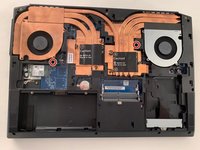
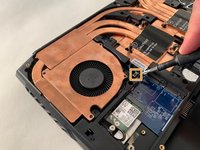
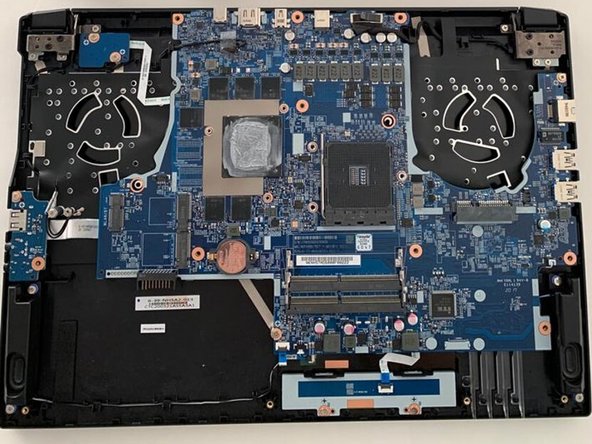
    • Remove the two Phillips screws securing the left hand fan.

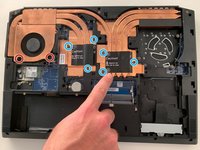
    • Remove the six Phillips heatsink retaining screws .

    • Carefully unplug the fan's power connector.

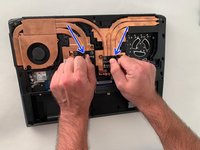
    • Using the two black tabs as handles, lift and remove the heatsink.

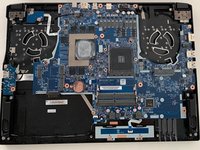
  8. Why! NH57ADS Bottom Case Replacement, CPU: 步骤 8 中的图像 1,3 Why! NH57ADS Bottom Case Replacement, CPU: 步骤 8 中的图像 2,3 Why! NH57ADS Bottom Case Replacement, CPU: 步骤 8 中的图像 3,3
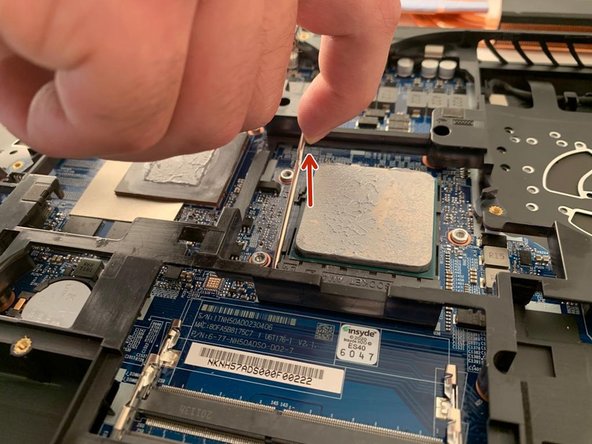
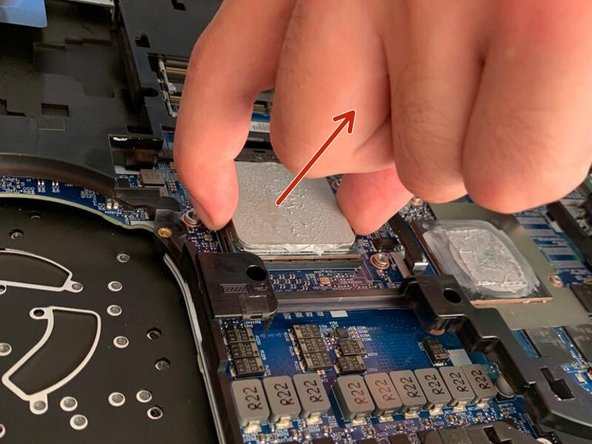
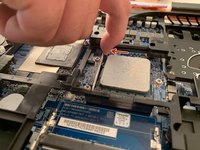
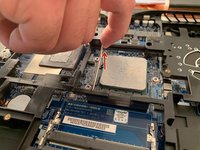
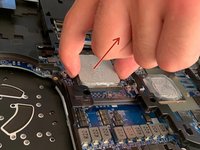
    • Carefully pull the metal bar away from the processor to free it from under the retaining tab, then lift it to release the processor pins.

    • Gently remove the processor by lifting it straight up.

  9. Why! NH57ADS Bottom Case Replacement, Bottom Case: 步骤 9 中的图像 1,3 Why! NH57ADS Bottom Case Replacement, Bottom Case: 步骤 9 中的图像 2,3 Why! NH57ADS Bottom Case Replacement, Bottom Case: 步骤 9 中的图像 3,3
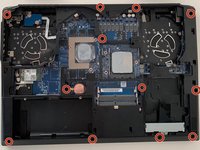
    • Remove the 12 Phillips screws securing the bottom case.

    • Using an opening pick, detach the lower case.

结论

To reassemble your device, follow the instructions in reverse order.

由衷感谢以下译者:

fr en

60%

Jerry Wheeler正在帮助我们修复这个世界! 您也想加入吗?
开始翻译 ›

Felice Suglia

于06/15/13注册

33,538 声望

创作了283篇指南

0指南评论

添加评论

浏览统计数据:

过去 24 小时: 1

过去 7 天: 2

过去 30 天: 23

总计 188