跳转到主内容

PC Desktop CPU (Central Processing Unit) Replacement

你所需要的

  1. PC Desktop CPU (Central Processing Unit) Replacement, The Beginning: 步骤 1 中的图像 1,1
    • Turn Off the Computer: Make sure the computer is off and unplugged.

  2. PC Desktop CPU (Central Processing Unit) Replacement: 步骤 2 中的图像 1,1
    • Open the Case: Use the screwdriver to take off the side of the computer.

  3. PC Desktop CPU (Central Processing Unit) Replacement: 步骤 3 中的图像 1,1
    • Find the CPU: Look for a big flat piece, usually near the middle of the motherboard.

  4. PC Desktop CPU (Central Processing Unit) Replacement: 步骤 4 中的图像 1,1
    • Remove the Old CPU Cooler: Unplug the cooler from the motherboard. Use the screwdriver to loosen any screws or clips holding it in place. Carefully lift off the cooler.

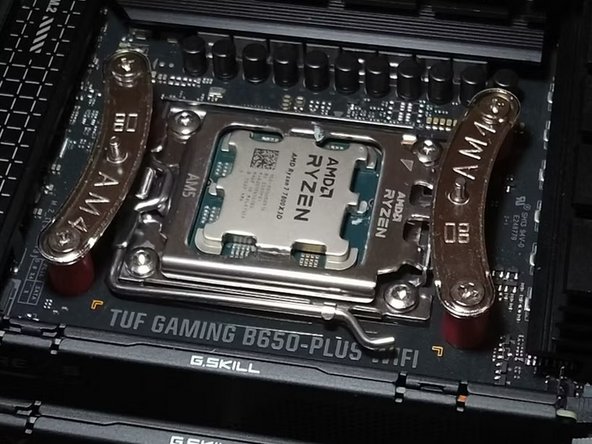
  5. PC Desktop CPU (Central Processing Unit) Replacement: 步骤 5 中的图像 1,1
    • Remove the Old CPU: There’s a lever or a button. Carefully lift it up, then take out the old CPU. Use a paper towel to wipe off any old thermal paste from the CPU and cooler.

  6. PC Desktop CPU (Central Processing Unit) Replacement: 步骤 6 中的图像 1,1
    • Put in the New CPU: Take the new CPU and place it in the same spot. Make sure it fits perfectly. Lower the lever or press the button to hold the new CPU tight.

  7. PC Desktop CPU (Central Processing Unit) Replacement: 步骤 7 中的图像 1,1
    • Put on New Thermal Paste: Squeeze a small dot (about the size of a pea) of thermal paste in the center of the new CPU.

  8. PC Desktop CPU (Central Processing Unit) Replacement: 步骤 8 中的图像 1,1
    • Reattach the CPU Cooler: Carefully place the cooler back on top of the CPU. Screw or clip it back into place, and plug it in.

  9. PC Desktop CPU (Central Processing Unit) Replacement: 步骤 9 中的图像 1,1
    • Close the Case: Put the side of the computer back on and screw it shut. Plug the computer back in and turn it on to see if it works!

结论

Congratulations! You’ve successfully replaced your CPU! By following these steps, you’ve improved your computer’s performance and learned something new in the process. If everything is working well, you can enjoy faster speeds and better multitasking. Don’t forget to keep your computer clean and updated for the best results. Great job!

3等其他人完成本指南。

Parabellum

于10/30/24注册

259 声望

撰写一个指南

1指南评论

添加评论

浏览统计数据:

过去 24 小时: 0

过去 7 天: 0

过去 30 天: 1

总计 70