跳转到主内容
加入维修社区 - 创建账户

Microsoft Surface 2 I/O Cable Replacement

你所需要的

    1. Microsoft Surface 2  I/O Cable Replacement, Screen: 步骤 1 中的图像 1,3 Microsoft Surface 2  I/O Cable Replacement, Screen: 步骤 1 中的图像 2,3 Microsoft Surface 2  I/O Cable Replacement, Screen: 步骤 1 中的图像 3,3
      • Begin by using a heat gun or the iOpener (This will take longer.) to melt the adhesive all around the outer edge of the screen.

      • Avoid holding the heat gun too close to the Microsoft Surface 2 so as to not cause any unwanted warping.

      • Avoid touching the metal end of the gun. It will be very hot and can burn you.

      • Insert the opening picks just under the screen and black edging. Be sure to place them evenly on each side.

      • Using the gap created by the picks, slowly pry the screen from the body of the Microsoft Surface 2 with a plastic opening tool. Pry as uniformly as possible.

      添加评论

    2. Microsoft Surface 2  I/O Cable Replacement: 步骤 2 中的图像 1,3 Microsoft Surface 2  I/O Cable Replacement: 步骤 2 中的图像 2,3 Microsoft Surface 2  I/O Cable Replacement: 步骤 2 中的图像 3,3
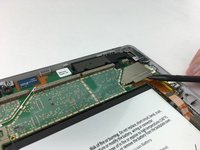
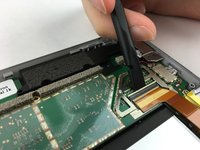
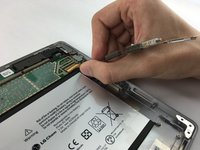
      • Once the screen is free from the body, there will be a single ribbon cable connecting the screen to the motherboard.

      • Use a plastic spudger to pry the retaining clip away from the display cable.

      • The ribbon cable may be glued to the motherboard.

      • Carefully pull the ribbon cable from its socket on the motherboard.

      添加评论

    1. Microsoft Surface 2  I/O Cable Replacement, I/O Cable: 步骤 3 中的图像 1,2 Microsoft Surface 2  I/O Cable Replacement, I/O Cable: 步骤 3 中的图像 2,2
      • Work close to Magnetic Project Map to avoid losing screws.

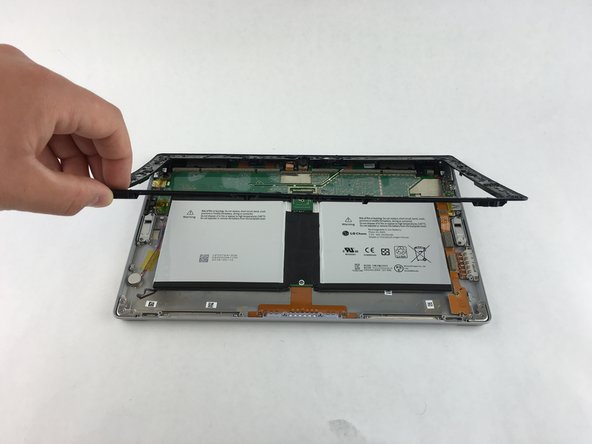
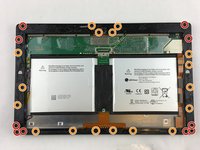
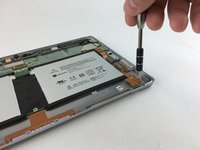
      • Remove ten 3.45 mm T3 screws from the corners of the black plastic bezel.

      • Remove the remaining seventeen 4.4 mm T5 screws from the perimeter of the bezel.

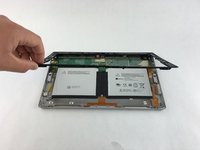
      • Once all screws have been removed, lift and remove the bezel from the rest of the device.

      询问修复机器人

      添加评论

    2. Microsoft Surface 2  I/O Cable Replacement: 步骤 4 中的图像 1,2 Microsoft Surface 2  I/O Cable Replacement: 步骤 4 中的图像 2,2
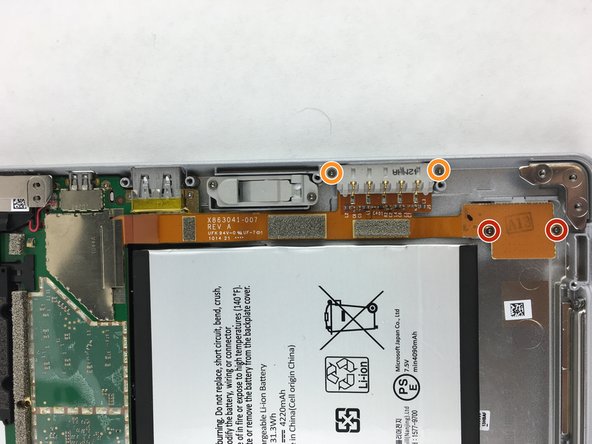
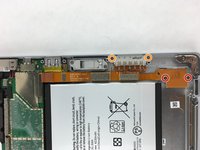
      • Remove the two 2.19 mm T3 screws that hold down the SD card ribbon cable.

      • Remove the two 3.27 mm T3 screws holding down the charging port.

      询问修复机器人

      添加评论

    3. Microsoft Surface 2  I/O Cable Replacement: 步骤 5 中的图像 1,3 Microsoft Surface 2  I/O Cable Replacement: 步骤 5 中的图像 2,3 Microsoft Surface 2  I/O Cable Replacement: 步骤 5 中的图像 3,3
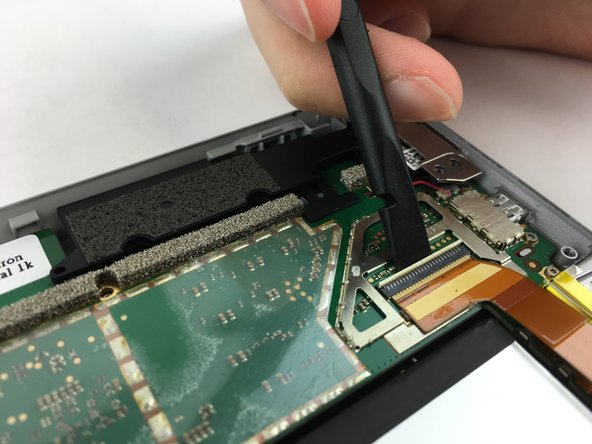
      • Use a spudger to pry up the retaining plate at the end of the ribbon cable.

      • The retaining chip may be glued to the motherboard.

      • Use the spudger to flip up the small retaining flap on the cable's zero insertion force connector.

      • Make sure you are prying up on the retaining flap, not the connector itself.

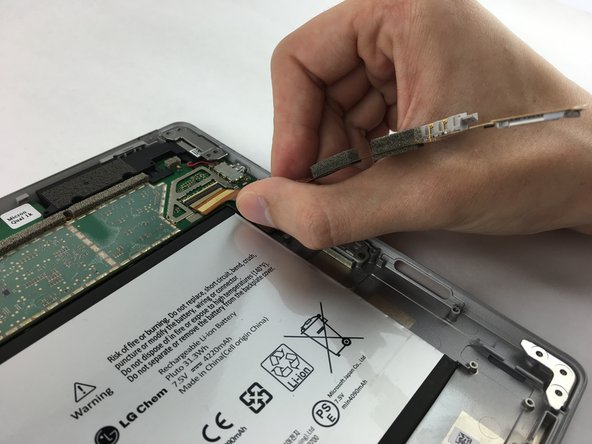
      • Remove the ribbon cable from its port.

      • No force is needed to plug in or remove the ribbon cable.

      询问修复机器人

      添加评论

结论

To reassemble your device, follow these instructions in reverse order.

取消:我没有完成这个指南。

4等其他人完成本指南。

团队

USF Tampa, Team 3-1, Wollert Spring 2016 USF Tampa, Team 3-1, Wollert Spring 2016 的会员

USFT-WOLLERT-S16S3G1

4 名成员

创作了18篇指南

2指南评论

I want to replace the battery of Microsoft Surface 2, which steps I have to follow to replace it?

Piero Sabino - 回复 分享

Cosa devo utilizzare per attaccare il cavo del display sotto al fermaglio di distanza, colla o nastro biadesivo?

Piero Sabino - 回复 分享

添加评论

浏览统计数据:

过去 24 小时: 1

过去 7 天: 7

过去 30 天: 54

总计 5,300