跳转到主内容
加入维修社区 - 创建账户
Mac Pro 2009-2012 Case Replacement

你所需要的

    1. Mac Pro 2009-2012 Case Replacement, Open the Case: 步骤 1 中的图像 1,3 Mac Pro 2009-2012 Case Replacement, Open the Case: 步骤 1 中的图像 2,3 Mac Pro 2009-2012 Case Replacement, Open the Case: 步骤 1 中的图像 3,3
      • To open the Mac Pro, you'll have to lift the clip on the back of the case

      • Leave the clip open during the entire disassembly!

      添加评论

    2. Mac Pro 2009-2012 Case Replacement, Remove the side panel: 步骤 2 中的图像 1,2 Mac Pro 2009-2012 Case Replacement, Remove the side panel: 步骤 2 中的图像 2,2
      • Lift the flap to put it in the unlocked position. The panel should separate from the case without force.

      询问修复机器人

      添加评论

    3. Mac Pro 2009-2012 Case Replacement, Remove the hard drives: 步骤 3 中的图像 1,2 Mac Pro 2009-2012 Case Replacement, Remove the hard drives: 步骤 3 中的图像 2,2
      • Then to remove the hard drives, pull them towards you with a bit of force.

      询问修复机器人

      添加评论

    4. Mac Pro 2009-2012 Case Replacement, Remove the DVD drives: 步骤 4 中的图像 1,3 Mac Pro 2009-2012 Case Replacement, Remove the DVD drives: 步骤 4 中的图像 2,3 Mac Pro 2009-2012 Case Replacement, Remove the DVD drives: 步骤 4 中的图像 3,3
      • Simply pull the DVD drive bracket towards you, just like with the hard drives. Force it gently.

      • Unplug de power cable and the SATA cable of each DVD drive

      添加评论

    5. Mac Pro 2009-2012 Case Replacement, Remove the CPU board: 步骤 5 中的图像 1,3 Mac Pro 2009-2012 Case Replacement, Remove the CPU board: 步骤 5 中的图像 2,3 Mac Pro 2009-2012 Case Replacement, Remove the CPU board: 步骤 5 中的图像 3,3
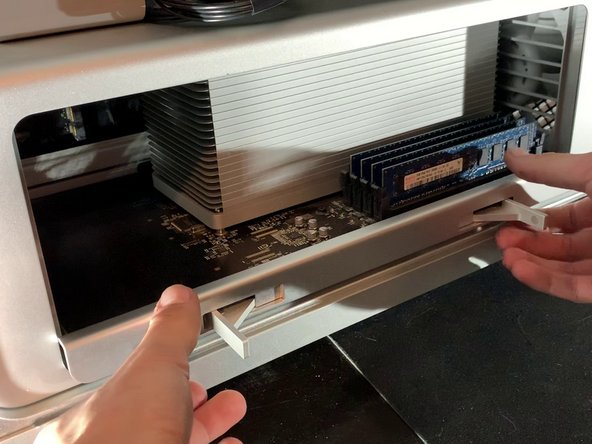
      • Press both latches to unlocket the bracket.

      • Then, pull it towards you.

      • You shouldn't need to apply much force.

      询问修复机器人

      添加评论

    6. Mac Pro 2009-2012 Case Replacement, Disconnect the GPU: 步骤 6 中的图像 1,2 Mac Pro 2009-2012 Case Replacement, Disconnect the GPU: 步骤 6 中的图像 2,2
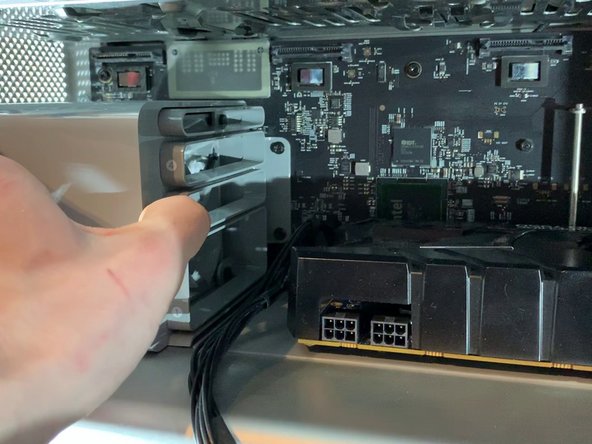
      • Remove the 6 or 8 pin connector from your graphics card.

      • This step is optional, it will depend on the graphics card of your Mac Pro

      询问修复机器人

      添加评论

    7. Mac Pro 2009-2012 Case Replacement, Remove the GPU ( Optional ): 步骤 7 中的图像 1,3 Mac Pro 2009-2012 Case Replacement, Remove the GPU ( Optional ): 步骤 7 中的图像 2,3 Mac Pro 2009-2012 Case Replacement, Remove the GPU ( Optional ): 步骤 7 中的图像 3,3
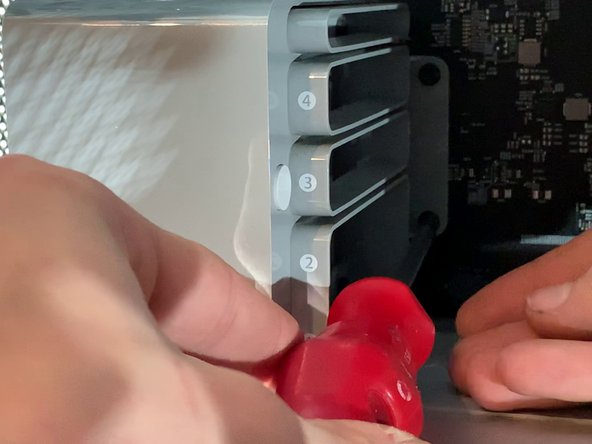
      • On the fan bracket, there is something like a button. Press it to move the support to the left (see picture)

      • Then pull the graphics card towards you to take it out of the case

      • This step is optional depending on the GPU of your Mac Pro

      添加评论

    8. Mac Pro 2009-2012 Case Replacement, Disconnect GPU support ( optional): 步骤 8 中的图像 1,2 Mac Pro 2009-2012 Case Replacement, Disconnect GPU support ( optional): 步骤 8 中的图像 2,2
      • Disconnect the PCI-e cables from the motherboard

      • This step is optional depending on the GPU of your Mac Pro

      询问修复机器人

      添加评论

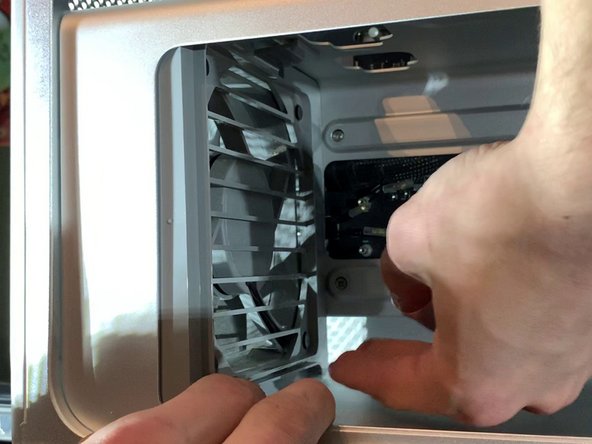
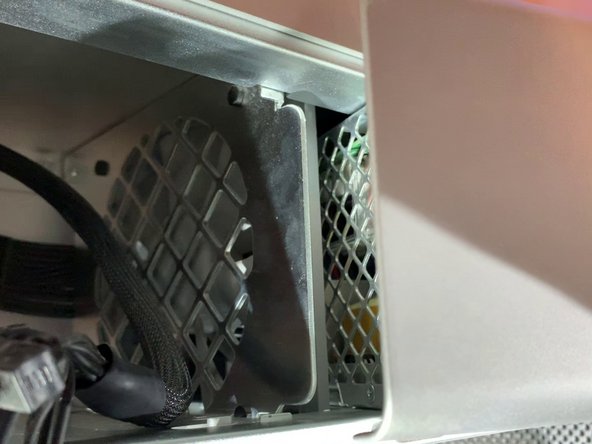
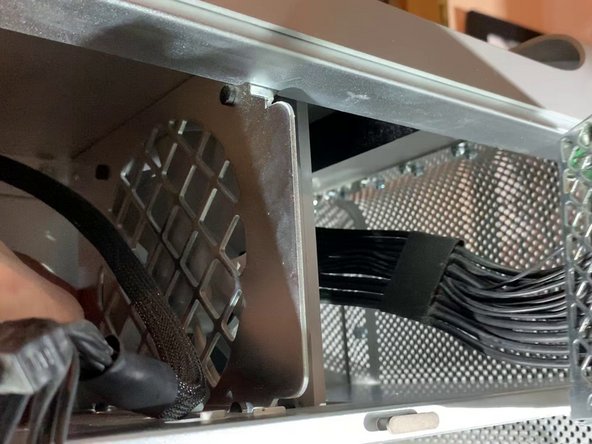
    9. Mac Pro 2009-2012 Case Replacement, Take out the PCI-e fan: 步骤 9 中的图像 1,3 Mac Pro 2009-2012 Case Replacement, Take out the PCI-e fan: 步骤 9 中的图像 2,3 Mac Pro 2009-2012 Case Replacement, Take out the PCI-e fan: 步骤 9 中的图像 3,3
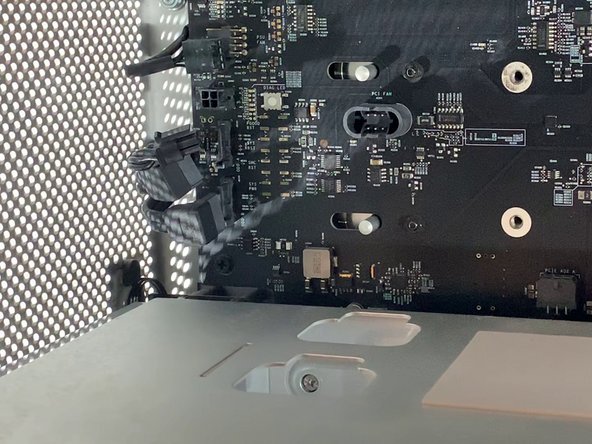
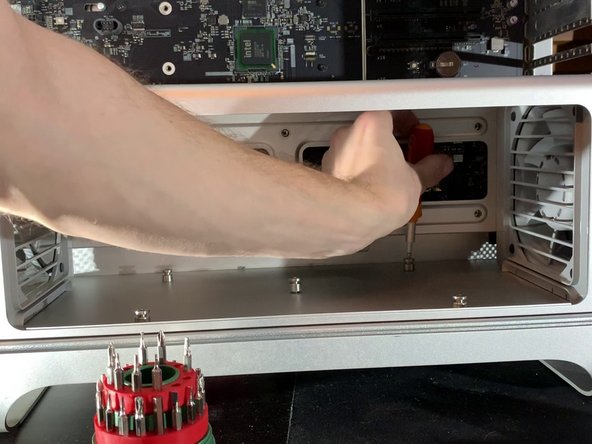
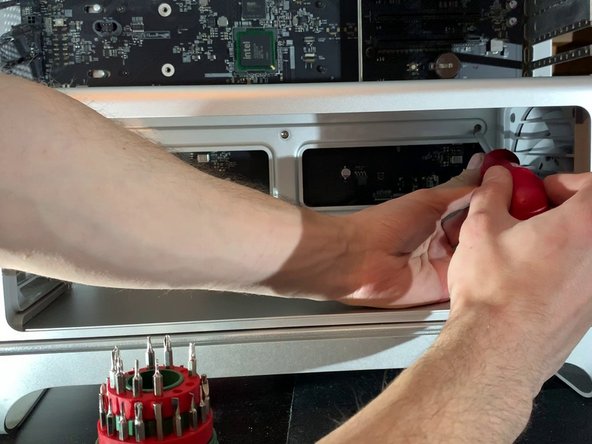
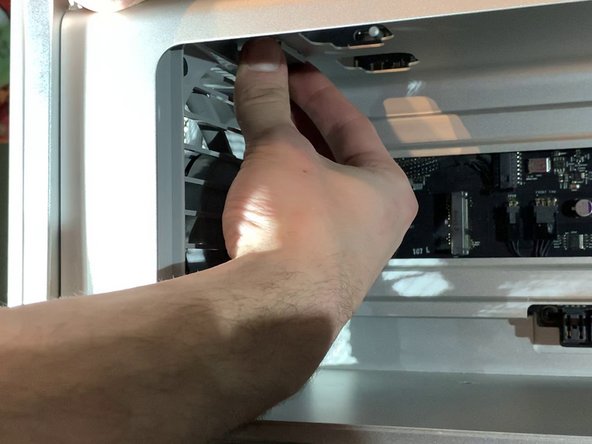
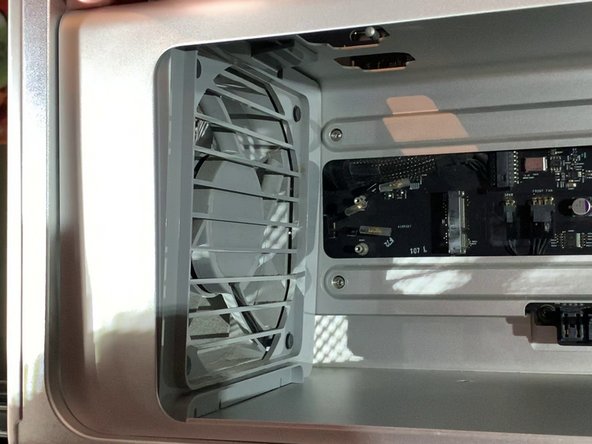
      • With a screwdriver, unscrew the two screws that hold the fan bracket to the board

      • Pull the fan towards you (to move it away from the case)

      询问修复机器人

      添加评论

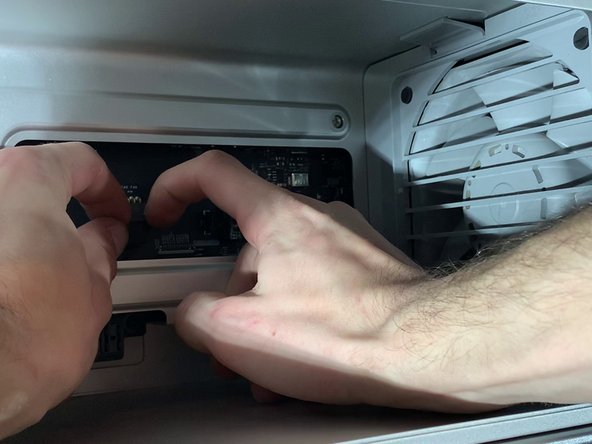
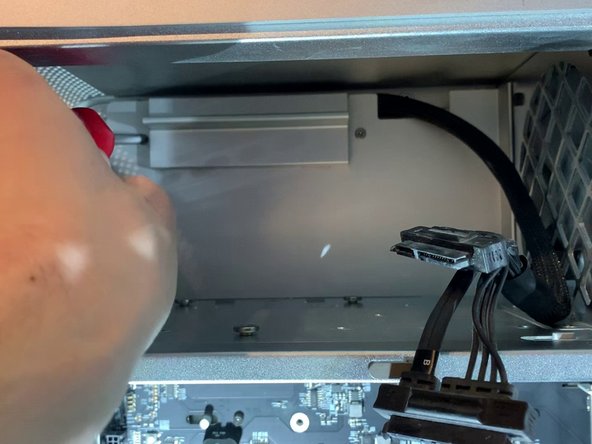
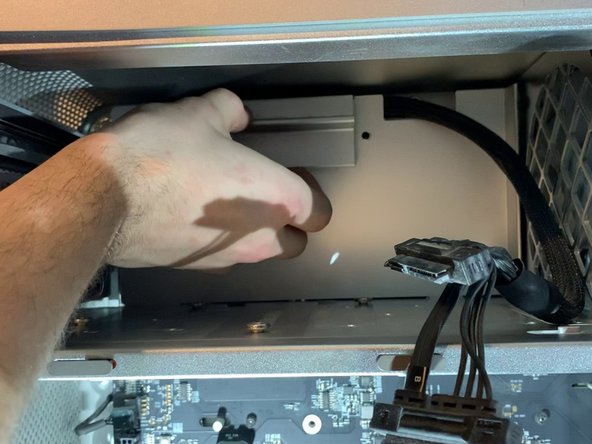
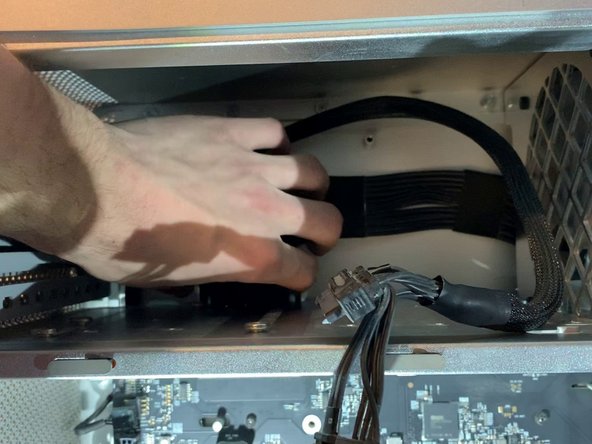
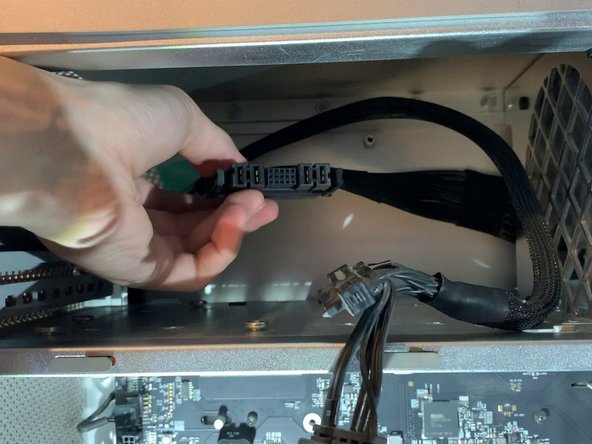
    10. Mac Pro 2009-2012 Case Replacement, Disconnect the SATA Cables: 步骤 10 中的图像 1,2 Mac Pro 2009-2012 Case Replacement, Disconnect the SATA Cables: 步骤 10 中的图像 2,2
      • Behind the fan bracket, there are 2 SATA cables, a 4 pin mini power supply and a 4 pin fan

      询问修复机器人

      添加评论

    11. Mac Pro 2009-2012 Case Replacement, Unscrew CPU support: 步骤 11 中的图像 1,3 Mac Pro 2009-2012 Case Replacement, Unscrew CPU support: 步骤 11 中的图像 2,3 Mac Pro 2009-2012 Case Replacement, Unscrew CPU support: 步骤 11 中的图像 3,3
      • With a H2.5 screwdriver, unscrew the screws on the bottom of the bracket (photo 2)

      • With a Phillips screwdriver, unscrew the screws on the bottom of the case (photo 3)

      添加评论

    12. Mac Pro 2009-2012 Case Replacement, Remove the CPU Fan: 步骤 12 中的图像 1,3 Mac Pro 2009-2012 Case Replacement, Remove the CPU Fan: 步骤 12 中的图像 2,3 Mac Pro 2009-2012 Case Replacement, Remove the CPU Fan: 步骤 12 中的图像 3,3
      • Remove the clip at the top of the fan

      • Pull on the top of the fan a bit.

      询问修复机器人

      添加评论

    13. Mac Pro 2009-2012 Case Replacement, Remove the CPU Fan: 步骤 13 中的图像 1,2 Mac Pro 2009-2012 Case Replacement, Remove the CPU Fan: 步骤 13 中的图像 2,2
      • As with the top, remove the clip at the bottom and pull out the fan.

      添加评论

    14. Mac Pro 2009-2012 Case Replacement, Disconnect Fan and Speakers: 步骤 14 中的图像 1,3 Mac Pro 2009-2012 Case Replacement, Disconnect Fan and Speakers: 步骤 14 中的图像 2,3 Mac Pro 2009-2012 Case Replacement, Disconnect Fan and Speakers: 步骤 14 中的图像 3,3
      • Disconnect the 2 x 4 pin fan cables and the 1 x 2 pin speaker cable

      • Do not forget this step, or else you risk damaging the connectors on the motherboard and making your fans and speaker useless!

      添加评论

    15. Mac Pro 2009-2012 Case Replacement, Remove the CPU Support: 步骤 15 中的图像 1,3 Mac Pro 2009-2012 Case Replacement, Remove the CPU Support: 步骤 15 中的图像 2,3 Mac Pro 2009-2012 Case Replacement, Remove the CPU Support: 步骤 15 中的图像 3,3
      • Pull the CPU support towards you

      • Do not use force during this step. If it does not come out easily, ensure the fans are not blocking the exit.

      询问修复机器人

      添加评论

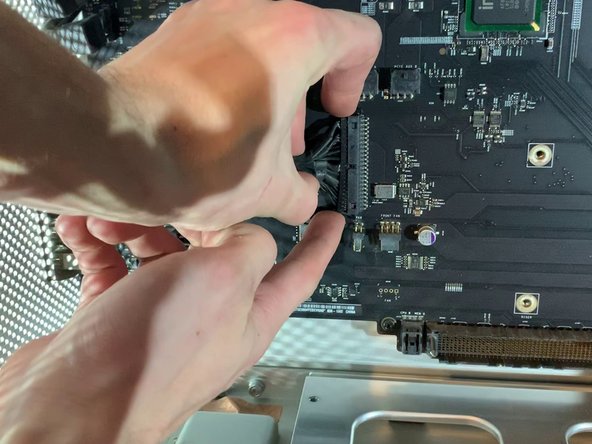
    16. Mac Pro 2009-2012 Case Replacement, Remove the expansion card connector: 步骤 16 中的图像 1,3 Mac Pro 2009-2012 Case Replacement, Remove the expansion card connector: 步骤 16 中的图像 2,3 Mac Pro 2009-2012 Case Replacement, Remove the expansion card connector: 步骤 16 中的图像 3,3
      • Remove the ribbon that connects the motherboard to the expansion card (USB, Jack, Power Off etc.)

      • Warning, remove the cable carefully so as not to bend the pins which are in the connector of the motherboard!

      询问修复机器人

      添加评论

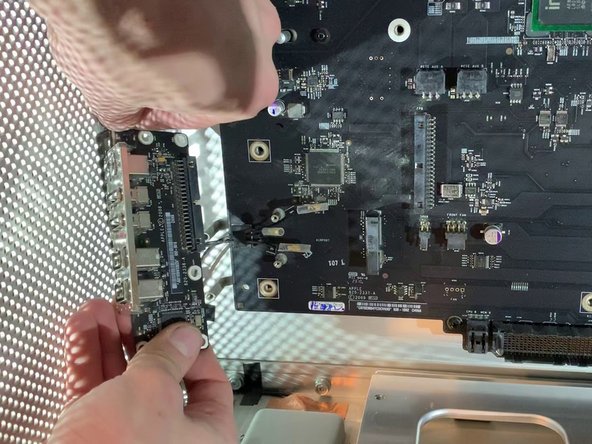
    17. Mac Pro 2009-2012 Case Replacement, Remove the expansion card: 步骤 17 中的图像 1,3 Mac Pro 2009-2012 Case Replacement, Remove the expansion card: 步骤 17 中的图像 2,3 Mac Pro 2009-2012 Case Replacement, Remove the expansion card: 步骤 17 中的图像 3,3
      • Unscrew the 5 screws that hold the card in place.

      • Be careful to unplug the power button of the card!

      添加评论

    18. Mac Pro 2009-2012 Case Replacement, Remove the cover: 步骤 18 中的图像 1,3 Mac Pro 2009-2012 Case Replacement, Remove the cover: 步骤 18 中的图像 2,3 Mac Pro 2009-2012 Case Replacement, Remove the cover: 步骤 18 中的图像 3,3
      • Unscrew the two screws and remove the cover

      询问修复机器人

      添加评论

    19. Mac Pro 2009-2012 Case Replacement, Unplug the power supply: 步骤 19 中的图像 1,3 Mac Pro 2009-2012 Case Replacement, Unplug the power supply: 步骤 19 中的图像 2,3 Mac Pro 2009-2012 Case Replacement, Unplug the power supply: 步骤 19 中的图像 3,3
      • Push on both knobs to remove the power connector

      • Do not use force, if you are struggling ensure you are squeezing the clips adequately.

      询问修复机器人

      添加评论

    20. Mac Pro 2009-2012 Case Replacement, Separate the power supply: 步骤 20 中的图像 1,2 Mac Pro 2009-2012 Case Replacement, Separate the power supply: 步骤 20 中的图像 2,2
      • Unscrew the 4 screws that hold in the power supply

      添加评论

    21. Mac Pro 2009-2012 Case Replacement, Remove the power supply: 步骤 21 中的图像 1,3 Mac Pro 2009-2012 Case Replacement, Remove the power supply: 步骤 21 中的图像 2,3 Mac Pro 2009-2012 Case Replacement, Remove the power supply: 步骤 21 中的图像 3,3
      • Pull the power supply towards you.

      • Be sure to pull the connector forward and watch the cables

      询问修复机器人

      添加评论

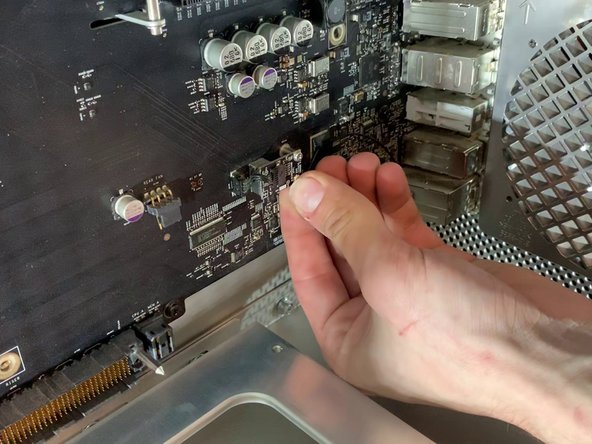
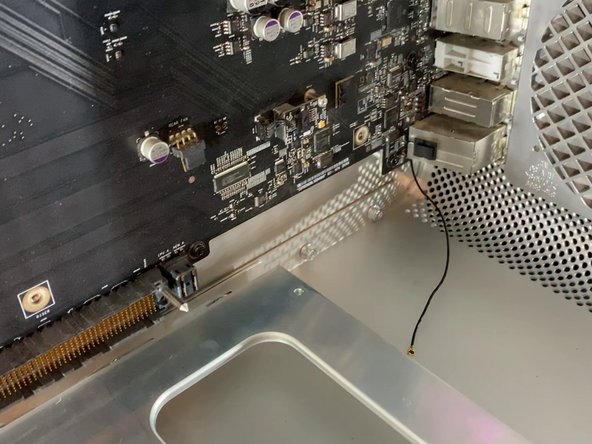
    22. Mac Pro 2009-2012 Case Replacement, Detach the bluetooth antenna: 步骤 22 中的图像 1,3 Mac Pro 2009-2012 Case Replacement, Detach the bluetooth antenna: 步骤 22 中的图像 2,3 Mac Pro 2009-2012 Case Replacement, Detach the bluetooth antenna: 步骤 22 中的图像 3,3
      • Unclip the bluetooth antenna

      询问修复机器人

      添加评论

    23. Mac Pro 2009-2012 Case Replacement, Remove the motherboard: 步骤 23 中的图像 1,3 Mac Pro 2009-2012 Case Replacement, Remove the motherboard: 步骤 23 中的图像 2,3 Mac Pro 2009-2012 Case Replacement, Remove the motherboard: 步骤 23 中的图像 3,3
      • Unscrew the 10 screws holding in the motherboard

      询问修复机器人

      添加评论

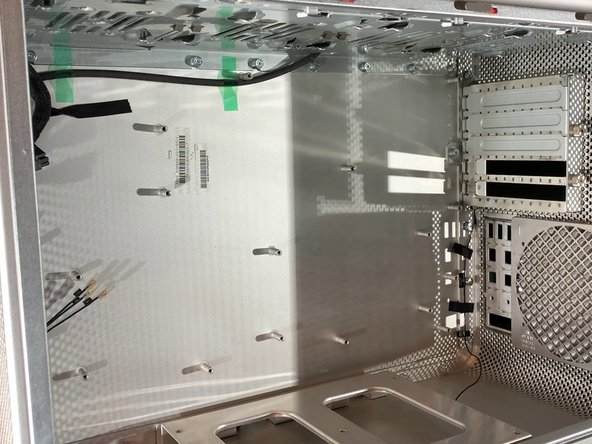
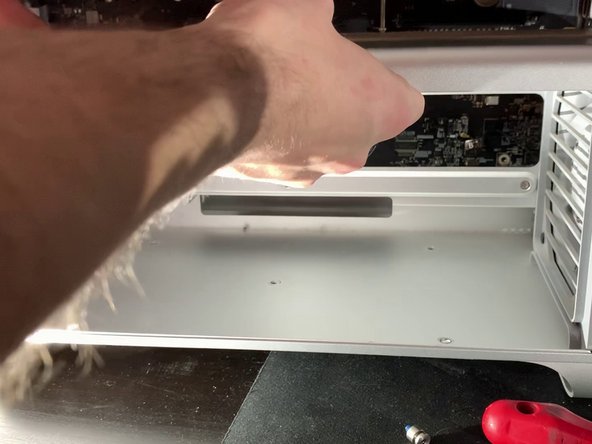
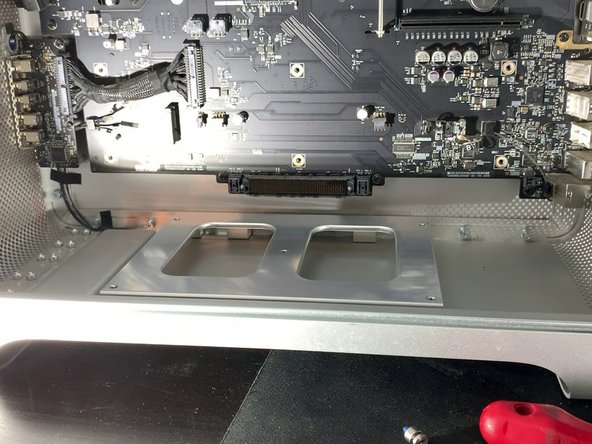
    24. Mac Pro 2009-2012 Case Replacement, Change the case: 步骤 24 中的图像 1,1
      • Follow the steps in reverse for reassembly!

      添加评论

结论

To reassemble your device, follow the instructions in reverse order.

取消:我没有完成这个指南。

23等其他人完成本指南。

由衷感谢以下译者:

fr en

100%

这些译者帮助我们修补全世界! 您也想加入吗?
开始翻译 ›

remitouch

于10/12/16注册

1,039 声望

撰写一个指南

7指南评论

Bonjour, j’ai un mac pro 5,1 de 2010 dont les clapets (ou les trappes, j’ignore le terme exact) de la baie des lecteurs de disques restent ouverts à chaque fois qu’ils sont actionnés. Je n’ai pas réussi à les démonter, et les 2 gouttes de 3 en 1 sur les glissières latérales n’ont rien changé au problème. Je n’ai trouvé aucun tutoriel, ni même aucune occurrence de ce problème sur le web. Pourriez-vous me donner quelques conseils ? Merci.

Gabriel Fracque - 回复 分享
Amazing explanations and perfect picture track on each move made.

Thanks much - this was very helpful :)

Dennis.

Dennis OBrien - 回复 分享

Hello sir , I have a problem with my Mac Pro 5,1 mid 2010 Xeon 6core Cpu 64 GB Ram RX580

I erase SSD Hard Drive and I want to reinstall mojave OS and it does not work still appear ‘Missing Operating System’

I try to use all commends on startup like (Option) (Commend+R) (Option+Commend+R)(Option+Commend+R+P) and more commends

but nothing work with it … please I want help . I need your help please , please …

Hussain Khan - 回复 分享

You’d probably get an answer a lot quicker if you just posted that as a question.

[deleted] - 回复 分享

Thanks for posting this guide!

I used it to replace all the cooking fans in my macpro5,1. Worked great!!

Andrew Clark - 回复 分享

添加评论

浏览统计数据:

过去 24 小时: 5

过去 7 天: 35

过去 30 天: 182

总计 31,254