跳转到主内容
加入维修社区 - 创建账户

Logitech Wireless K360 Key Cap Replacement

你所需要的

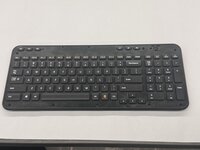
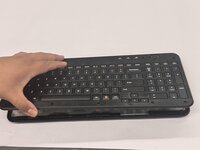
  1. Logitech Wireless K360 Key Cap Replacement, Key Cap: 步骤 1 中的图像 1,3 Logitech Wireless K360 Key Cap Replacement, Key Cap: 步骤 1 中的图像 2,3 Logitech Wireless K360 Key Cap Replacement, Key Cap: 步骤 1 中的图像 3,3
    • Use a Jimmy to pry off the keyboard cover.

    • When reapplying the keyboard cover, glue may be required to keep adhesive properties.

  2. Logitech Wireless K360 Key Cap Replacement: 步骤 2 中的图像 1,2 Logitech Wireless K360 Key Cap Replacement: 步骤 2 中的图像 2,2
    • Remove the eight 6 mm screws using a Phillips #0 screwdriver.

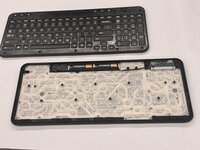
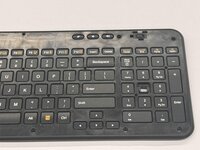
  3. Logitech Wireless K360 Key Cap Replacement: 步骤 3 中的图像 1,3 Logitech Wireless K360 Key Cap Replacement: 步骤 3 中的图像 2,3 Logitech Wireless K360 Key Cap Replacement: 步骤 3 中的图像 3,3
    • Remove the top half of the keyboard.

    • If there are issues removing the top half of the keyboard you can try using something thin to get into the crevices.

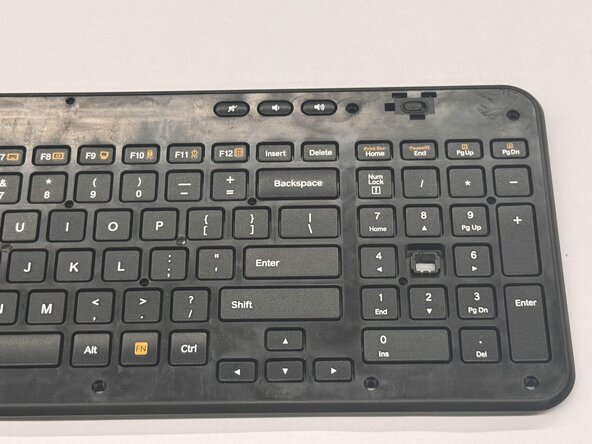
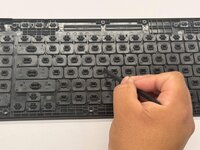
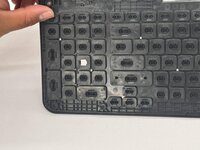
  4. Logitech Wireless K360 Key Cap Replacement: 步骤 4 中的图像 1,3 Logitech Wireless K360 Key Cap Replacement: 步骤 4 中的图像 2,3 Logitech Wireless K360 Key Cap Replacement: 步骤 4 中的图像 3,3
    • Flip the top half of the keyboard over.

    • Use tweezers or an iFixit opening tool to pinch the damaged key cap out of the top half.

结论

To reassemble your device, follow these instructions in reverse order.

Othon Sanchez

于02/20/25注册

333 声望

创作了2篇指南

团队

CSU Los Angeles, Team 7-3, Kershman Spring 2025 CSU Los Angeles, Team 7-3, Kershman Spring 2025 的会员

CSULA-KERSHMAN-S25S7G3

5 名成员

创作了4篇指南

0指南评论

添加评论

浏览统计数据:

过去 24 小时: 2

过去 7 天: 10

过去 30 天: 35

总计 294