跳转到主内容

Lenovo Yoga 910-13IKB SSD Replacement

你所需要的

  1. Lenovo Yoga 910-13IKB SSD Replacement, Bottom Panel: 步骤 1 中的图像 1,2 Lenovo Yoga 910-13IKB SSD Replacement, Bottom Panel: 步骤 1 中的图像 2,2
    • Before you begin, be sure to turn off your laptop and unplug it from the outlet.

    • Turn the laptop over and remove the ten Torx T5 screws along the perimeter of the bottom panel.

    • Remove the panel.

  2. Lenovo Yoga 910-13IKB SSD Replacement: 步骤 2 中的图像 1,1
    • Use a Phillips screwdriver to remove the four M2 x 1.7 mm screws securing the battery to the laptop.

    • Remove the battery.

  3. Lenovo Yoga 910-13IKB SSD Replacement: 步骤 3 中的图像 1,1
    • Remove the six Phillips screws that attach the trackpad to the device.

    • Use a spudger to disconnect the ribbon cable connector from the trackpad.

    • Remove the trackpad using a spudger.

  4. Lenovo Yoga 910-13IKB SSD Replacement: 步骤 4 中的图像 1,1
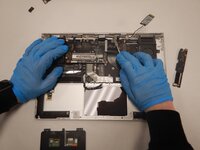
    • Use a Phillips screwdriver to remove six screws attached to the USB ports on both sides of the device.

    • Detach both ribbon cables attached to each USB port with a spudger, then detach the USB ports.

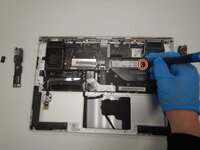
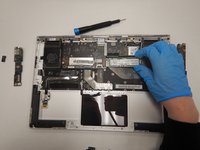
  5. Lenovo Yoga 910-13IKB SSD Replacement: 步骤 5 中的图像 1,2 Lenovo Yoga 910-13IKB SSD Replacement: 步骤 5 中的图像 2,2
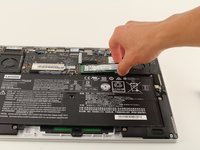
    • Use a small Phillips screwdriver to remove all single screw securing the SSD stick to the motherboard.

    • Slide the SSD stick from the port on the motherboard.

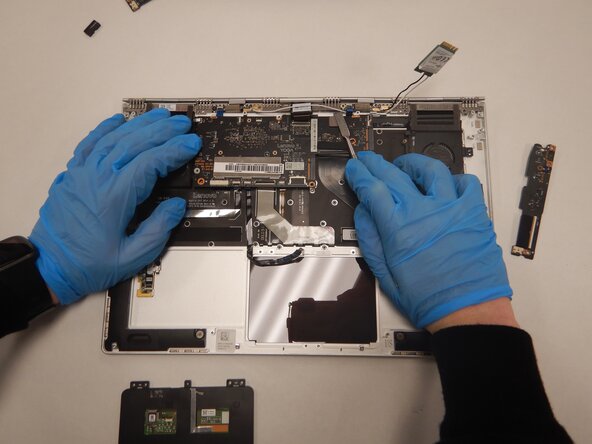
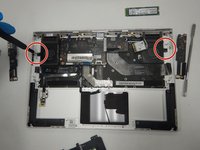
  6. Lenovo Yoga 910-13IKB SSD Replacement: 步骤 6 中的图像 1,3 Lenovo Yoga 910-13IKB SSD Replacement: 步骤 6 中的图像 2,3 Lenovo Yoga 910-13IKB SSD Replacement: 步骤 6 中的图像 3,3
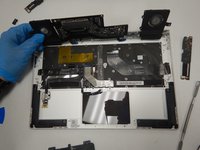
    • Use a small Phillips screwdriver to remove four screws from the fans.

    • Remove the back connector strip using a spudger to pry it off of the device.

    • Remove the fans.

    • Now, only the bottom panel should remain.

  7. Lenovo Yoga 910-13IKB SSD Replacement, SSD: 步骤 7 中的图像 1,1
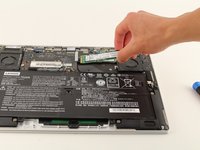
    • Remove the 3mm JIS #00 screw holding the storage in place.

  8. Lenovo Yoga 910-13IKB SSD Replacement: 步骤 8 中的图像 1,2 Lenovo Yoga 910-13IKB SSD Replacement: 步骤 8 中的图像 2,2
    • Pull up lightly on the drive and gently pull it out of the connector.

结论

To reassemble your device, follow these instructions in reverse order.

Nikhil Nagarajan

于01/23/20注册

97 声望

撰写一个指南

团队

Cal Poly, Team S1-G5, White Winter 2020 Cal Poly, Team S1-G5, White Winter 2020 的会员

CPSU-WHITE-W20S1G5

4 名成员

创作了14篇指南

1指南评论

Just one question: if I want to replace just the SSD, surely one goes straight from step one to step seven?

Bessi Aðalsteinsson - 回复

添加评论

浏览统计数据:

过去 24 小时: 3

过去 7 天: 15

过去 30 天: 44

总计 7,077