跳转到主内容
加入维修社区 - 创建账户
Lenovo IdeaPad U350 Thermal Paste Replacement

你所需要的

  1. Lenovo IdeaPad U350 Thermal Paste Replacement, Battery: 步骤 1 中的图像 1,1
    • Locate the battery by turning the laptop over.

    询问修复机器人

    添加评论

  2. Lenovo IdeaPad U350 Thermal Paste Replacement: 步骤 2 中的图像 1,3 Lenovo IdeaPad U350 Thermal Paste Replacement: 步骤 2 中的图像 2,3 Lenovo IdeaPad U350 Thermal Paste Replacement: 步骤 2 中的图像 3,3
    • Locate the lock switch and slide toward the outside edge of the laptop until it clicks into place and the battery unit pops up.

    • Remove the battery unit from the laptop and set it aside.

    询问修复机器人

    添加评论

  3. Lenovo IdeaPad U350 Thermal Paste Replacement, Keyboard: 步骤 3 中的图像 1,1
    • Unscrew the three screws on the bottom of the laptop that have small keyboard logos next to them using a PH1 screwdriver. These screws are 5.8mm long.

    询问修复机器人

    添加评论

  4. Lenovo IdeaPad U350 Thermal Paste Replacement: 步骤 4 中的图像 1,2 Lenovo IdeaPad U350 Thermal Paste Replacement: 步骤 4 中的图像 2,2
    • Flip the computer over and open the screen.

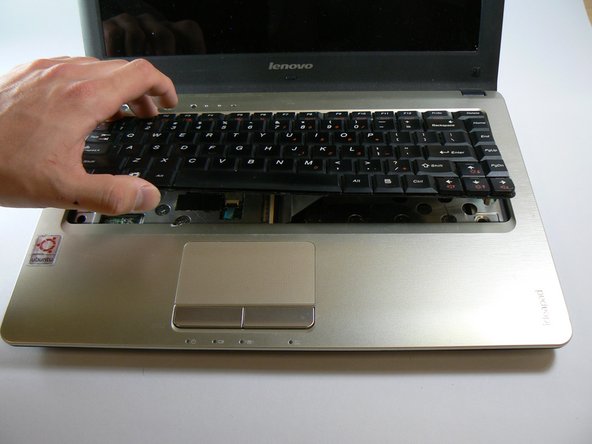
    • Use a spudger to carefully press in the clip that is found here while prying the keyboard upward from the same side.

    • This clip is very stiff and also made of thin, brittle plastic. This means that it is easy to break off, which is what we did during our disassembly.

    询问修复机器人

    添加评论

  5. Lenovo IdeaPad U350 Thermal Paste Replacement: 步骤 5 中的图像 1,1
    • Slightly lift the bottom of the keyboard towards the screen to locate the keyboard's ribbon cable.

    • Use the tip of the spudger to lift the black retaining flap on the ZIF connector.

    • You should now be able to lift out the keyboard easily.

    询问修复机器人

    添加评论

  6. Lenovo IdeaPad U350 Thermal Paste Replacement, Hard Drive: 步骤 6 中的图像 1,1
    • Unscrew the six screws on the back panel of the laptop using a PH1 Phillips bit.

    • These screws are attached to the panel. When unscrewing, be sure to stop when you here a click.

    询问修复机器人

    添加评论

  7. Lenovo IdeaPad U350 Thermal Paste Replacement: 步骤 7 中的图像 1,1
    • Lift the back panel from the side closest to the battery and remove the panel.

    询问修复机器人

    添加评论

  8. Lenovo IdeaPad U350 Thermal Paste Replacement: 步骤 8 中的图像 1,2 Lenovo IdeaPad U350 Thermal Paste Replacement: 步骤 8 中的图像 2,2
    • Slide the hard drive to the right, away from the RAM modules.

    • Lift the hard drive from the side closest to the RAM modules.

    • When re-inserting the hard drive, ensure that the copper contacts on the drive's connector are facing upwards.

    询问修复机器人

    添加评论

  9. Lenovo IdeaPad U350 Thermal Paste Replacement, Remove the screws: 步骤 9 中的图像 1,1
    • Unscrew the nine screws that are around the edge of the laptop using a PH00 screwdriver. These screws are 5.7mm long.

    • Unscrew the remaining two M2.5X3 screws that were under the battery using a PH1 screwdriver. These screws are 3.7mm long.

    • Unscrew the three M2X3 screws that were under the hard drive using a PH1 screwdriver. These screws are 3.7mm long.

    询问修复机器人

    添加评论

  10. Lenovo IdeaPad U350 Thermal Paste Replacement: 步骤 10 中的图像 1,3 Lenovo IdeaPad U350 Thermal Paste Replacement: 步骤 10 中的图像 2,3 Lenovo IdeaPad U350 Thermal Paste Replacement: 步骤 10 中的图像 3,3
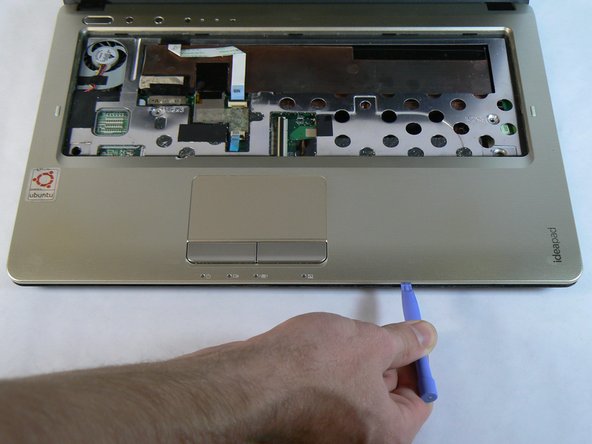
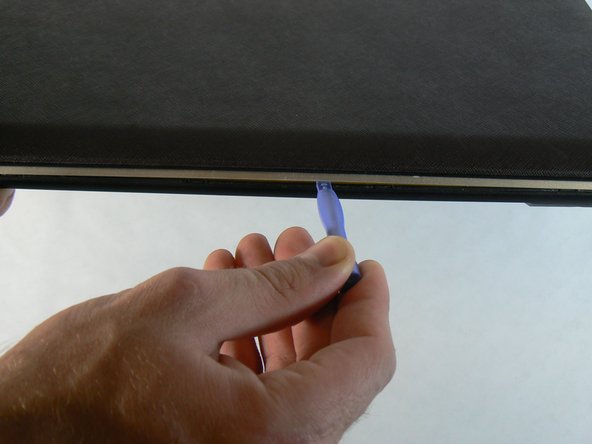
    • Use the blue plastic opening tool to pry the silver plastic keyboard surround out from the black plastic bottom. You will need to do this around the entire perimeter of the laptop and will hear a pop every time one of the retention clips is unlatched.

    询问修复机器人

    添加评论

  11. Lenovo IdeaPad U350 Thermal Paste Replacement: 步骤 11 中的图像 1,1
    • Unscrew the two M2X3 screws that were under the keyboard.

    询问修复机器人

    添加评论

  12. Lenovo IdeaPad U350 Thermal Paste Replacement: 步骤 12 中的图像 1,2 Lenovo IdeaPad U350 Thermal Paste Replacement: 步骤 12 中的图像 2,2
    • Use the spudger to unlatch the retention clip on the power button and status LEDs ZIF connector.

    • This ribbon cable is glued to the case. Carefully pull up on it from the right side until it is no longer sticking to the case.

    询问修复机器人

    添加评论

  13. Lenovo IdeaPad U350 Thermal Paste Replacement: 步骤 13 中的图像 1,1
    • Use the spudger to unlatch the retention clip on the touchpad ZIF connector.

    • Lift the silver plastic keyboard surround away from the base of the laptop. There shouldn't be any resistance.

    询问修复机器人

    添加评论

  14. Lenovo IdeaPad U350 Thermal Paste Replacement: 步骤 14 中的图像 1,1
    • Unplug the fan wire from the motherboard.

    询问修复机器人

    添加评论

  15. Lenovo IdeaPad U350 Thermal Paste Replacement: 步骤 15 中的图像 1,1
    • Unscrew the three fan screws using a PH1 bit.

    • These screws are attached to the fan. When unscrewing, be sure to stop when you here a click.

    询问修复机器人

    添加评论

  16. Lenovo IdeaPad U350 Thermal Paste Replacement: 步骤 16 中的图像 1,3 Lenovo IdeaPad U350 Thermal Paste Replacement: 步骤 16 中的图像 2,3 Lenovo IdeaPad U350 Thermal Paste Replacement: 步骤 16 中的图像 3,3
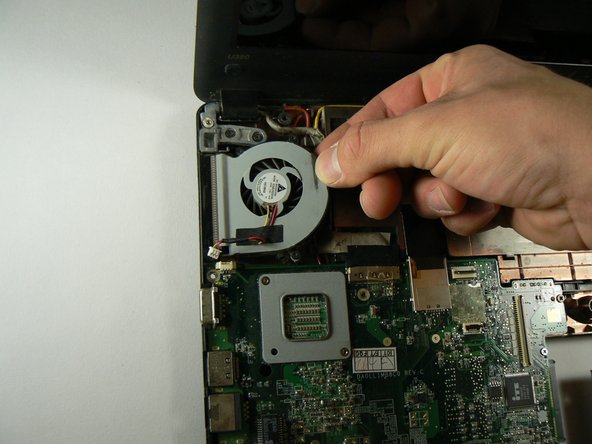
    • Grip the fan from as far to the right (towards the center of the laptop) as possible and lift up.

    • As soon as the right side of the fan clears the bump in the case where the battery is housed, pull the fan to the right. This should dislodge it from the heatsink.

    询问修复机器人

    添加评论

  17. Lenovo IdeaPad U350 Thermal Paste Replacement, Thermal Paste: 步骤 17 中的图像 1,3 Lenovo IdeaPad U350 Thermal Paste Replacement, Thermal Paste: 步骤 17 中的图像 2,3 Lenovo IdeaPad U350 Thermal Paste Replacement, Thermal Paste: 步骤 17 中的图像 3,3
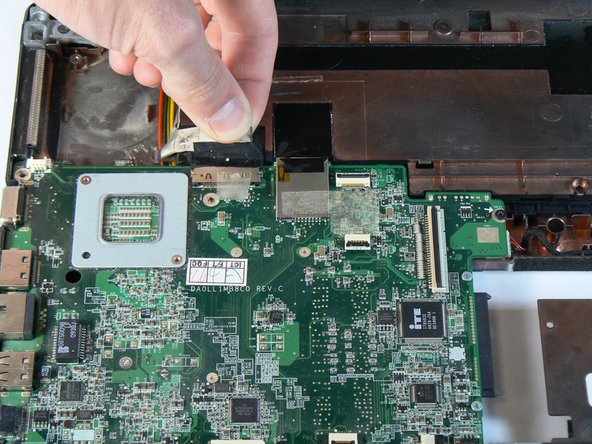
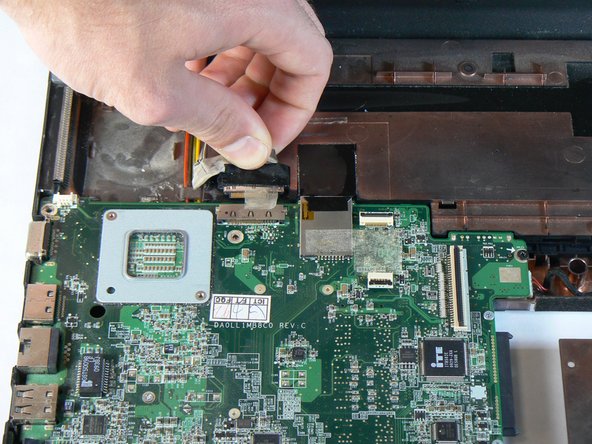
    • Carefully pull the glued plastic tab on the display connector away from the motherboard.

    • Pull the display cable itself out of the connector.

    询问修复机器人

    添加评论

  18. Lenovo IdeaPad U350 Thermal Paste Replacement: 步骤 18 中的图像 1,1
    • Unplug the speaker wire from the motherboard.

    询问修复机器人

    添加评论

  19. Lenovo IdeaPad U350 Thermal Paste Replacement: 步骤 19 中的图像 1,2 Lenovo IdeaPad U350 Thermal Paste Replacement: 步骤 19 中的图像 2,2
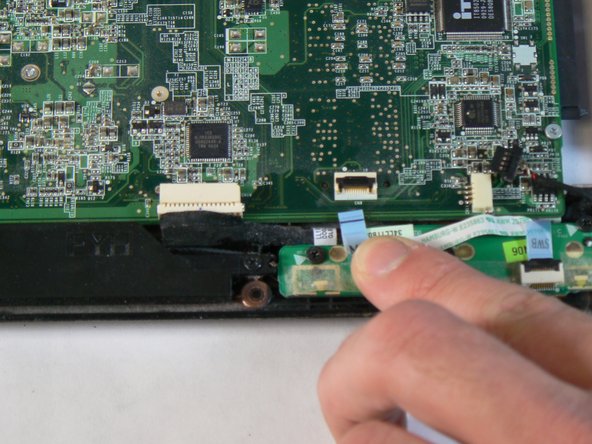
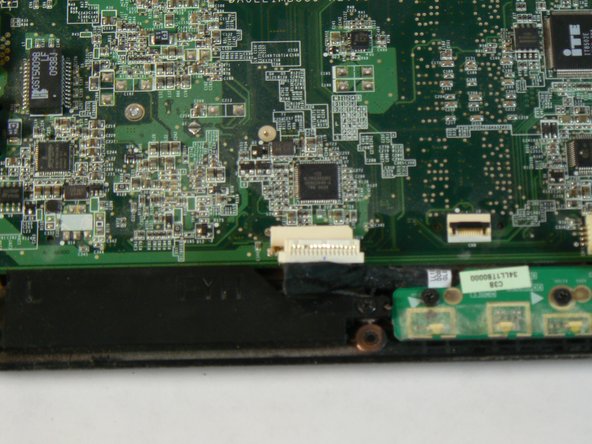
    • Use the blue opening tool or spudger to unlatch the indicator LED board ZIF connector.

    • Pull the indicator LED board ribbon cable out of the connector.

    询问修复机器人

    添加评论

  20. Lenovo IdeaPad U350 Thermal Paste Replacement: 步骤 20 中的图像 1,2 Lenovo IdeaPad U350 Thermal Paste Replacement: 步骤 20 中的图像 2,2
    • Unplug the I/O daughterboard cable from the motherboard.

    询问修复机器人

    添加评论

  21. Lenovo IdeaPad U350 Thermal Paste Replacement: 步骤 21 中的图像 1,1
    • Unscrew the four remaining screws that are holding the motherboard in place using a PH1 bit. The silver screws are 5.6mm long and the black screws are 3.6mm long.

    询问修复机器人

    添加评论

  22. Lenovo IdeaPad U350 Thermal Paste Replacement: 步骤 22 中的图像 1,2 Lenovo IdeaPad U350 Thermal Paste Replacement: 步骤 22 中的图像 2,2
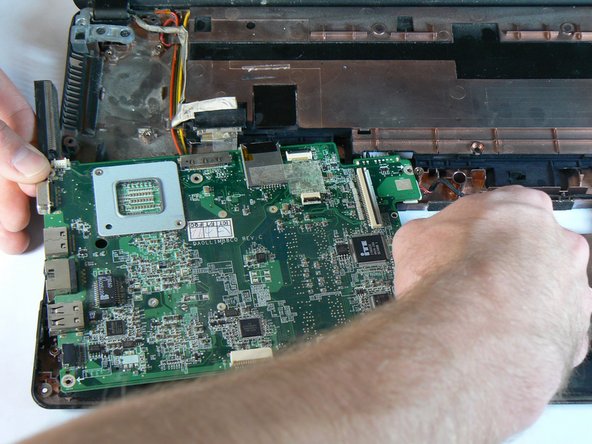
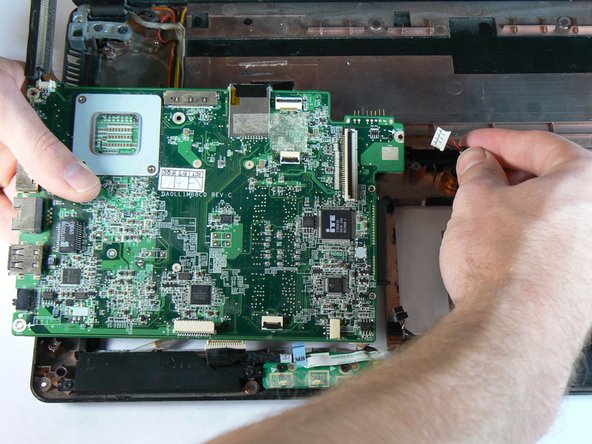
    • Begin lifting the motherboard out from the top left and bottom right corners.

    • The battery terminal on the top right corner of the motherboard will likely be lodged in the hole leading to the battery compartment. Some wiggling may be necessary in order to free it.

    询问修复机器人

    添加评论

  23. Lenovo IdeaPad U350 Thermal Paste Replacement: 步骤 23 中的图像 1,2 Lenovo IdeaPad U350 Thermal Paste Replacement: 步骤 23 中的图像 2,2
    • Unplug the power port cable from the motherboard.

    询问修复机器人

    添加评论

  24. Lenovo IdeaPad U350 Thermal Paste Replacement: 步骤 24 中的图像 1,1
    • Disconnect the remaining cable on the bottom right corner of the motherboard.

    询问修复机器人

    添加评论

  25. Lenovo IdeaPad U350 Thermal Paste Replacement: 步骤 25 中的图像 1,1
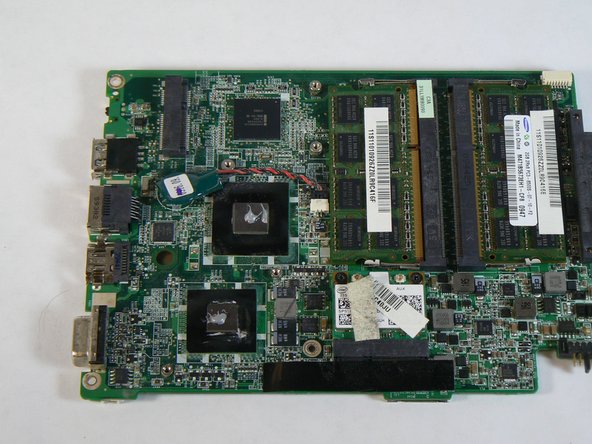
    • Unscrew the three heatsink screws using a PH1 bit. These screws are attached to heatsink assembly.

    询问修复机器人

    添加评论

  26. Lenovo IdeaPad U350 Thermal Paste Replacement: 步骤 26 中的图像 1,1
    • Clean off the old thermal paste from the bottom of the heatsink. Using rubbing alcohol can make the process easier.

    询问修复机器人

    添加评论

  27. Lenovo IdeaPad U350 Thermal Paste Replacement: 步骤 27 中的图像 1,1
    • Clean the old thermal paste off of the CPU and Northbridge dies on the motherboard.

    • Never use any object harder than soft plastic for scraping off tough thermal paste. Doing so can scratch the dies or traces, leaving the processor inoperable.

    询问修复机器人

    添加评论

  28. Lenovo IdeaPad U350 Thermal Paste Replacement: 步骤 28 中的图像 1,2 Lenovo IdeaPad U350 Thermal Paste Replacement: 步骤 28 中的图像 2,2
    • Apply new, high-quality thermal paste to both dies. Noctua NT-H1 or Arctic Silver 5 are recommended. Only a small bead of thermal paste, roughly the size of a grain of rice, is necessary.

    询问修复机器人

    添加评论

  29. Lenovo IdeaPad U350 Thermal Paste Replacement: 步骤 29 中的图像 1,1
    • Carefully place the heatsink back on the dies, attempting to keep it level in order to create an even spread of thermal paste.

    • Tighten all of the heatsink assembly screws.

    询问修复机器人

    添加评论

结论

To reassemble your device, follow these instructions in reverse order.

取消:我没有完成这个指南。

3等其他人完成本指南。

团队

USF Tampa, Team 1-4, Hickman Fall 2014 USF Tampa, Team 1-4, Hickman Fall 2014 的会员

USFT-HICKMAN-F14S1G4

3 名成员

创作了5篇指南

1指南评论

Thanks!This way is very easy!

williantorres - 回复 分享

添加评论

浏览统计数据:

过去 24 小时: 1

过去 7 天: 8

过去 30 天: 41

总计 3,187