简介
In this guide you will be taken through a step by step process on how to replace your display on your LG G Pad 7.0.
Replacing your display is a tricky procedure with you having to remove key components like a mother board, charging port and connectors inside your device, so don't forget to power down your device. You must be careful when removing the 7 inch glass display.
Chances are your display is no longer operating properly or simply just cracked and in need of replacement. So carefully follow the steps properly.
你所需要的
-
-
The screen assembly is secured to the plastic backing with clips.Insert the plastic opening tool between the screen and plastic.
-
Carefully work your way around the device making sure not to go too deep damaging any eternal components, freeing it from the connecting clips.
-
Lift the tablet from the plastic frame. You may need to loosen some more clips if it is difficult to remove.
-
-
-
Remove the red marked connectors by gently prying up. Be sure not to rip the ribbon cables as they are very fragile.
-
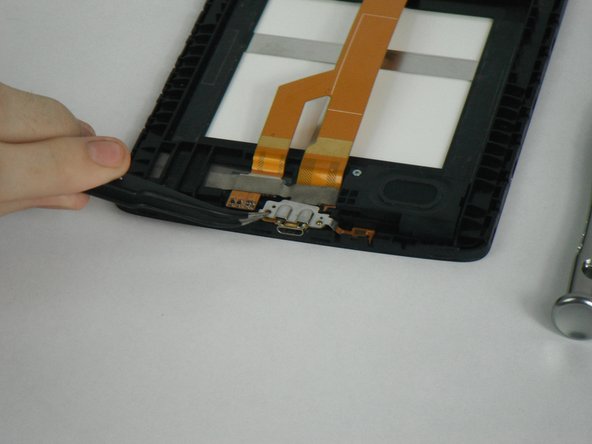
Remove the three connectors marked in orange by gently prying them upwards. The cables are very fragile so be careful not to rip them.
-
-
-
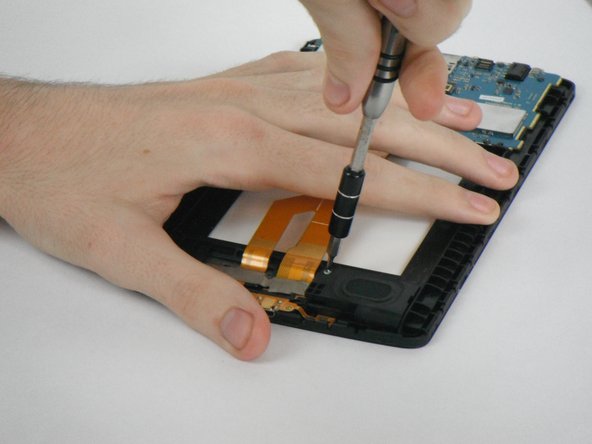
Remove the 7 screws marked in red that are securing the logic board to the case.
-
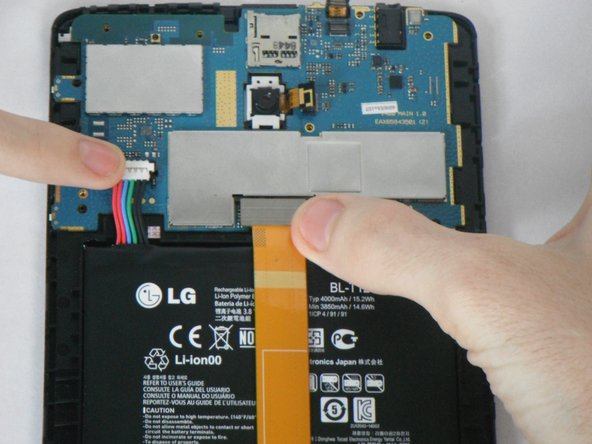
Be sure that all the connectors marked in orange are removed before pulling out the mother board.
-
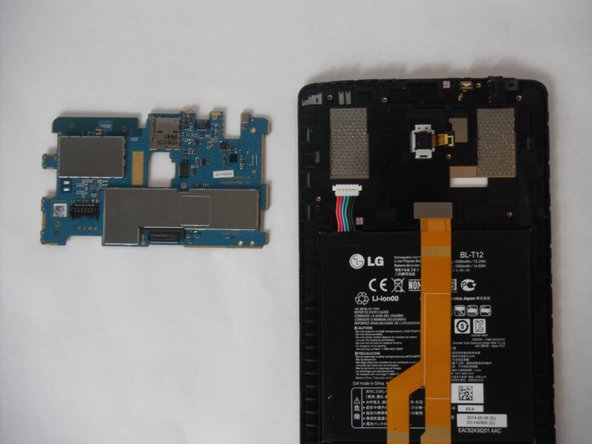
Very carefully remove the logic board after the screws have been removed
-
-
-
Flip your device. Begin to heat the adhesive holding the display to loosen from the plastic midframe.
-
Slowly work your way around removing the display from the midframe with a razor blade.
-
-
-
Take your new display and apply the adhesive or double side tape to adhere to the plastic frame.
-
For best results use the biggest size that will fit the frame without overlapping with the lcd part.
-
Press firmly all around after installing the new display. Allowing the adhesive/double side tape to have a better bond.
-




Give some time for the adhesive to dry completely all the way around. When reassembling your device just follow the steps above in reveres order.
Give some time for the adhesive to dry completely all the way around. When reassembling your device just follow the steps above in reveres order.
10等其他人完成本指南。


团队

6条评论
Thanks so very much for a very helpful guide. YOU rock dude!!!
Tara Davis - 回复
This doesn’t make sense. guide is to replace display, Step 5 is “Insert new motherboard”???
Then no pictures for steps 6 and 7, are they to be done with motherboard in place or what?
What does your replacement display look like? does it include the plastic frame? “New motherboard” incorrectly assumes youre replacing the motherboard, if youre doing a screen, just re insert your old one.
There should be a different guide for the motherboard. Step 5 is super confusing.
I totally agree. You should have one guide for just the screen replacement and one for motherboard replacement otherwise anyone following step by step to do either task will be doing unnecessary steps. It would clear up a lot of confusion if there were two separate guides.
