跳转到主内容

IBM ThinkPad T43 WiFi Card Replacement

你所需要的

  1. IBM ThinkPad T43 WiFi Card Replacement, Removing Screws: 步骤 1 中的图像 1,2 IBM ThinkPad T43 WiFi Card Replacement, Removing Screws: 步骤 1 中的图像 2,2
    • Set the laptop top-down onto the workstation.

    • Remove all screws circled in red.

    • When removing screws, group them by size. The bottom case of the laptop includes a sticker that shows the size of the screws.

    • When reassembling the device, note the numbers by the screw holes and use them to know what size screw correlates to what hole.

  2. IBM ThinkPad T43 WiFi Card Replacement: 步骤 2 中的图像 1,2 IBM ThinkPad T43 WiFi Card Replacement: 步骤 2 中的图像 2,2
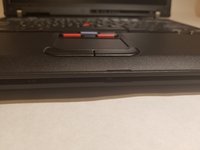
    • Flip the laptop so that the IBM ThinkPad logo is facing up.

    • Slide the unlocking switch to open the device, and lift the display (not the palmrest assembly).

    • Make sure to unlock the laptop before opening, as the palmrest assembly is not screwed in to the bottom case.

  3. IBM ThinkPad T43 WiFi Card Replacement: 步骤 3 中的图像 1,2 IBM ThinkPad T43 WiFi Card Replacement: 步骤 3 中的图像 2,2
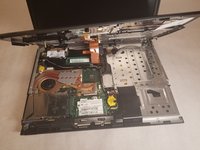
    • With the laptop open, hold the bottom edges of the top case and slowly lift.

    • Be sure to not lift the palmrest completely, since there is a ribbon cable still attached to the bottom case.

  4. IBM ThinkPad T43 WiFi Card Replacement: 步骤 4 中的图像 1,2 IBM ThinkPad T43 WiFi Card Replacement: 步骤 4 中的图像 2,2
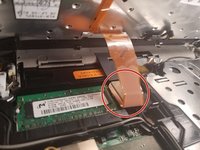
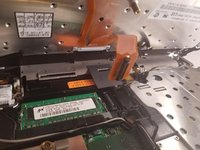
    • Disconnect the ribbon cable by lifting on the plastic backing square.

    • Do not lift by the ribbon cable itself, as this can cause it to tear.

  5. IBM ThinkPad T43 WiFi Card Replacement: 步骤 5 中的图像 1,1
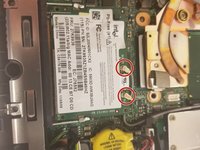
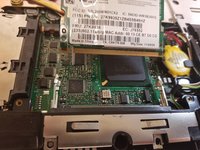
    • The Wi-Fi Card is located towards the middle bottom of the laptop

  6. IBM ThinkPad T43 WiFi Card Replacement: 步骤 6 中的图像 1,2 IBM ThinkPad T43 WiFi Card Replacement: 步骤 6 中的图像 2,2
    在这个步骤中使用的工具:
    Tweezers
    $4.99
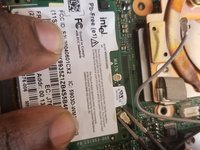
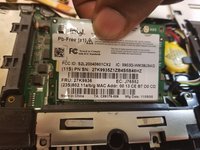
    • Locate the two wires connected at the top of the Wi-Fi card.

    • Hold the card down and use the tweezers to pinch the plug and pull up.

  7. IBM ThinkPad T43 WiFi Card Replacement: 步骤 7 中的图像 1,3 IBM ThinkPad T43 WiFi Card Replacement: 步骤 7 中的图像 2,3 IBM ThinkPad T43 WiFi Card Replacement: 步骤 7 中的图像 3,3
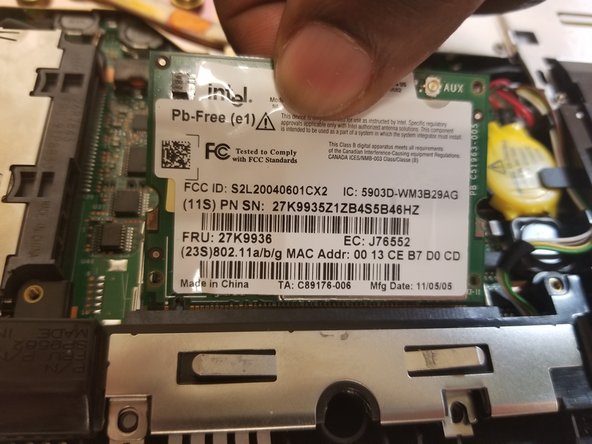
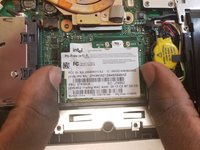
    • Place fingers on the two clips holding the card in place

    • Pull the clips outwards until the the card pops up

    • Pull the card out by pulling out away from your body

    • To replace, follow these steps in reverse order

    • Make sure that the side with the short end is on the left when you put it back in.

结论

To reassemble your device, follow these instructions in reverse order.

2等其他人完成本指南。

aLiX pIeRRe

于03/19/18注册

855 声望

创作了5篇指南

团队

UMass Dartmouth, Team S6-G4, Bernier Spring 2018 UMass Dartmouth, Team S6-G4, Bernier Spring 2018 的会员

UMASSD-BERNIER-S18S6G4

4 名成员

创作了10篇指南

2指南评论

I need to know what's role of the cables AUX and MAIN because i cut one

M a n i _001 - 回复

AUX and MAIN cables are antenna cables. In this laptop there are two antennas, MAIN and AUX.

If you have a soldering iron, simply solder the two parts of the cable you cut and everything is gonna be fine.

I also recommend using shrink tubing to isolate the soldered part.

Note : laptop can work without this câble, but WiFi speed and stability will suffer.

If you can't solder the câble or can't by a new one, you can try to use only main by pluggin the only remaining antena câble to MAIN and leaving AUX unlpuged.

Brendan -

添加评论

浏览统计数据:

过去 24 小时: 3

过去 7 天: 7

过去 30 天: 51

总计 11,667