跳转到主内容
加入维修社区 - 创建账户

How to Calibrate an Optical Fingerprint Sensor

浏览量: 23万

浏览统计数据:

过去24小时
134
过去 7 天:
883
过去 30 天:
3,304
总计
234,050
评论: 45

22 comments on steps, 23 guide comments.

Go to guide comments
已完成: 52

52 人已将本指南标记为“已完成”。你会是下一个完成的人吗?

收藏: 3

3 人已收藏(并订阅)本指南。你会是下一个吗?

所需时间: 5 - 20 分钟
难度: 中等
How to Calibrate an Optical Fingerprint Sensor

Follow this guide to calibrate the in-screen optical fingerprint sensor in your Samsung phone or tablet. You should perform the calibration whenever you replace the screen, to ensure that the fingerprint sensor is accurate and secure.

This calibration procedure currently only works for the Tab S7+'s optical fingerprint sensor. This guide will update as Samsung adds more compatibility. For more information, check out the Samsung Self-Repair document.

You'll need the Samsung fingerprint sensor calibration toolkit in order to complete this procedure.

    1. How to Calibrate an Optical Fingerprint Sensor, Download the app: 步骤 1 中的图像 1,3 How to Calibrate an Optical Fingerprint Sensor, Download the app: 步骤 1 中的图像 2,3 How to Calibrate an Optical Fingerprint Sensor, Download the app: 步骤 1 中的图像 3,3
      • Download the Self Repair Assistant app from ApkMirror (2.0.44)

      • You may be prompted with a "File might be harmful" warning. If so, select "Download anyway."

      • Open the "My Files" app.

      • Navigate to the "Installation files" tab on the left side of the screen.

      添加评论

    2. How to Calibrate an Optical Fingerprint Sensor, Install the app: 步骤 2 中的图像 1,2 How to Calibrate an Optical Fingerprint Sensor, Install the app: 步骤 2 中的图像 2,2
      • Select the app on the right side of the screen.

      • If the app doesn't show up on this panel, skip to the next step.

      • Select "Install" to confirm the app's installation.

      • Skip the next two steps.

      添加评论

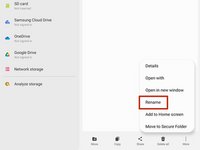
    3. How to Calibrate an Optical Fingerprint Sensor, Rename the app: 步骤 3 中的图像 1,3 How to Calibrate an Optical Fingerprint Sensor, Rename the app: 步骤 3 中的图像 2,3 How to Calibrate an Optical Fingerprint Sensor, Rename the app: 步骤 3 中的图像 3,3
      • If your app didn't show up on the "Installation files" tab, follow the next two steps to rename the file.

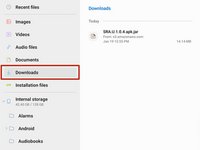
      • Navigate to the "Downloads" tab on the left side of the screen.

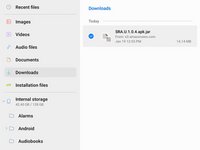
      • Long press the download file until an orange checkmark appears to the left of it.

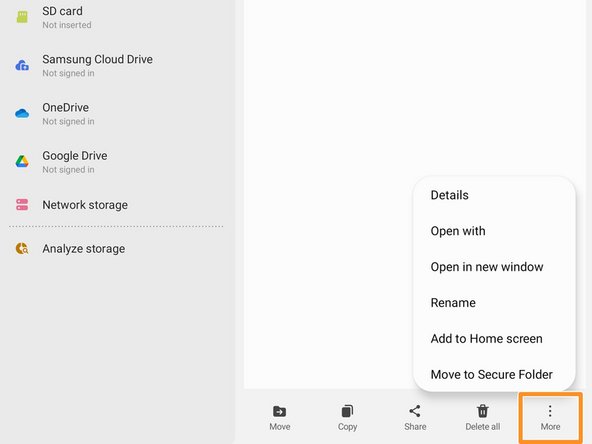
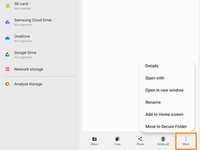
      • Navigate to the bottom of the screen and select the "More" option.

      询问修复机器人

      添加评论

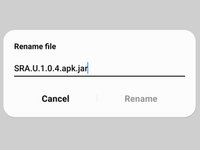
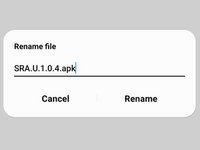
    4. How to Calibrate an Optical Fingerprint Sensor: 步骤 4 中的图像 1,3 How to Calibrate an Optical Fingerprint Sensor: 步骤 4 中的图像 2,3 How to Calibrate an Optical Fingerprint Sensor: 步骤 4 中的图像 3,3
      • Select the "Rename" option.

      • Delete the .jar at the end of the app's name.

      • Your file should now appear in the "Installation files" tab.

      添加评论

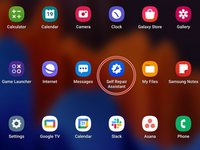
    1. How to Calibrate an Optical Fingerprint Sensor, Open the Self Repair Assistant app: 步骤 5 中的图像 1,2 How to Calibrate an Optical Fingerprint Sensor, Open the Self Repair Assistant app: 步骤 5 中的图像 2,2
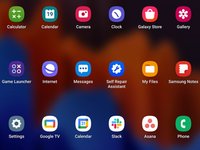
      • Open the Self Repair Assistant app.

      添加评论

    2. How to Calibrate an Optical Fingerprint Sensor, Agree to the terms and conditions: 步骤 6 中的图像 1,1
      • Select "Agree" to accept the Terms and Conditions.

      添加评论

    3. How to Calibrate an Optical Fingerprint Sensor, Select the procedure: 步骤 7 中的图像 1,3 How to Calibrate an Optical Fingerprint Sensor, Select the procedure: 步骤 7 中的图像 2,3 How to Calibrate an Optical Fingerprint Sensor, Select the procedure: 步骤 7 中的图像 3,3
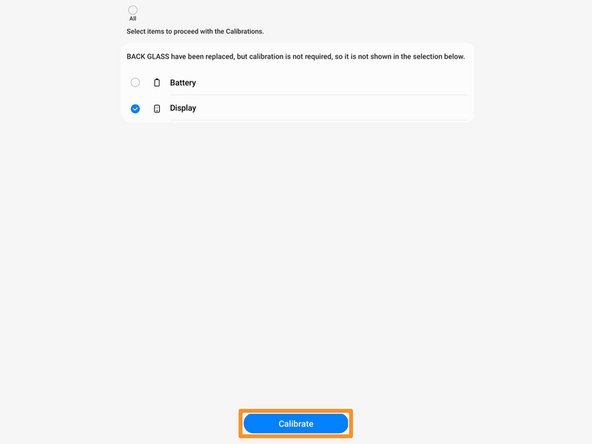
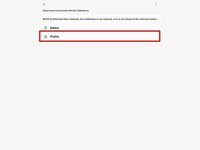
      • Select the "Display" icon.

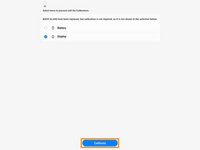
      • Select "Continue" at the bottom of the screen.

      • If you want to perform a battery cycle reset instead, follow this guide.

      • Select "Start" to begin the fingerprint sensor calibration.

      添加评论

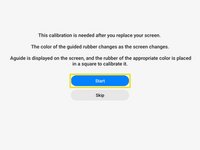
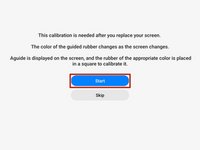
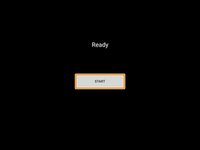
    4. How to Calibrate an Optical Fingerprint Sensor, Begin the fingerprint sensor calibration: 步骤 8 中的图像 1,2 How to Calibrate an Optical Fingerprint Sensor, Begin the fingerprint sensor calibration: 步骤 8 中的图像 2,2
      • Select "Start" to begin the fingerprint sensor calibration.

      • Once the screen turns black, select "Start" again.

      询问修复机器人

      添加评论

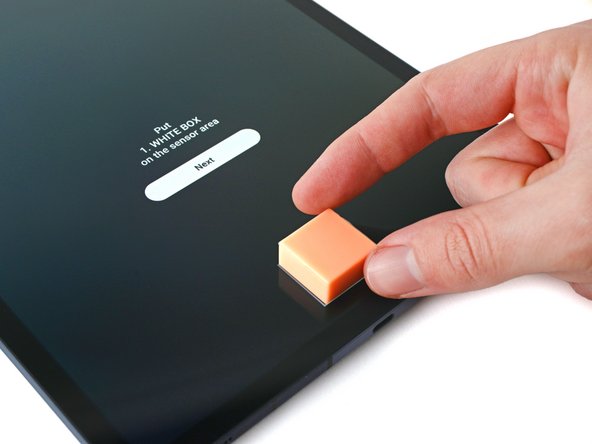
    5. How to Calibrate an Optical Fingerprint Sensor, Apply the white box: 步骤 9 中的图像 1,3 How to Calibrate an Optical Fingerprint Sensor, Apply the white box: 步骤 9 中的图像 2,3 How to Calibrate an Optical Fingerprint Sensor, Apply the white box: 步骤 9 中的图像 3,3
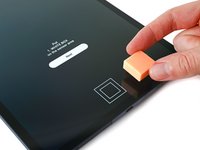
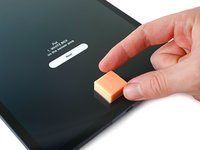
      • Place the white box over the outline near the bottom of the screen.

      • Cover the outline with the side on the box that matches the pattern.

      • Make sure the white box completely covers the outline. Deviations could result in a "Fail" result or an inaccurate calibration.

      添加评论

    6. How to Calibrate an Optical Fingerprint Sensor: 步骤 10 中的图像 1,1
      • Use your finger to press down on the white box.

      • While pressing down, use your other hand to select the "Next" icon near the top of the screen.

      • Continue pressing until the "Calibrating" disappears.

      询问修复机器人

      添加评论

    7. How to Calibrate an Optical Fingerprint Sensor, Apply the black box: 步骤 11 中的图像 1,3 How to Calibrate an Optical Fingerprint Sensor, Apply the black box: 步骤 11 中的图像 2,3 How to Calibrate an Optical Fingerprint Sensor, Apply the black box: 步骤 11 中的图像 3,3
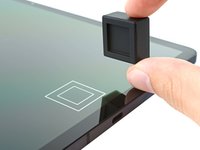
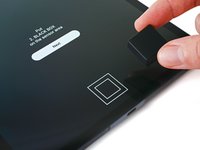
      • Place the black box over the outline near the bottom of the screen.

      • Cover the outline with the side on the box that matches the pattern.

      • Make sure the black box completely covers the outline. Deviations could result in a "Fail" result or an inaccurate calibration.

      询问修复机器人

      添加评论

    8. How to Calibrate an Optical Fingerprint Sensor: 步骤 12 中的图像 1,1
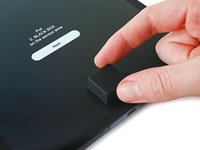
      • Use your finger to press down on the black box.

      • While pressing down, use your other hand to select the "Next" icon near the top of the screen.

      • Continue pressing until the "Calibrating" disappears.

      询问修复机器人

      添加评论

    9. How to Calibrate an Optical Fingerprint Sensor, Apply the small white box: 步骤 13 中的图像 1,3 How to Calibrate an Optical Fingerprint Sensor, Apply the small white box: 步骤 13 中的图像 2,3 How to Calibrate an Optical Fingerprint Sensor, Apply the small white box: 步骤 13 中的图像 3,3
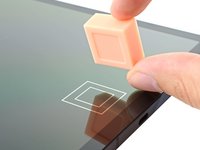
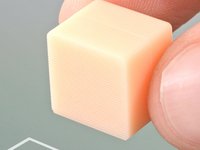
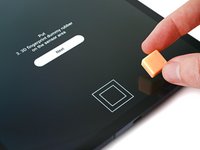
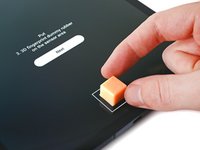
      • Place the side of the small white box with the grooves over the inner portion of the outline near the bottom of the screen.

      • Make sure the grooves on the box are vertical when placing it on the screen.

      • Make sure the white box completely covers the inner outline. Deviations could result in a "Fail" result or an inaccurate calibration.

      添加评论

    10. How to Calibrate an Optical Fingerprint Sensor: 步骤 14 中的图像 1,3 How to Calibrate an Optical Fingerprint Sensor: 步骤 14 中的图像 2,3 How to Calibrate an Optical Fingerprint Sensor: 步骤 14 中的图像 3,3
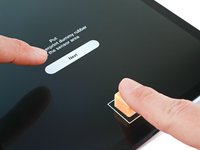
      • Use your finger to press down on the small white box.

      • While pressing down, use your other hand to select the "Next" icon near the top of the screen.

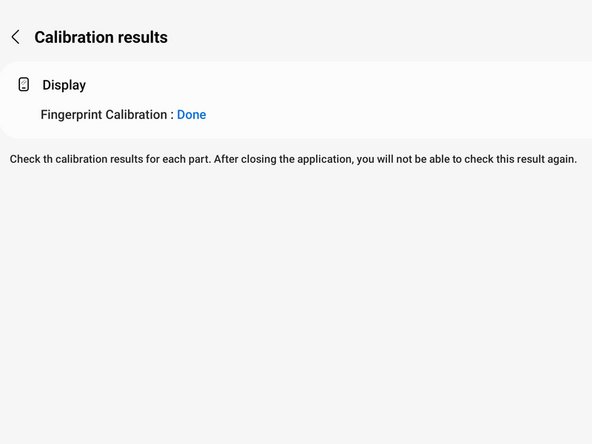
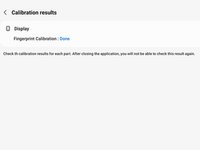
      • Continue pressing until "Done" appears at the top of the screen.

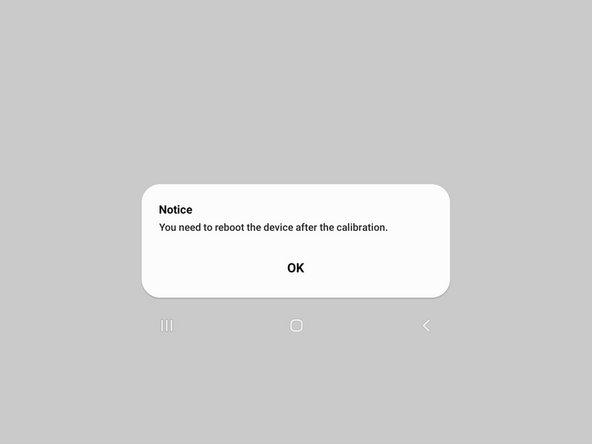
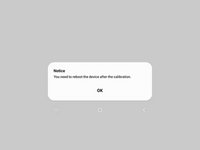
      • You may need to reset your device for the calibration to apply.

      添加评论

结论

Your optical fingerprint sensor is calibrated and ready for use.

If the calibration fails for any reason, repeat the calibration procedure.

取消:我没有完成这个指南。

52等其他人完成本指南。

作者

与

Alex Diaz-Kokaisl

于01/16/22注册

252,755 声望

创作了1,200篇指南

团队

Guide Team Guide Team 的会员

Staff

10 名成员

创作了62,189篇指南

23指南评论

When I open the app after installation I get this toast message "this model is NOT supported"

My device is a Galaxy A71

Pierre Ehab - 回复 分享

I have a Galaxy A70. "Fingerprint sensor Calibration needed" when I try to turn on Biometric. *# 0 *# says the sensor is alright (everything pass) But calibration = 1

HOW do I calibrate the sensor? The local samsung service center is trash

nombre20 apellido20 - 回复 分享

When I open the app after installation I get this toast message "this model is NOT supported" My device is a Galaxy A52

neskagu nikomu - 回复 分享

Hi there.

Unfortunately, as stated in the introduction, the only device supported right now is the Tab S7+ . Samsung plans to include more devices with time.

Alex Diaz-Kokaisl - 回复 分享

It showed not supported for this model... What should i do next

Salem Ekwuribe - 回复 分享

添加评论

浏览统计数据:

过去 24 小时: 134

过去 7 天: 883

过去 30 天: 3,304

总计 234,050