跳转到主内容
加入维修社区 - 创建账户

Hard Drive

你所需要的

  1. Hard Drive, Battery: 步骤 1 中的图像 1,1
    • Before proceeding, power down your Laptop and remove the power cable.

    • Close the display and lay it on a flat surface, top-side down.

  2. Hard Drive: 步骤 2 中的图像 1,1
    • Unlock the battery by sliding the battery lock to the unlock part.

  3. Hard Drive: 步骤 3 中的图像 1,1
    • Slide the middle lock to the right and the battery will pop up.

  4. Hard Drive: 步骤 4 中的图像 1,1
    • If you want to replace the battery and nothing else then now is the time to do so.

    • Once the battery hatch is unlocked you can now safely remove the battery.

  5. Hard Drive, Hard Drive: 步骤 5 中的图像 1,1
    • Use a Philips J1 driver to remove two screws securing the hard drive cover.

  6. Hard Drive: 步骤 6 中的图像 1,1
    • If the hard drive is not located here, then it will be located in the next step.

    • Now you can remove, replace or upgrade the hard drive to an SSD if you need to.

  7. Hard Drive: 步骤 7 中的图像 1,1
    • If your hard drive was not located in the previous spot or you have two drives then this one is located here.

    • Use a Philips J1 driver to remove eight screws securing the bottom case.

  8. Hard Drive: 步骤 8 中的图像 1,1
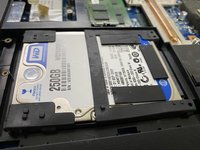
    • After removing the bottom panel cover, then you should spot the hard drive right here.

  9. Hard Drive: 步骤 9 中的图像 1,2 Hard Drive: 步骤 9 中的图像 2,2
    • While removing the hard drive, try to be gentle.

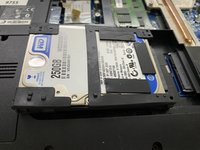
    • Now you can simply upgrade, replace or remove the hard drive right here. To remove it, push it from the two corners and it should come off like in the next picture.

结论

To reassemble your device, follow these instructions in reverse order.

另外一个人完成了本指南。

Regome

于01/20/23注册

794 声望

创作了7篇指南

0指南评论

添加评论

浏览统计数据:

过去 24 小时: 3

过去 7 天: 9

过去 30 天: 17

总计 241