跳转到主内容

Google Pixel 9 Motherboard Replacement

你所需要的

  1. Google Pixel 9 Motherboard Replacement, Prepare your Pixel for disassembly: 步骤 1 中的图像 1,3 Google Pixel 9 Motherboard Replacement, Prepare your Pixel for disassembly: 步骤 1 中的图像 2,3 Google Pixel 9 Motherboard Replacement, Prepare your Pixel for disassembly: 步骤 1 中的图像 3,3
    • Let your Pixel's battery drain below 25% before starting this repair. A charged lithium‑ion battery may catch fire if damaged.

    • Unplug all cables from your phone.

    • Completely power off your phone.

    • Press the power and volume up buttons at the same time to bring up the shutdown menu.

  2. Google Pixel 9 Motherboard Replacement, Adhesive information: 步骤 2 中的图像 1,3 Google Pixel 9 Motherboard Replacement, Adhesive information: 步骤 2 中的图像 2,3 Google Pixel 9 Motherboard Replacement, Adhesive information: 步骤 2 中的图像 3,3
    • Adhesive secures the perimeter of the back glass to the frame.

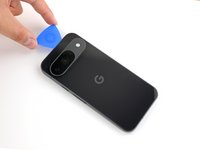
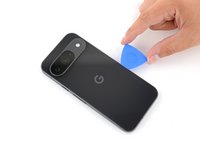
    • When separating the adhesive, don't insert your tool more than 3 mm under the back glass to avoid damaging the internal components.

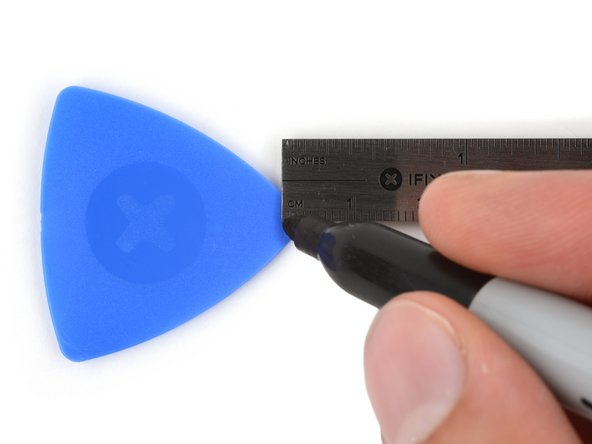
    • To help, measure and mark 3 mm from the tip of an opening pick with a permanent marker.

    • If your screen or back glass is badly cracked, a suction cup may not perfectly adhere.

    • Lay overlapping strips of packing tape over the glass to protect yourself and make disassembly easier. Ensure there's a smooth area near the bottom edge that's large and smooth enough for a suction cup to stick to.

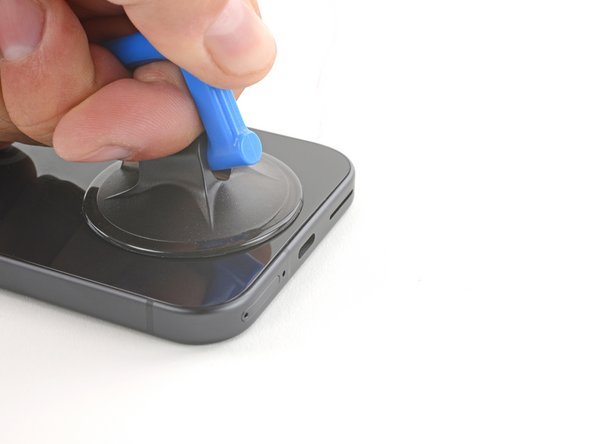
  3. Google Pixel 9 Motherboard Replacement, Apply a suction handle: 步骤 3 中的图像 1,2 Google Pixel 9 Motherboard Replacement, Apply a suction handle: 步骤 3 中的图像 2,2
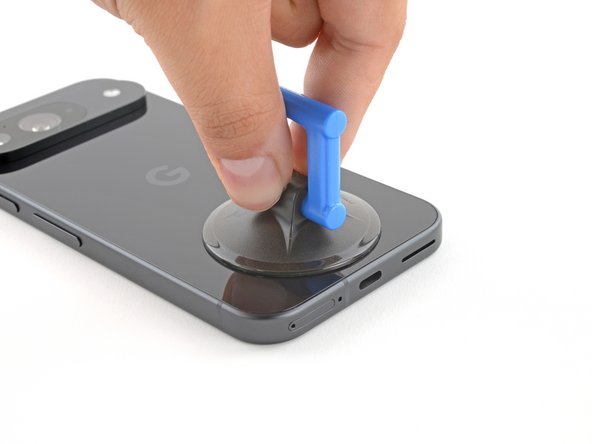
    • Place a suction handle at the bottom edge of the back glass, as close to the edge as possible.

    • Push down to attach the suction cup.

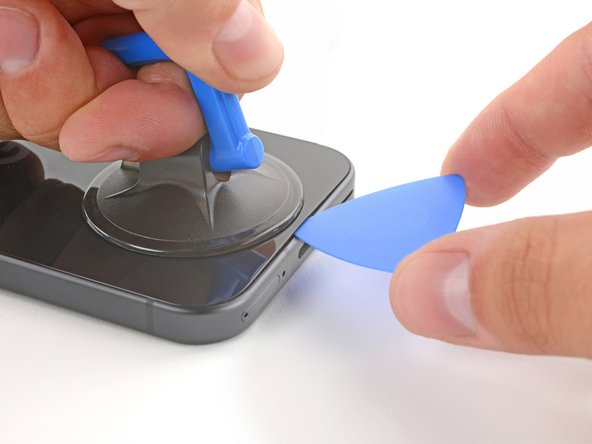
  4. Google Pixel 9 Motherboard Replacement, Insert an opening pick: 步骤 4 中的图像 1,3 Google Pixel 9 Motherboard Replacement, Insert an opening pick: 步骤 4 中的图像 2,3 Google Pixel 9 Motherboard Replacement, Insert an opening pick: 步骤 4 中的图像 3,3
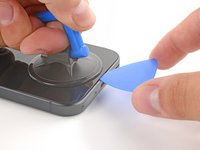
    • Pull up on the suction handle with strong, steady force to create a small gap under the back glass.

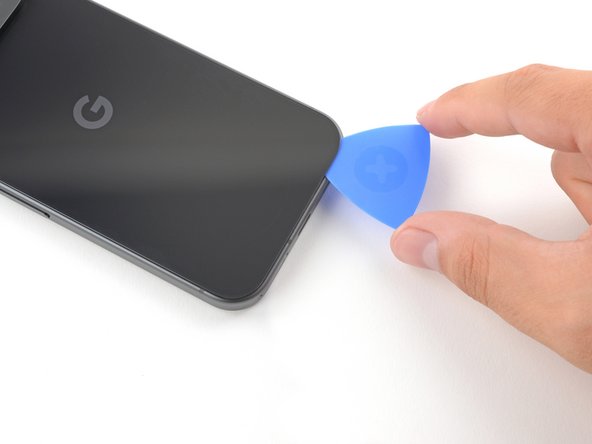
    • Insert the tip of an opening pick into the gap.

  5. Google Pixel 9 Motherboard Replacement, Separate the back glass adhesive: 步骤 5 中的图像 1,3 Google Pixel 9 Motherboard Replacement, Separate the back glass adhesive: 步骤 5 中的图像 2,3 Google Pixel 9 Motherboard Replacement, Separate the back glass adhesive: 步骤 5 中的图像 3,3
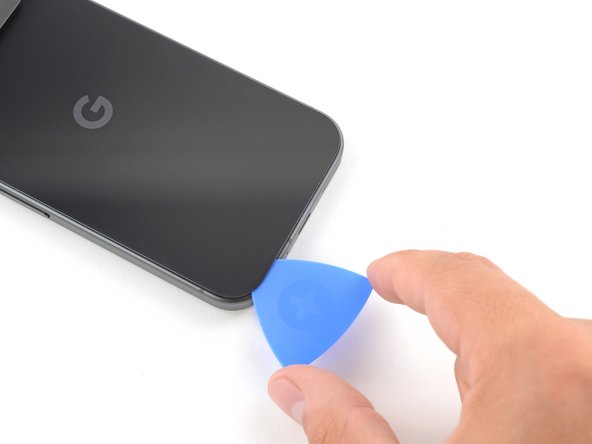
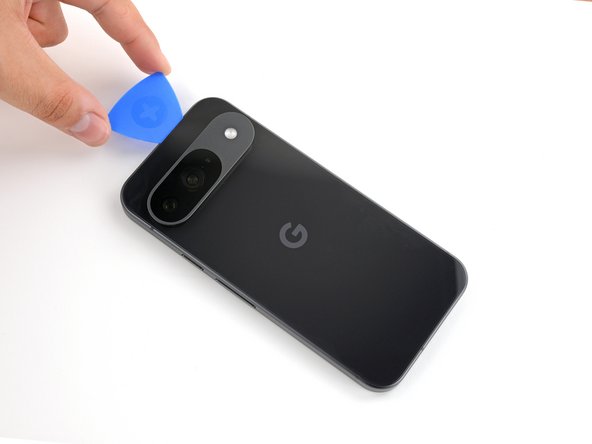
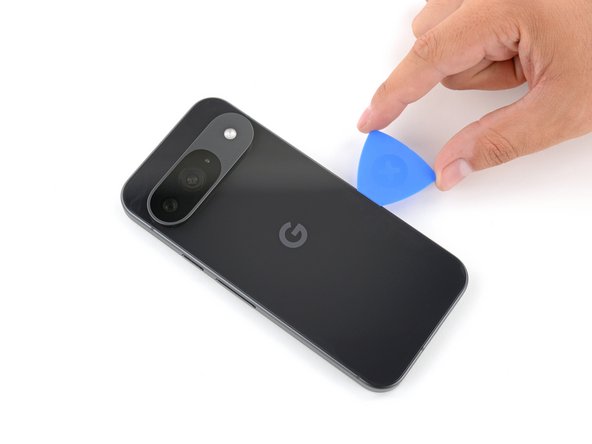
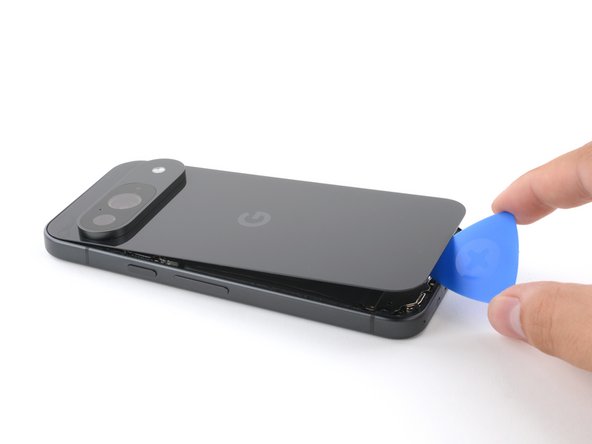
    • Slide the opening pick back and forth along the bottom edge to separate the adhesive securing it.

    • Remember: don't insert the opening pick deeper than 3 mm.

  6. Google Pixel 9 Motherboard Replacement: 步骤 6 中的图像 1,3 Google Pixel 9 Motherboard Replacement: 步骤 6 中的图像 2,3 Google Pixel 9 Motherboard Replacement: 步骤 6 中的图像 3,3
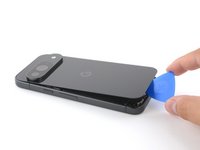
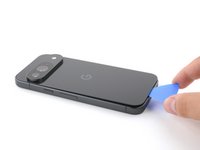
    • Slide the opening pick around the perimeter of the phone, slicing the rest of the adhesive.

  7. Google Pixel 9 Motherboard Replacement: 步骤 7 中的图像 1,3 Google Pixel 9 Motherboard Replacement: 步骤 7 中的图像 2,3 Google Pixel 9 Motherboard Replacement: 步骤 7 中的图像 3,3
    • With most of the adhesive separated, lightly twist the opening pick at the bottom edge to lift the back glass up until you can grip it with your fingers.

    • Use the opening pick to separate any remaining sections of adhesive securing the back glass.

  8. Google Pixel 9 Motherboard Replacement, Remove the back glass: 步骤 8 中的图像 1,1
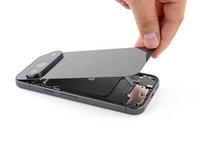
    • Remove the back glass.

    • During reassembly:

    • Now is a good time to test your phone before sealing it up. Power it on and check that it works. Power it back down before you continue reassembly.

    • Follow this guide to apply new adhesive and install your back glass.

  9. Google Pixel 9 Motherboard Replacement, Remove the upper board cover: 步骤 9 中的图像 1,1
    在这个步骤中使用的工具:
    FixMat
    $31.41
    • Throughout this repair, keep track of each screw and make sure it goes back exactly where it came from.

    • While the Pixel 9 uses Torx Plus screws, standard Torx bits also work. Make sure to apply constant, downward force to prevent stripping.

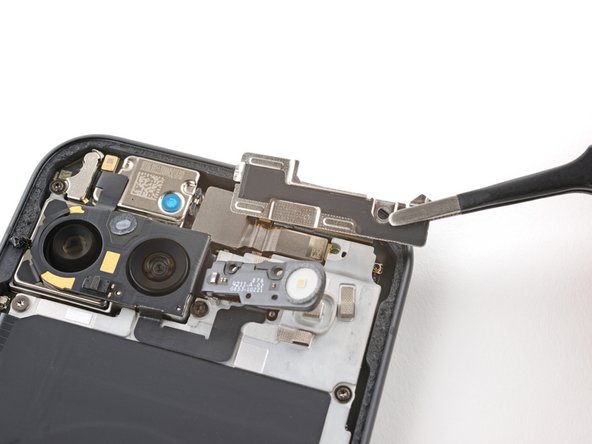
    • Use a 3IP Torx Plus driver to remove the single 5.4 mm‑long screw securing the upper board cover.

  10. Google Pixel 9 Motherboard Replacement: 步骤 10 中的图像 1,2 Google Pixel 9 Motherboard Replacement: 步骤 10 中的图像 2,2
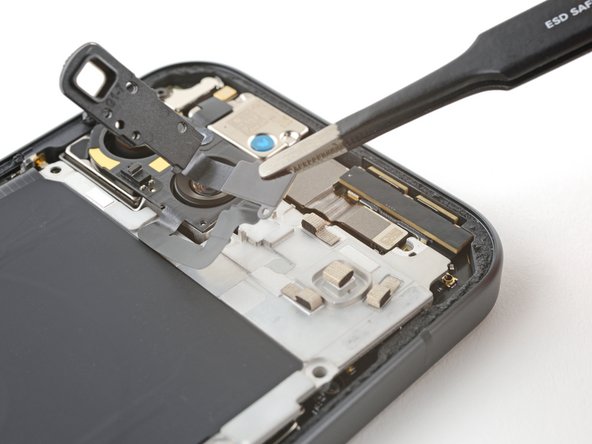
    • Use a pair of tweezers to remove the upper board cover.

  11. Google Pixel 9 Motherboard Replacement, Remove the midframe: 步骤 11 中的图像 1,1
    • Use a 3IP Torx driver to remove the five screws securing the midframe and wireless charging coil:

    • Four 5.4 mm-long screws

    • One 2.2 mm-long screw

  12. Google Pixel 9 Motherboard Replacement, Peel up the flash cable: 步骤 12 中的图像 1,2 Google Pixel 9 Motherboard Replacement, Peel up the flash cable: 步骤 12 中的图像 2,2
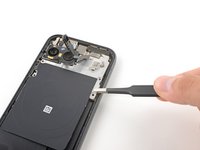
    • Use a pair of tweezers to peel the flash cable off of the metal midframe.

  13. Google Pixel 9 Motherboard Replacement, Remove the midframe: 步骤 13 中的图像 1,2 Google Pixel 9 Motherboard Replacement, Remove the midframe: 步骤 13 中的图像 2,2
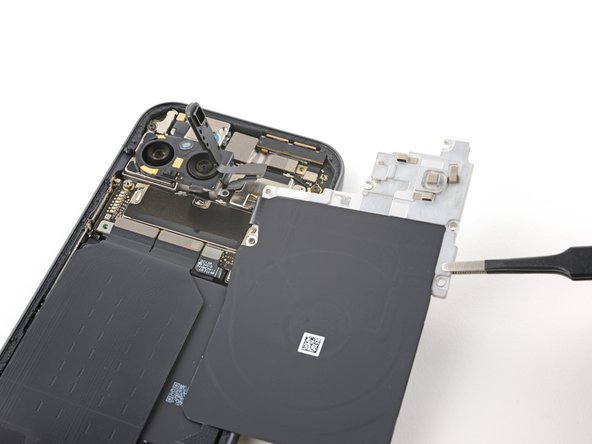
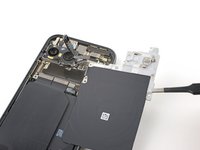
    • Remove the midframe, wireless charging coil, and NFC assembly.

  14. Google Pixel 9 Motherboard Replacement, Disconnect the battery: 步骤 14 中的图像 1,2 Google Pixel 9 Motherboard Replacement, Disconnect the battery: 步骤 14 中的图像 2,2
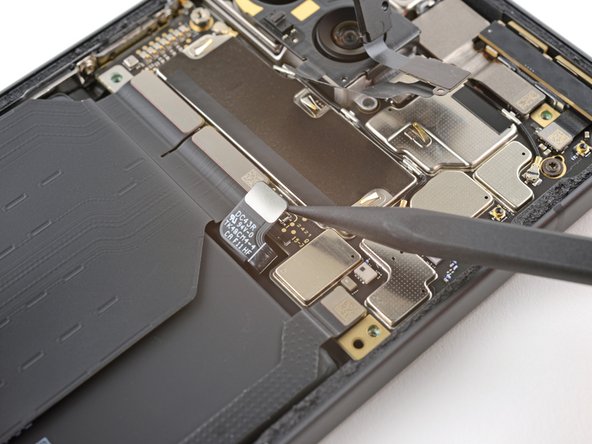
    • Use the tip of a spudger to pry up and disconnect the battery connector.

  15. Google Pixel 9 Motherboard Replacement, Disconnect the 5G mmWave antenna: 步骤 15 中的图像 1,3 Google Pixel 9 Motherboard Replacement, Disconnect the 5G mmWave antenna: 步骤 15 中的图像 2,3 Google Pixel 9 Motherboard Replacement, Disconnect the 5G mmWave antenna: 步骤 15 中的图像 3,3
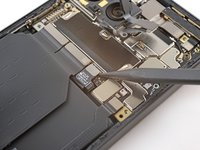
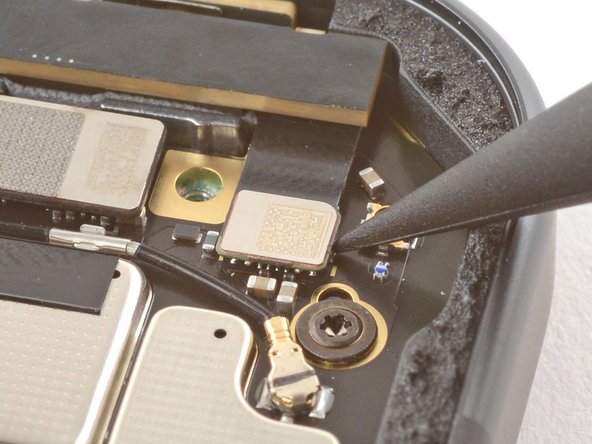
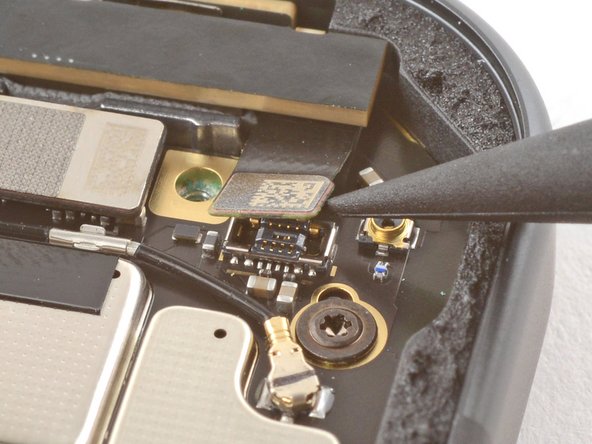
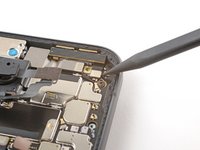
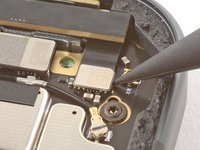
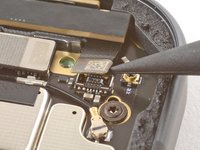
    • Use the tip of a spudger to pry up and disconnect the 5G mmWave antenna's press connector.

  16. Google Pixel 9 Motherboard Replacement, Remove the 5G mmWave antenna: 步骤 16 中的图像 1,3 Google Pixel 9 Motherboard Replacement, Remove the 5G mmWave antenna: 步骤 16 中的图像 2,3 Google Pixel 9 Motherboard Replacement, Remove the 5G mmWave antenna: 步骤 16 中的图像 3,3
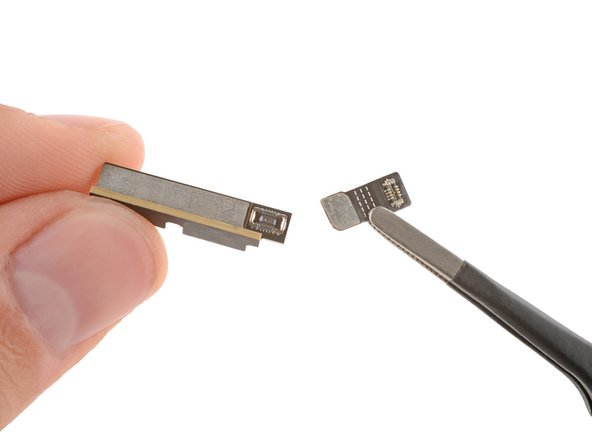
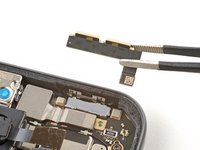
    • Remove the 5G mmWave antenna.

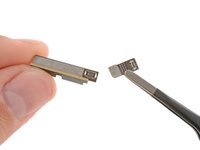
    • A small flex cable attaches to the back of the antenna with a press connector. You may need to reconnect it if it falls off.

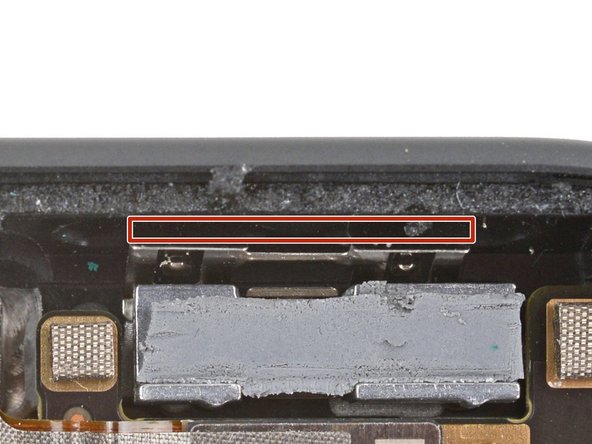
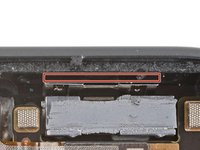
    • During reassembly, insert the antenna so it's between the frame and the small metal bracket near the top right corner.

  17. Google Pixel 9 Motherboard Replacement, Remove the antenna board cover: 步骤 17 中的图像 1,1
    • Use a 3IP Torx Plus driver to remove the 5.4 mm-long screw securing the antenna board cover.

  18. Google Pixel 9 Motherboard Replacement: 步骤 18 中的图像 1,1
    • Use a pair of tweezers to remove the antenna board cover.

  19. Google Pixel 9 Motherboard Replacement, Disconnect the autofocus cable: 步骤 19 中的图像 1,2 Google Pixel 9 Motherboard Replacement, Disconnect the autofocus cable: 步骤 19 中的图像 2,2
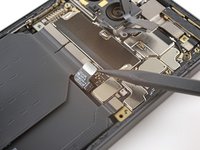
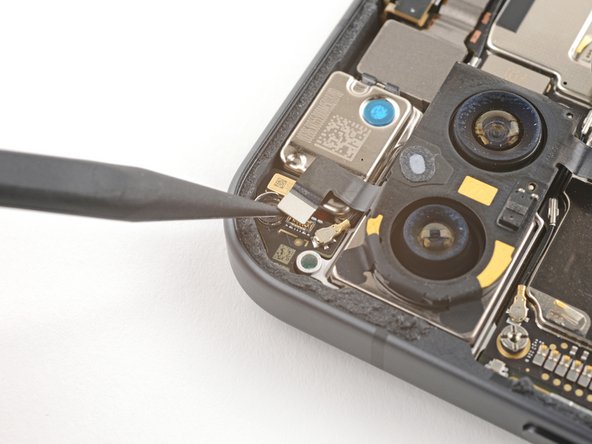
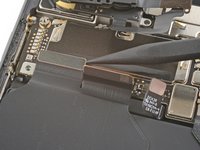
    • Use the tip of a spudger to pry up and disconnect the autofocus connector from the motherboard.

  20. Google Pixel 9 Motherboard Replacement, Disconnect the antenna cable: 步骤 20 中的图像 1,2 Google Pixel 9 Motherboard Replacement, Disconnect the antenna cable: 步骤 20 中的图像 2,2
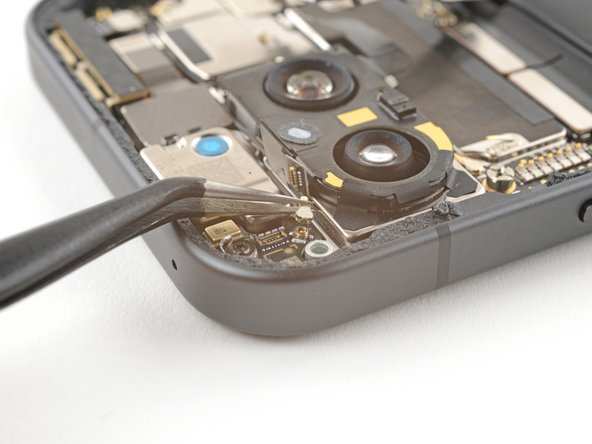
    • Insert one arm of a pair of angled tweezers under the metal neck of the antenna board's coaxial antenna cable.

    • Lift straight up to disconnect the antenna.

  21. Google Pixel 9 Motherboard Replacement, Disconnect the front camera: 步骤 21 中的图像 1,2 Google Pixel 9 Motherboard Replacement, Disconnect the front camera: 步骤 21 中的图像 2,2
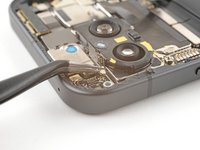
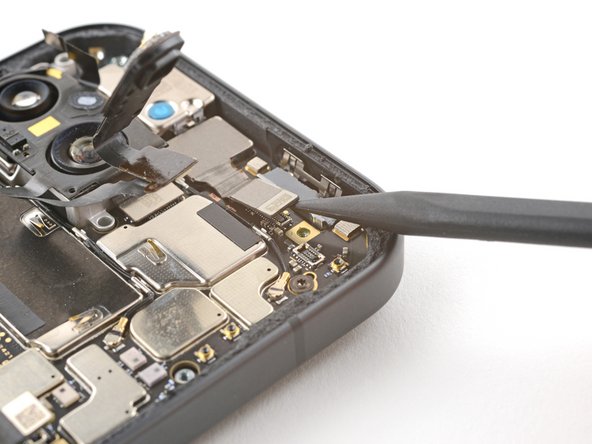
    • Use the tip of a spudger to pry up and disconnect the front camera press connector.

  22. Google Pixel 9 Motherboard Replacement, Disconnect the interconnect cables: 步骤 22 中的图像 1,3 Google Pixel 9 Motherboard Replacement, Disconnect the interconnect cables: 步骤 22 中的图像 2,3 Google Pixel 9 Motherboard Replacement, Disconnect the interconnect cables: 步骤 22 中的图像 3,3
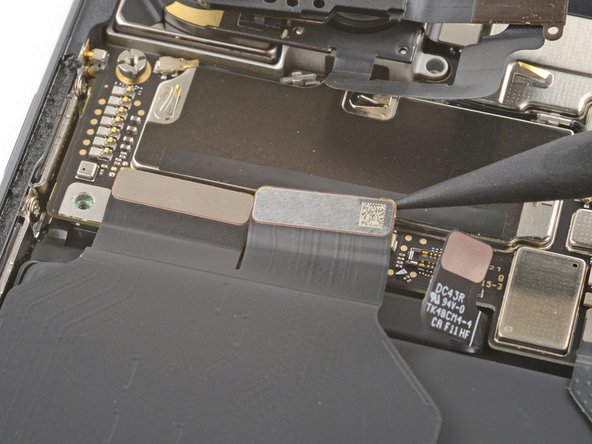
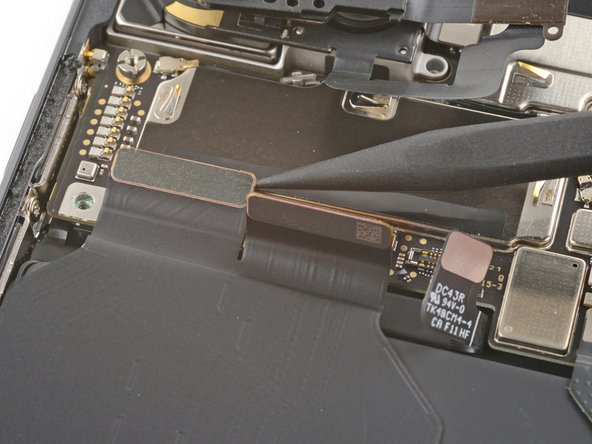
    • Use the tip of a spudger to pry up and disconnect the top two interconnect cable press connectors from the bottom edge of the motherboard.

  23. Google Pixel 9 Motherboard Replacement, Unscrew the motherboard: 步骤 23 中的图像 1,1
    在这个步骤中使用的工具:
    Standoff Screwdriver for iPhones
    $5.49
    • Remove the two screws securing the motherboard:

    • One 2.9 mm-long 3IP Torx Plus screw

    • One 5 mm-long standoff screw

  24. Google Pixel 9 Motherboard Replacement, Lift up the motherboard: 步骤 24 中的图像 1,3 Google Pixel 9 Motherboard Replacement, Lift up the motherboard: 步骤 24 中的图像 2,3 Google Pixel 9 Motherboard Replacement, Lift up the motherboard: 步骤 24 中的图像 3,3
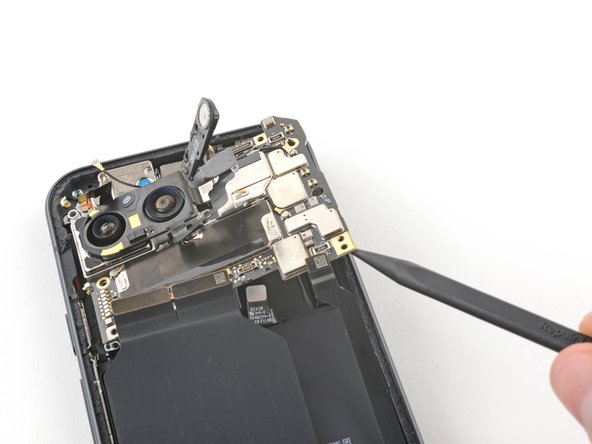
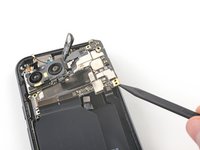
    • Insert the tip of a spudger underneath the bottom right corner of the motherboard.

    • Lift up with the spudger to dislodge the motherboard.

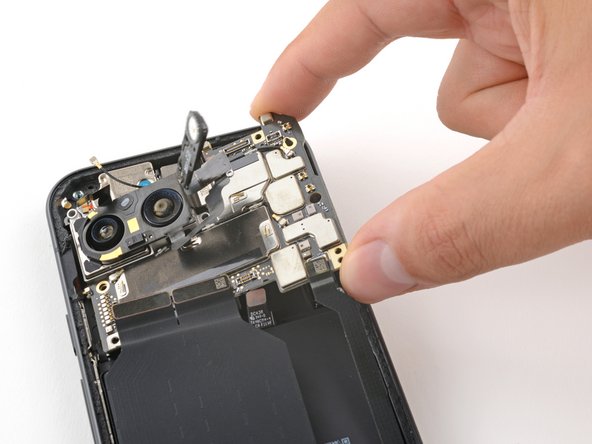
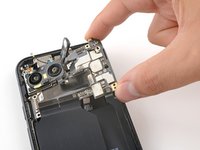
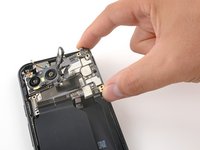
    • Lift the motherboard up until you can grip it with your fingers.

  25. Google Pixel 9 Motherboard Replacement, Remove the motherboard: 步骤 25 中的图像 1,2 Google Pixel 9 Motherboard Replacement, Remove the motherboard: 步骤 25 中的图像 2,2
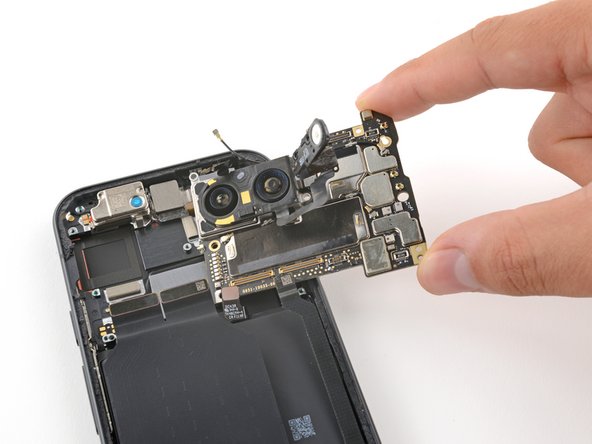
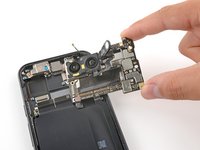
    • Remove the motherboard.

  26. Google Pixel 9 Motherboard Replacement, Thermal pad reassembly information: 步骤 26 中的图像 1,3 Google Pixel 9 Motherboard Replacement, Thermal pad reassembly information: 步骤 26 中的图像 2,3 Google Pixel 9 Motherboard Replacement, Thermal pad reassembly information: 步骤 26 中的图像 3,3
    • During reassembly:

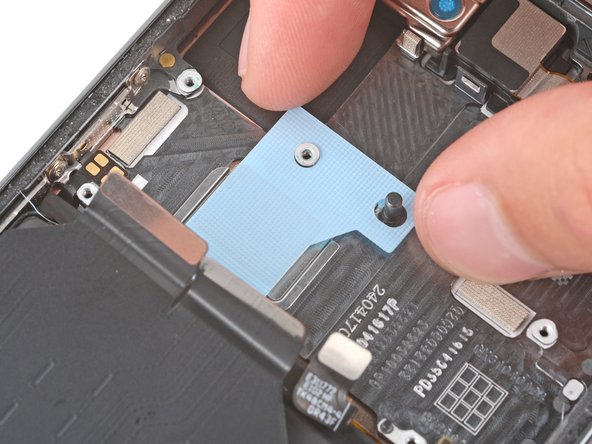
    • Check the condition of the logic board thermal pad—it will either be on the bottom of the logic board or on the frame.

    • If the pad is undamaged, skip the rest of this step.

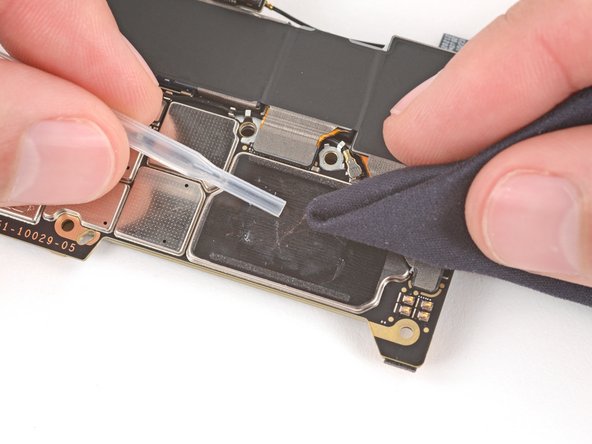
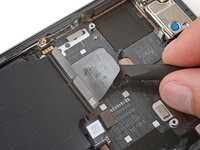
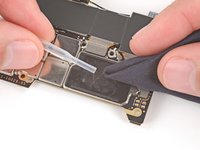
    • If the pad is damaged, use the flat end of a spudger to scrape it up and remove it.

    • Use isopropyl alcohol (greater than 90%) and a microfiber cloth to remove all thermal pad residue from the frame and bottom of the logic board.

    • Apply a new thermal pad to its spot on the frame.

  27. Google Pixel 9 Motherboard Replacement, Disconnect the flash: 步骤 27 中的图像 1,2 Google Pixel 9 Motherboard Replacement, Disconnect the flash: 步骤 27 中的图像 2,2
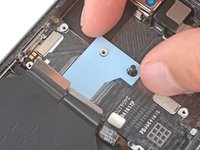
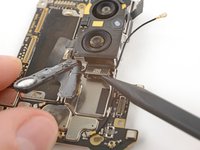
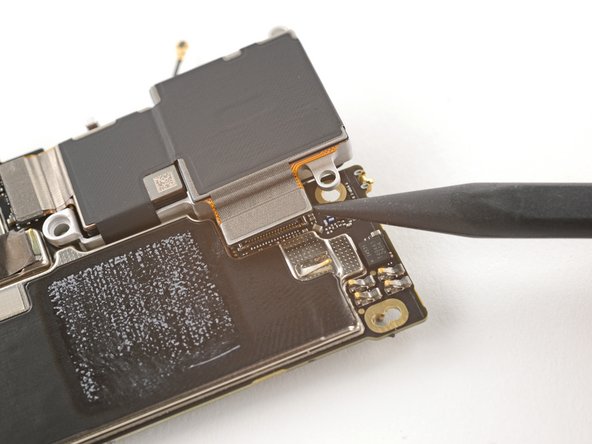
    • Use the tip of a spudger to pry up and disconnect the flash connector from the motherboard.

  28. Google Pixel 9 Motherboard Replacement, Disconnect the wide camera: 步骤 28 中的图像 1,2 Google Pixel 9 Motherboard Replacement, Disconnect the wide camera: 步骤 28 中的图像 2,2
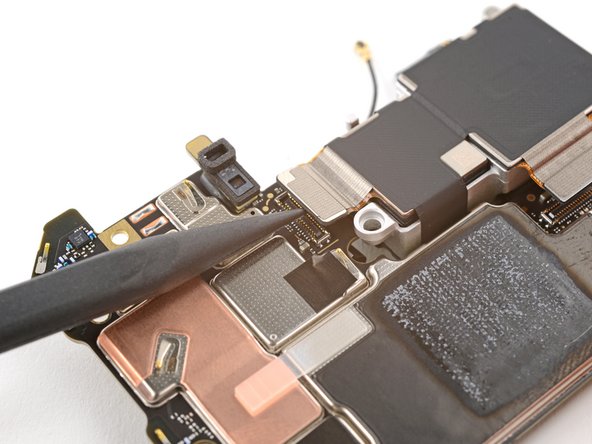
    • Use the tip of a spudger to pry up and disconnect the wide camera.

  29. Google Pixel 9 Motherboard Replacement, Disconnect the ultrawide camera: 步骤 29 中的图像 1,2 Google Pixel 9 Motherboard Replacement, Disconnect the ultrawide camera: 步骤 29 中的图像 2,2
    • Use the tip of a spudger to pry up and disconnect the ultrawide camera.

  30. Google Pixel 9 Motherboard Replacement, Remove the motherboard: 步骤 30 中的图像 1,2 Google Pixel 9 Motherboard Replacement, Remove the motherboard: 步骤 30 中的图像 2,2
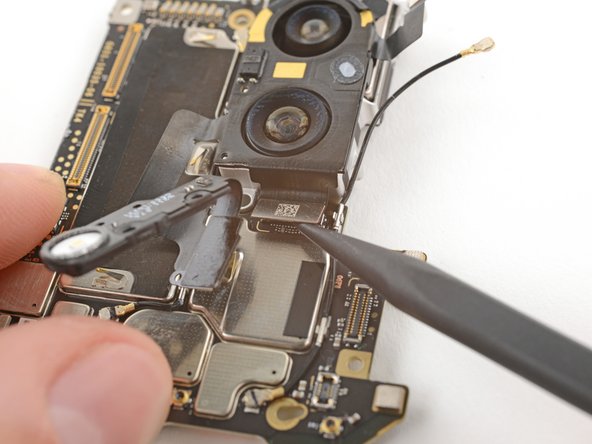
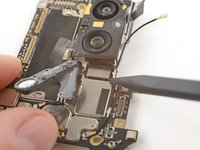
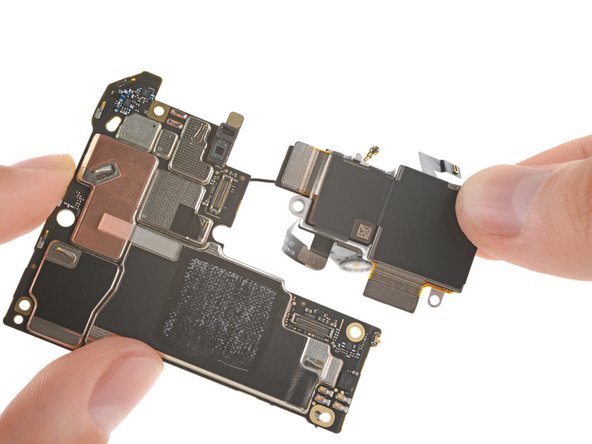
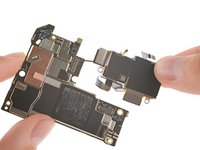
    • Remove the rear camera module from the motherboard.

  31. Google Pixel 9 Motherboard Replacement: 步骤 31 中的图像 1,1
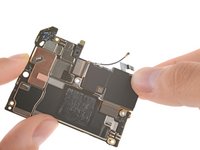
    • Only the motherboard remains.

结论

To reassemble your device, follow these instructions in reverse order.

To run a diagnostics test with the built-in Pixel Diagnostic tool, click here.

Take your e-waste to an R2 or e-Stewards certified recycler.

Repair didn’t go as planned? Try some basic troubleshooting, or ask our Pixel 9 Answers Community for help.

另外一个人完成了本指南。

Carsten Frauenheim

于03/10/20注册

155,416 声望

创作了439篇指南

团队

iFixit iFixit 的会员

Staff

123 名成员

创作了23,618篇指南

1指南评论

Hello there, maybe someone know where buy motherboard for pixel 9 pro?

Никита Костецкий - 回复
添加评论

浏览统计数据:

过去 24 小时: 6

过去 7 天: 51

过去 30 天: 232

总计 3,042