跳转到主内容
加入维修社区 - 创建账户
Framework Laptop 16 Webcam Cable Replacement

你所需要的

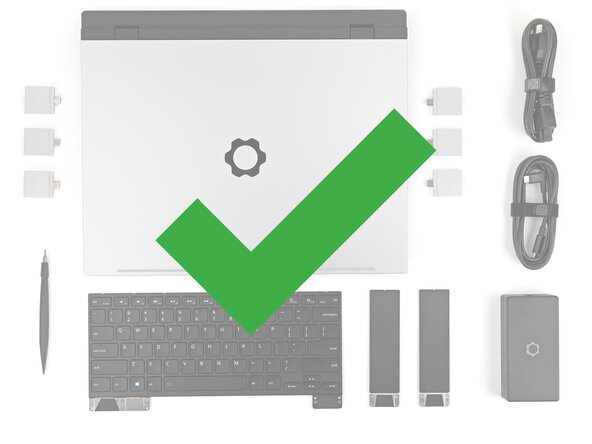
  1. Framework Laptop 16 Webcam Cable Replacement, Before you begin: 步骤 1 中的图像 1,1
    • Unplug all cables and fully shut down your laptop.

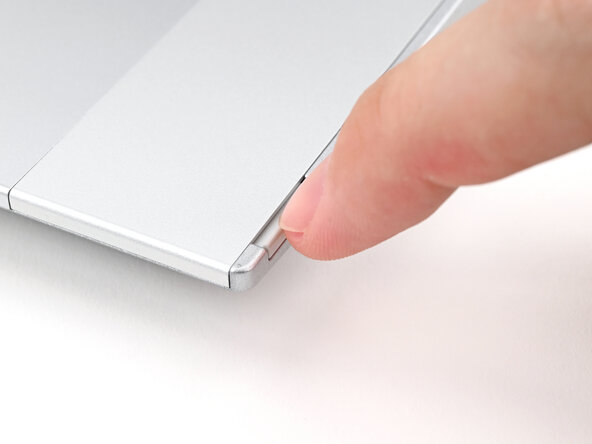
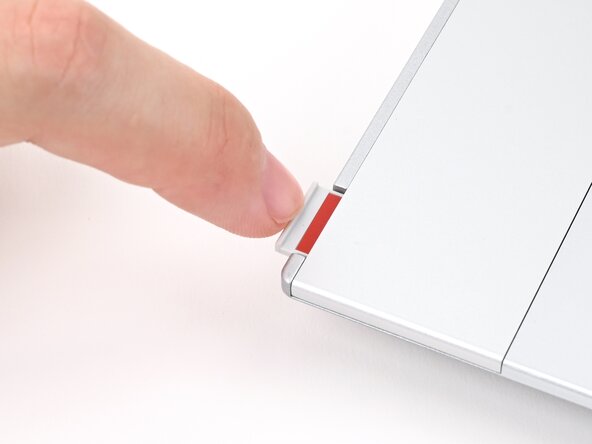
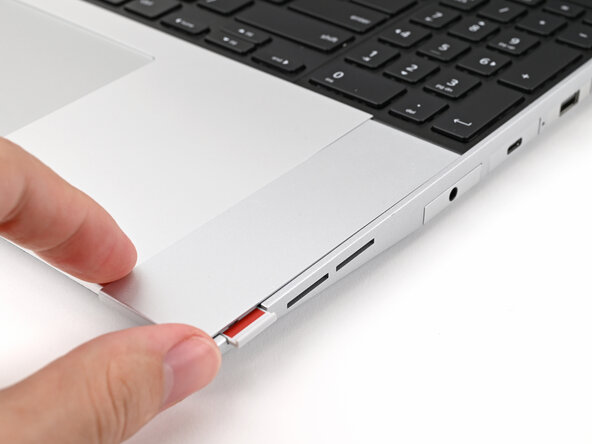
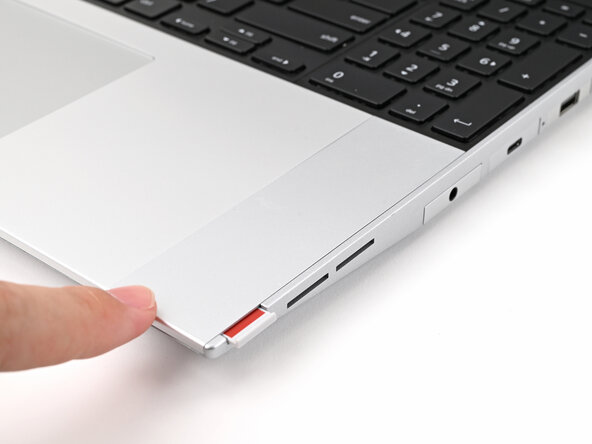
  2. Framework Laptop 16 Webcam Cable Replacement, Unlock the Input Modules: 步骤 2 中的图像 1,3 Framework Laptop 16 Webcam Cable Replacement, Unlock the Input Modules: 步骤 2 中的图像 2,3 Framework Laptop 16 Webcam Cable Replacement, Unlock the Input Modules: 步骤 2 中的图像 3,3
    • Use your fingernail to pull out the two Input Module latches and unlock them.

    • The latch will show red if it's unlocked.

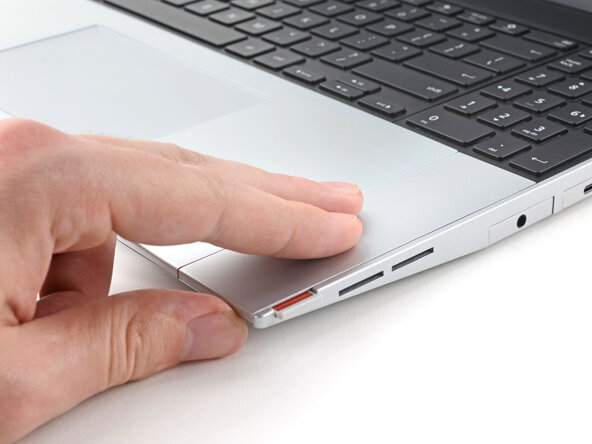
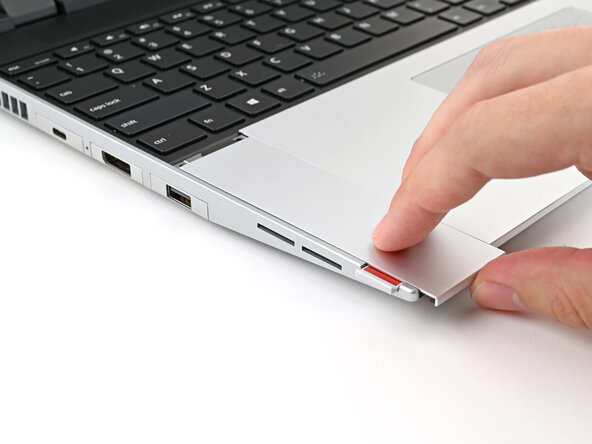
  3. Framework Laptop 16 Webcam Cable Replacement, Remove the Touchpad Spacers: 步骤 3 中的图像 1,3 Framework Laptop 16 Webcam Cable Replacement, Remove the Touchpad Spacers: 步骤 3 中的图像 2,3 Framework Laptop 16 Webcam Cable Replacement, Remove the Touchpad Spacers: 步骤 3 中的图像 3,3
    • Use your fingers to slide the Touchpad Spacer toward the bottom edge of the laptop and unclip it.

    • If you're having trouble, check if the corresponding Input Module latch is properly unlocked.

    • Lift the Touchpad Spacer off the laptop and remove it.

  4. Framework Laptop 16 Webcam Cable Replacement: 步骤 4 中的图像 1,3 Framework Laptop 16 Webcam Cable Replacement: 步骤 4 中的图像 2,3 Framework Laptop 16 Webcam Cable Replacement: 步骤 4 中的图像 3,3
    • Repeat the same procedure for the other touchpad spacer.

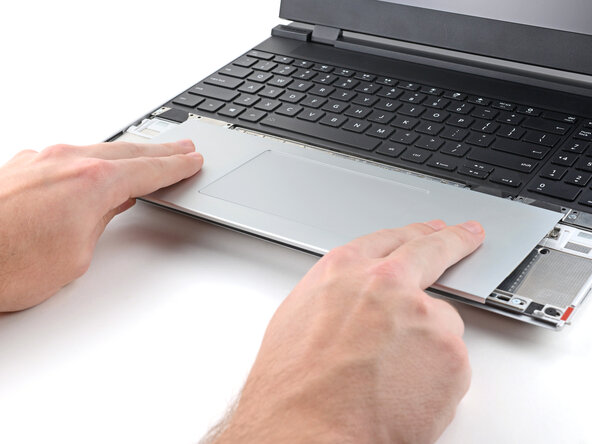
  5. Framework Laptop 16 Webcam Cable Replacement, Remove the Touchpad Module: 步骤 5 中的图像 1,3 Framework Laptop 16 Webcam Cable Replacement, Remove the Touchpad Module: 步骤 5 中的图像 2,3 Framework Laptop 16 Webcam Cable Replacement, Remove the Touchpad Module: 步骤 5 中的图像 3,3
    • Use your fingers to slide the Touchpad Module toward the bottom edge of the laptop and disconnect it.

    • If you're having trouble, check if the Input Module latches are properly unlocked.

    • Lift the Touchpad Module and remove it.

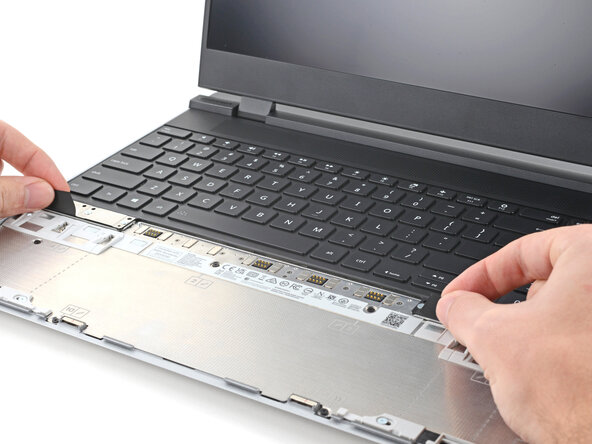
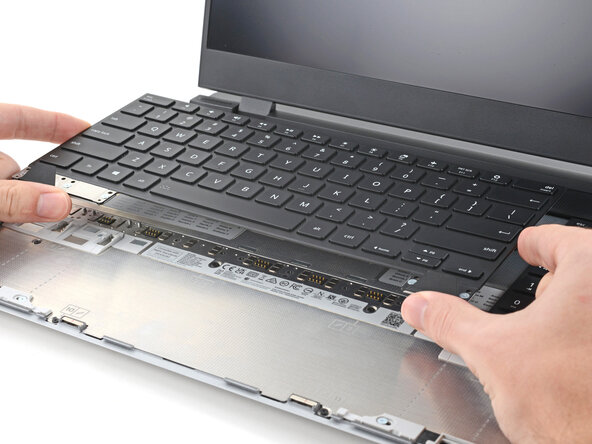
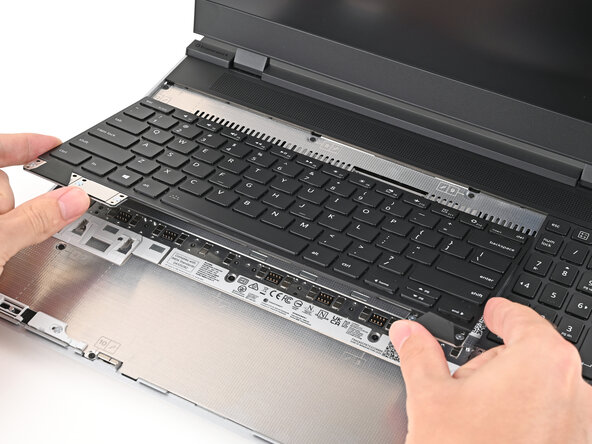
  6. Framework Laptop 16 Webcam Cable Replacement, Remove the keyboard: 步骤 6 中的图像 1,3 Framework Laptop 16 Webcam Cable Replacement, Remove the keyboard: 步骤 6 中的图像 2,3 Framework Laptop 16 Webcam Cable Replacement, Remove the keyboard: 步骤 6 中的图像 3,3
    • The keyboard is held in place with strong magnets. Apply gradually increasing force to avoid having the keyboard violently eject.

    • Grip the two pull tabs along the bottom of the keyboard and lift until its magnets release.

    • Remove the keyboard.

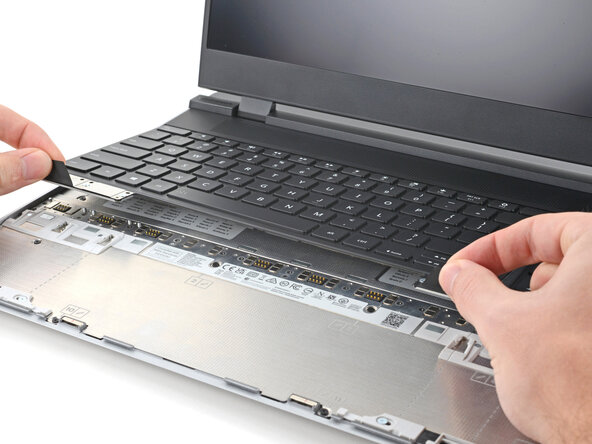
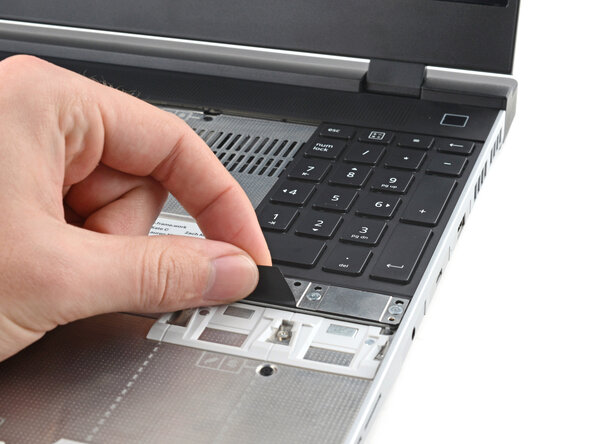
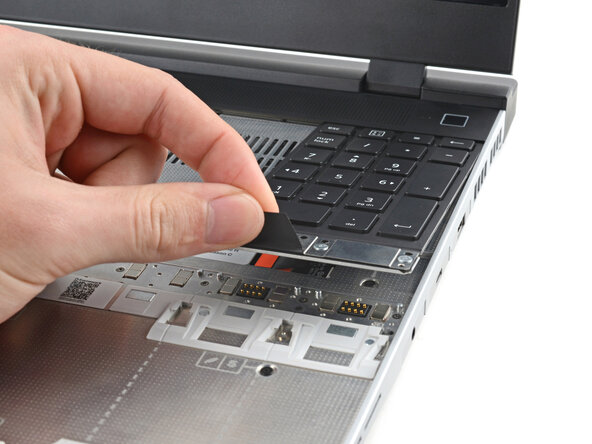
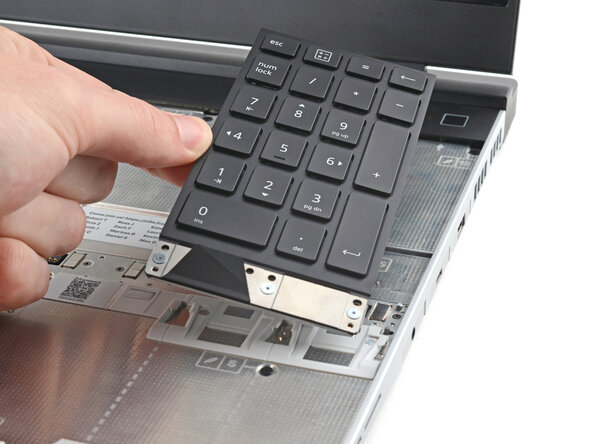
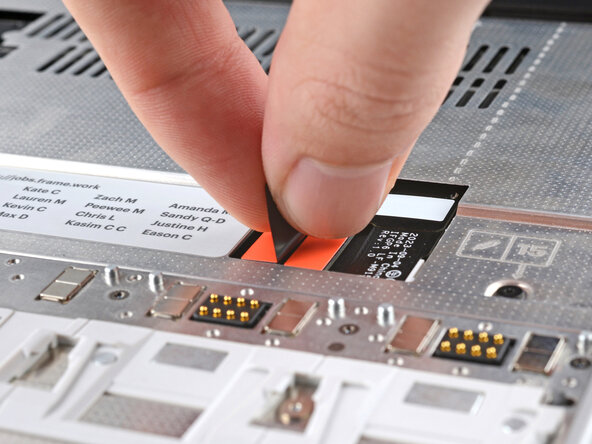
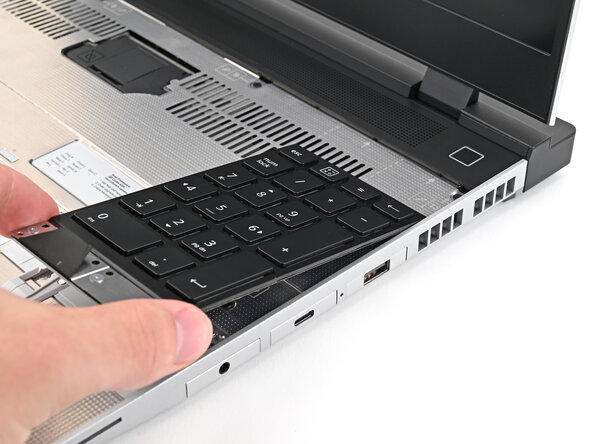
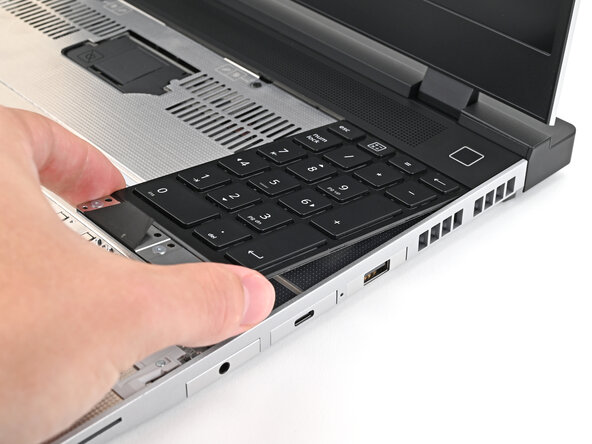
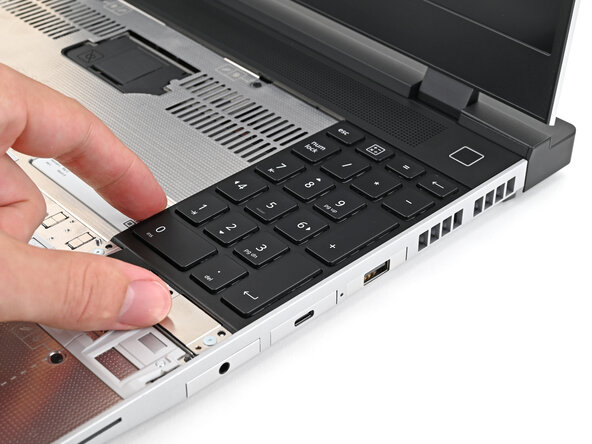
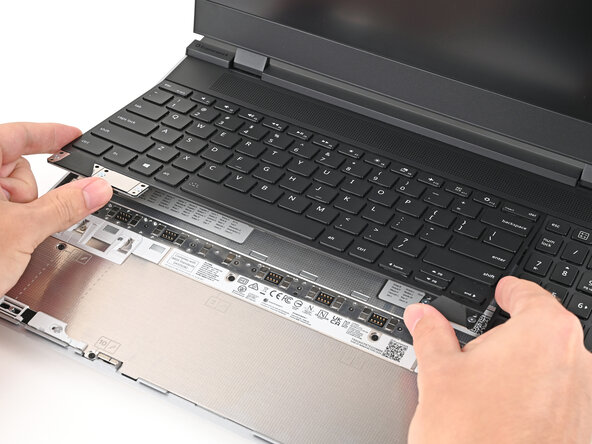
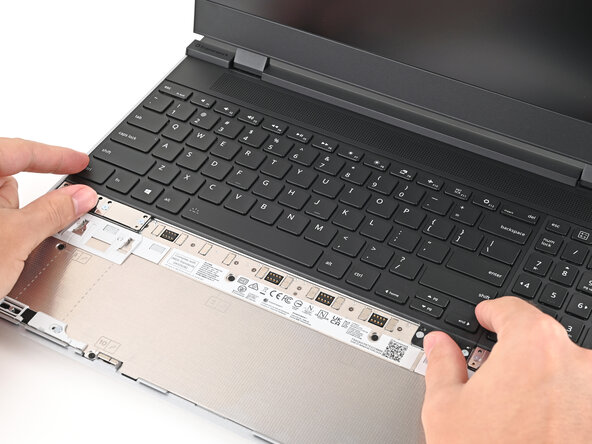
  7. Framework Laptop 16 Webcam Cable Replacement, Remove the Input Modules: 步骤 7 中的图像 1,3 Framework Laptop 16 Webcam Cable Replacement, Remove the Input Modules: 步骤 7 中的图像 2,3 Framework Laptop 16 Webcam Cable Replacement, Remove the Input Modules: 步骤 7 中的图像 3,3
    • Your Input Module(s) might be different, but the procedure to remove them is the same.

    • Grip the pull tab at the bottom of the Input Module and lift until its magnets release.

    • Remove the Input Module.

    • Repeat for any remaining Input Modules.

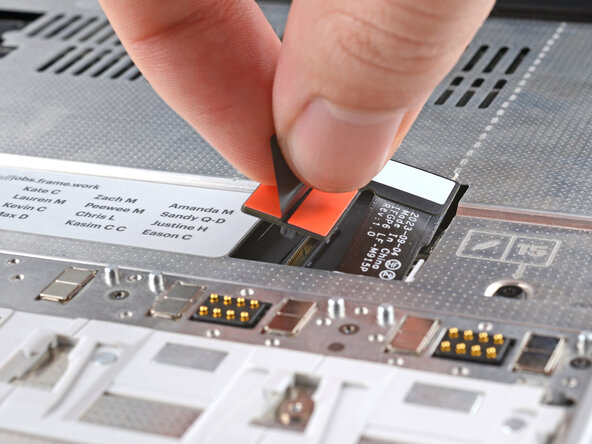
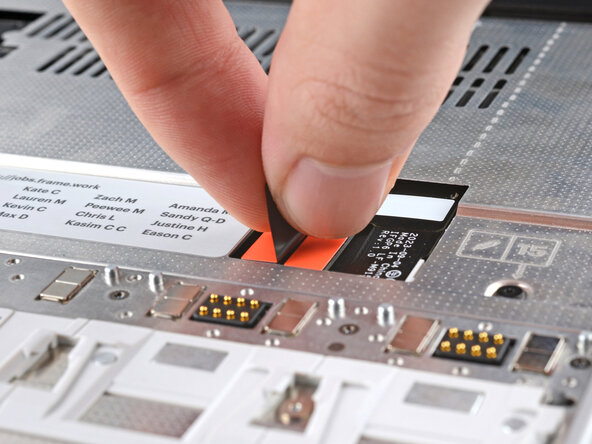
  8. Framework Laptop 16 Webcam Cable Replacement, Disconnect the Mid Plate cable: 步骤 8 中的图像 1,2 Framework Laptop 16 Webcam Cable Replacement, Disconnect the Mid Plate cable: 步骤 8 中的图像 2,2
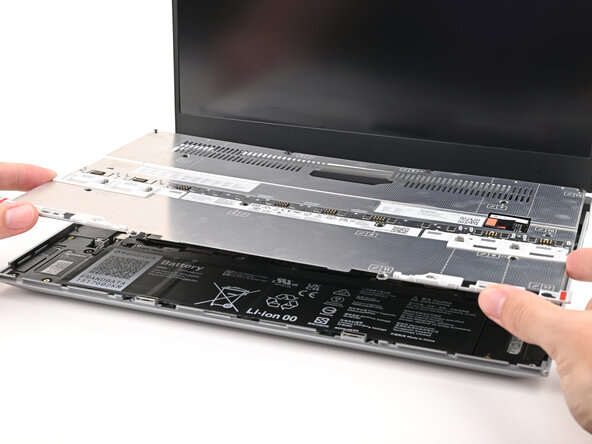
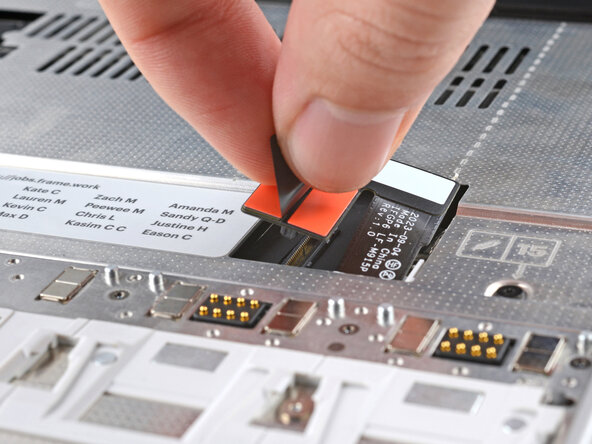
    • Grip the black pull tab on the Mid Plate cable press connector.

    • Lift up to disconnect the Mid Plate cable.

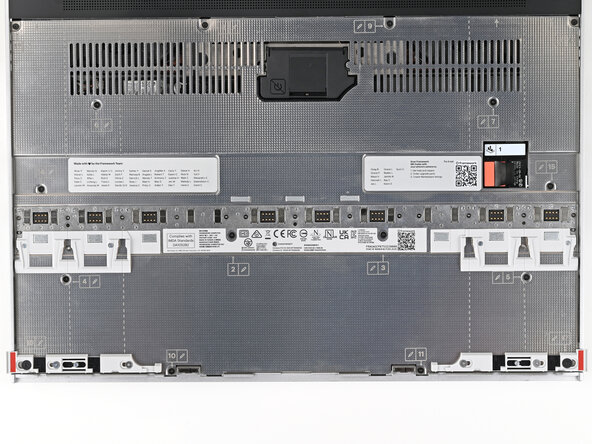
  9. Framework Laptop 16 Webcam Cable Replacement, Loosen the Mid Plate screws: 步骤 9 中的图像 1,2 Framework Laptop 16 Webcam Cable Replacement, Loosen the Mid Plate screws: 步骤 9 中的图像 2,2
    • The Mid Plate screws are ordered from 2–17 (number 1 is the press connector). You don't have to follow the order, but you can use it to help keep track of the screws you've loosened.

    • Use your Framework Screwdriver to loosen the 16 captive T5 Torx screws securing the Mid Plate.

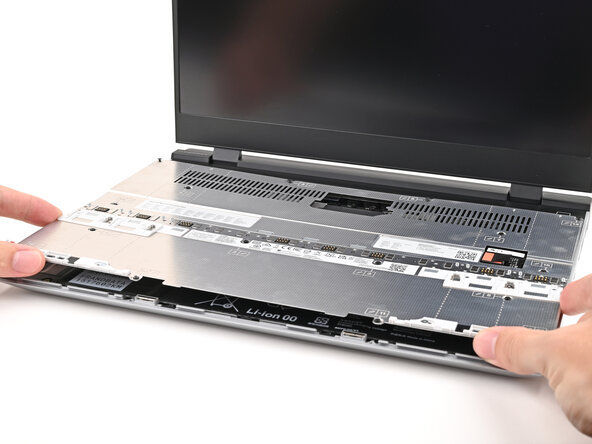
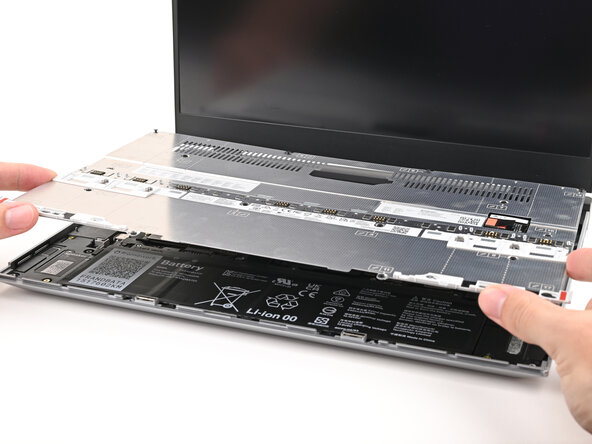
  10. Framework Laptop 16 Webcam Cable Replacement, Remove the Mid Plate: 步骤 10 中的图像 1,3 Framework Laptop 16 Webcam Cable Replacement, Remove the Mid Plate: 步骤 10 中的图像 2,3 Framework Laptop 16 Webcam Cable Replacement, Remove the Mid Plate: 步骤 10 中的图像 3,3
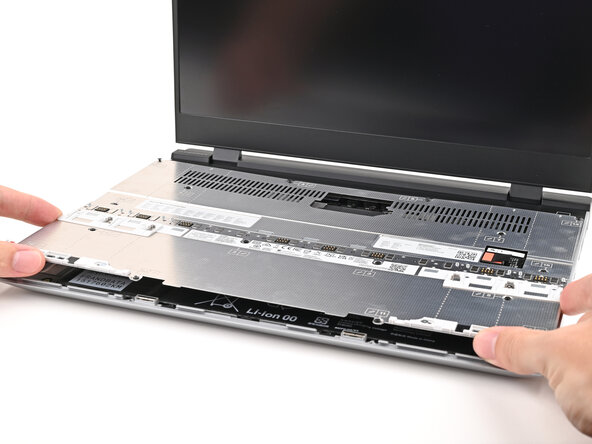
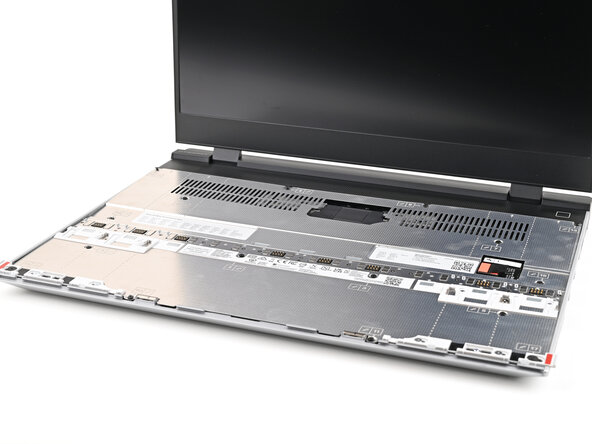
    • Use your fingers to lift the Mid Plate off the laptop and remove it.

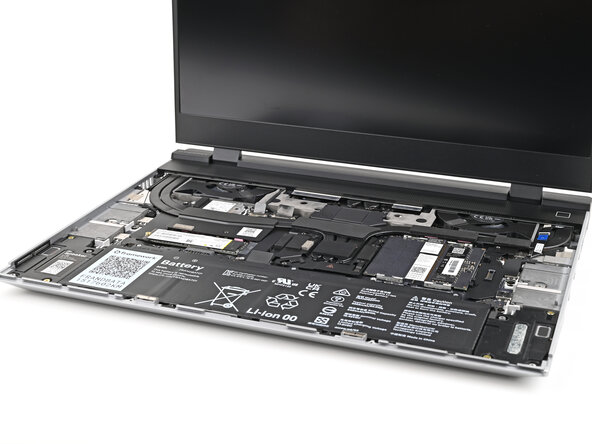
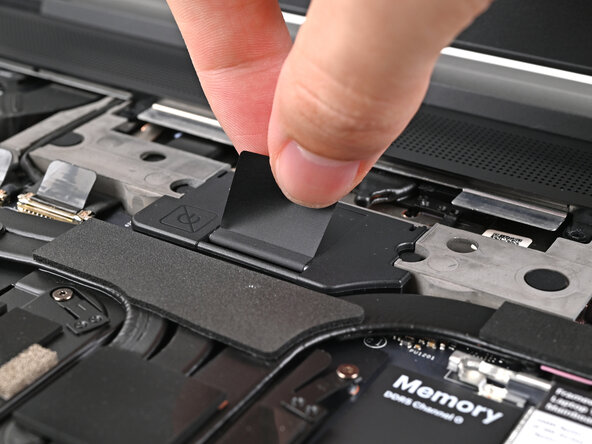
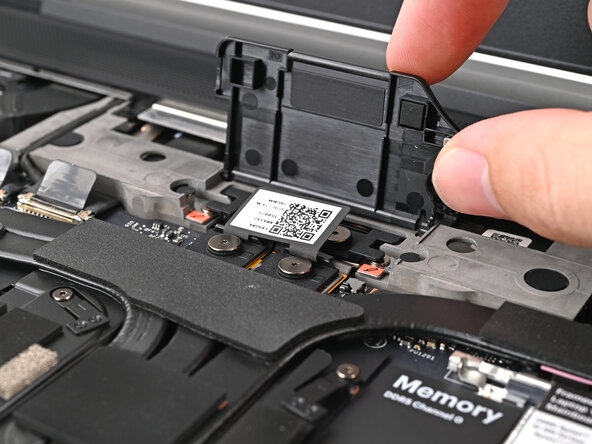
  11. Framework Laptop 16 Webcam Cable Replacement, Lift the interposer door: 步骤 11 中的图像 1,2 Framework Laptop 16 Webcam Cable Replacement, Lift the interposer door: 步骤 11 中的图像 2,2
    • Lift the interposer door by its black pull tab and let it rest upright.

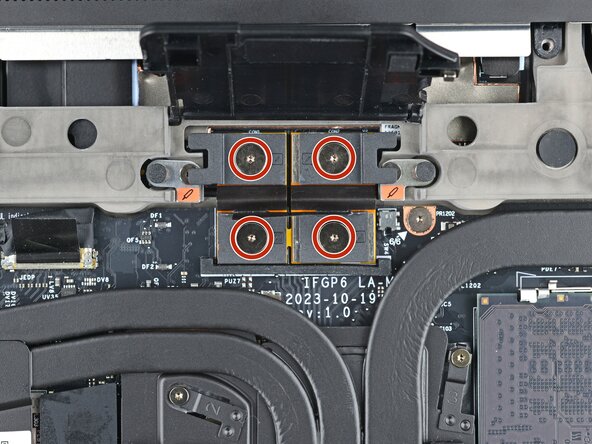
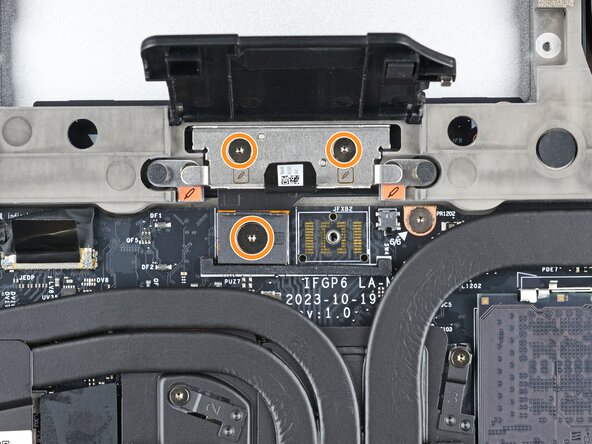
  12. Framework Laptop 16 Webcam Cable Replacement, Loosen the interposer screws: 步骤 12 中的图像 1,2 Framework Laptop 16 Webcam Cable Replacement, Loosen the interposer screws: 步骤 12 中的图像 2,2
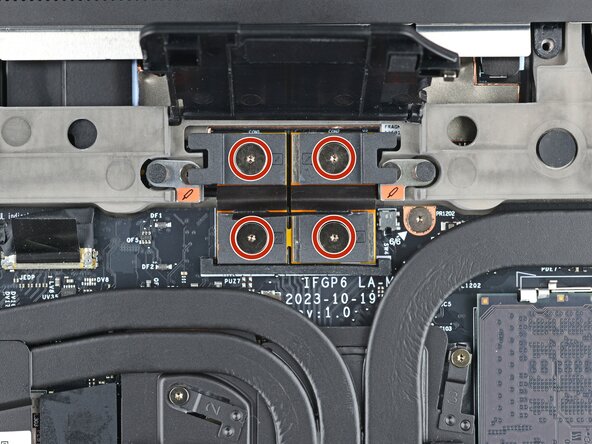
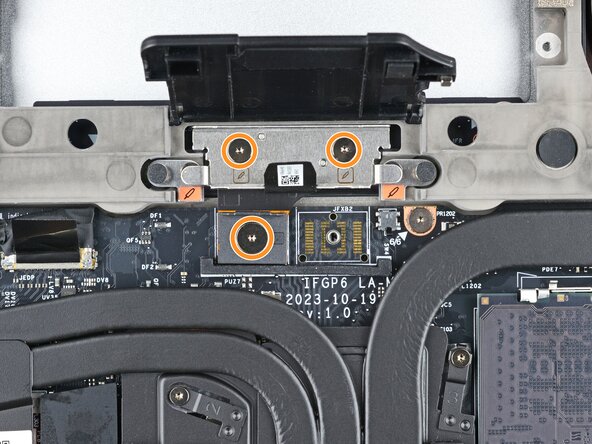
    • If you have the Graphics Module installed, your interposer will have four screws. If you have the Expansion Bay Shell installed, you'll have three screws instead.

    • If you have the Graphics Module, use your Framework Screwdriver to loosen the four captive T5 Torx screws securing the interposer.

    • If you have the Expansion Bay Shell, use your Framework Screwdriver to loosen the three captive T5 Torx screws securing the interposer.

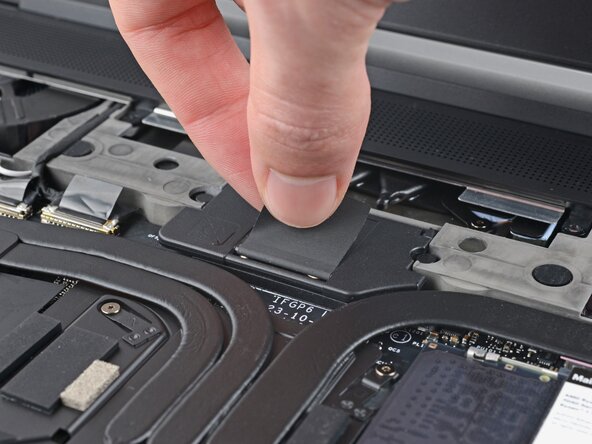
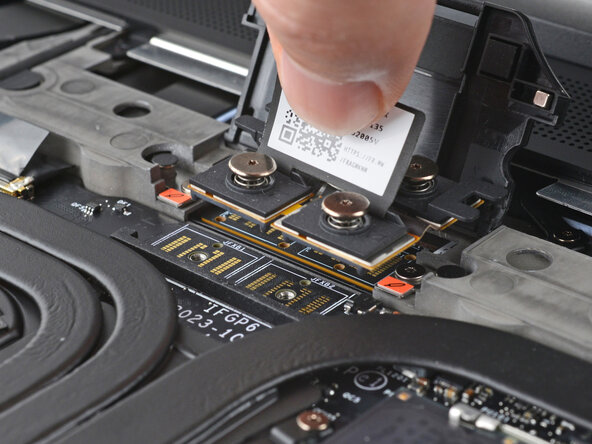
  13. Framework Laptop 16 Webcam Cable Replacement, Remove the interposer: 步骤 13 中的图像 1,2 Framework Laptop 16 Webcam Cable Replacement, Remove the interposer: 步骤 13 中的图像 2,2
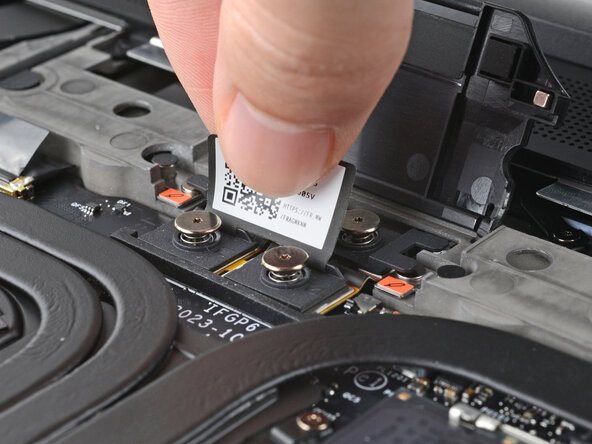
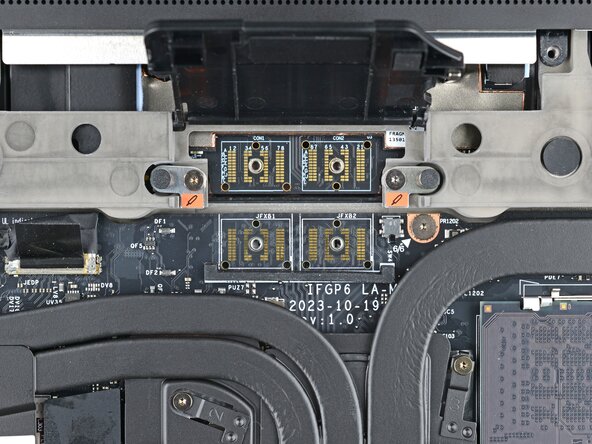
    • Lift the interposer by its pull tab and remove it.

  14. Framework Laptop 16 Webcam Cable Replacement, Loosen the Expansion Bay Module screws: 步骤 14 中的图像 1,3 Framework Laptop 16 Webcam Cable Replacement, Loosen the Expansion Bay Module screws: 步骤 14 中的图像 2,3 Framework Laptop 16 Webcam Cable Replacement, Loosen the Expansion Bay Module screws: 步骤 14 中的图像 3,3
    • Use your Framework Screwdriver to loosen the two captive T5 Torx screws securing the module in the Expansion Bay.

    • Close the interposer door before continuing.

  15. Framework Laptop 16 Webcam Cable Replacement, Remove the Expansion Bay Module: 步骤 15 中的图像 1,3 Framework Laptop 16 Webcam Cable Replacement, Remove the Expansion Bay Module: 步骤 15 中的图像 2,3 Framework Laptop 16 Webcam Cable Replacement, Remove the Expansion Bay Module: 步骤 15 中的图像 3,3
    • Close your laptop and flip it over.

    • Slide the Expansion Bay Module out of the laptop and remove it.

    • The module should slide out easily. If you feel any resistance, check if the screws holding it in place are fully loosened.

    • Flip your laptop and reopen it.

  16. Framework Laptop 16 Webcam Cable Replacement, Disconnect the fingerprint reader: 步骤 16 中的图像 1,2 Framework Laptop 16 Webcam Cable Replacement, Disconnect the fingerprint reader: 步骤 16 中的图像 2,2
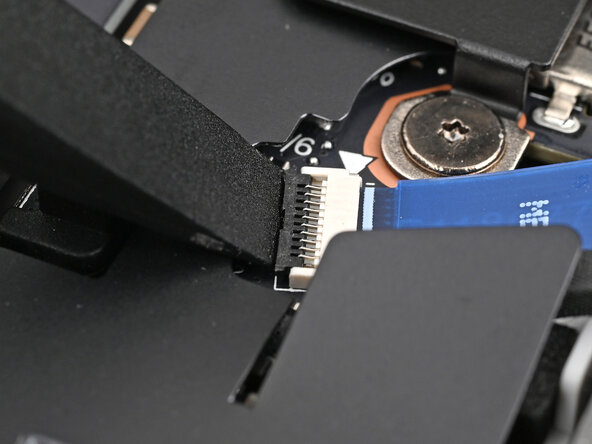
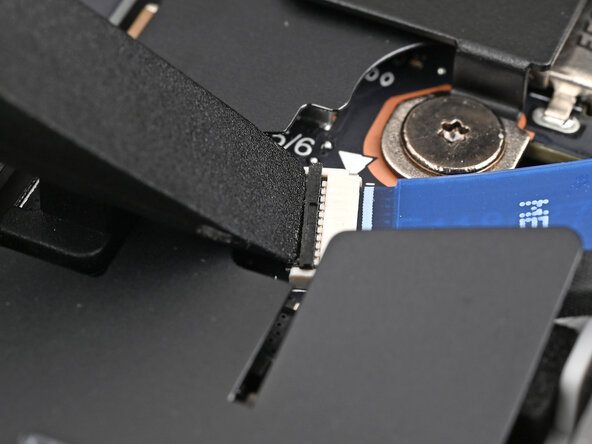
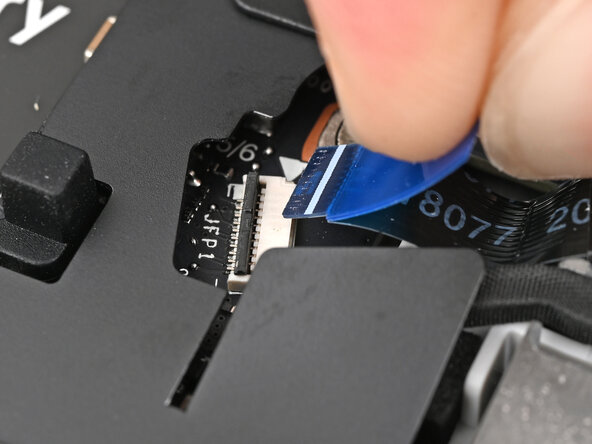
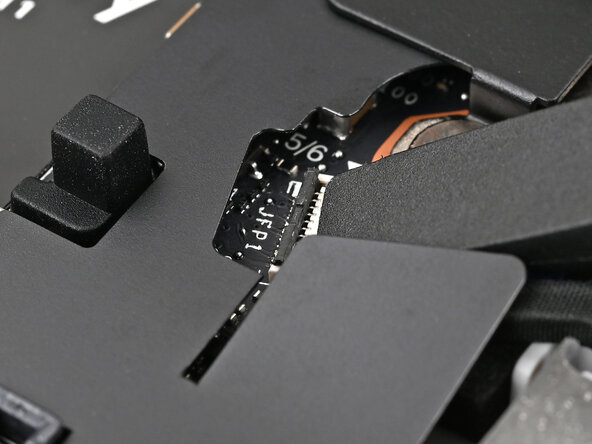
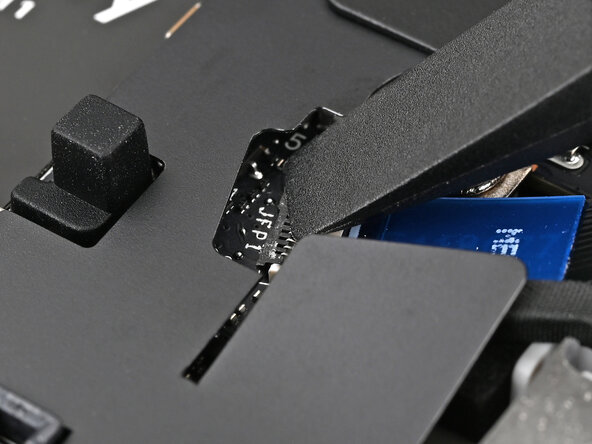
    • Use the flat end of your Framework Screwdriver, or a clean fingernail, to lift up the locking tab on the fingerprint reader ZIF connector next to the memory.

  17. Framework Laptop 16 Webcam Cable Replacement: 步骤 17 中的图像 1,2 Framework Laptop 16 Webcam Cable Replacement: 步骤 17 中的图像 2,2
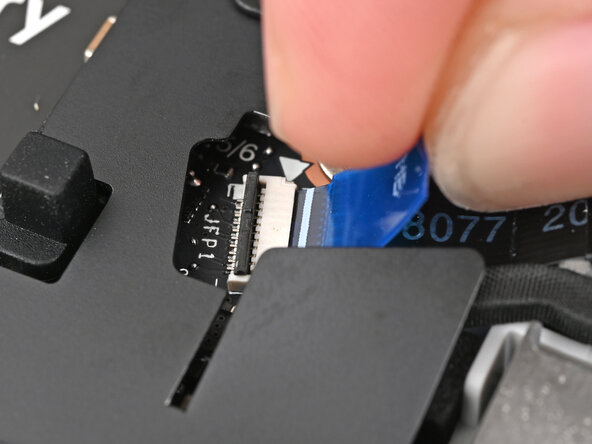
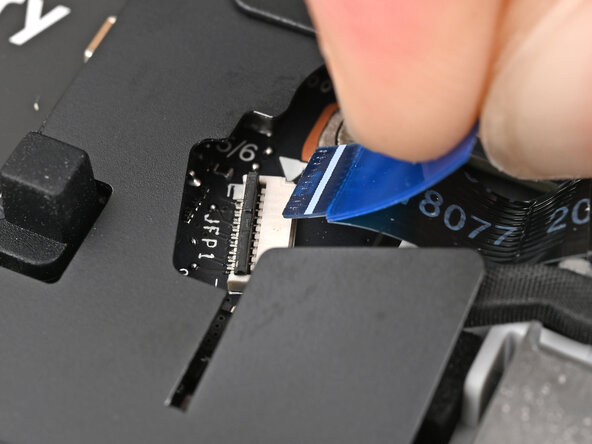
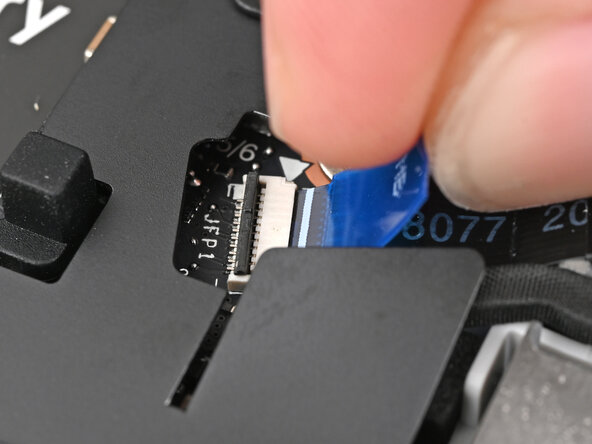
    • Use your fingers to grip the blue pull tab and slide the fingerprint reader cable straight out of its socket.

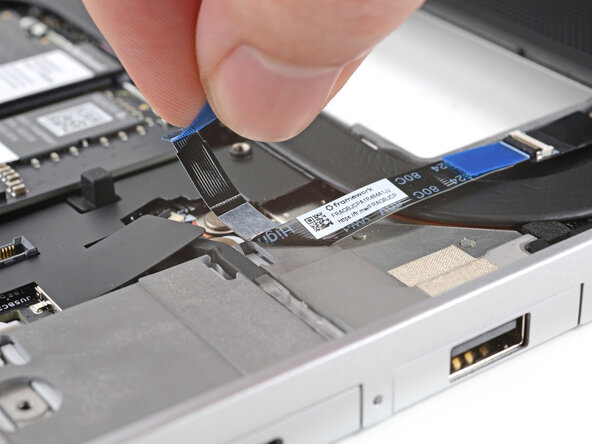
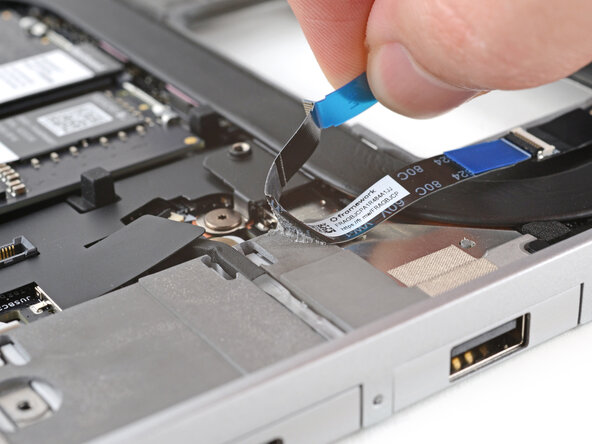
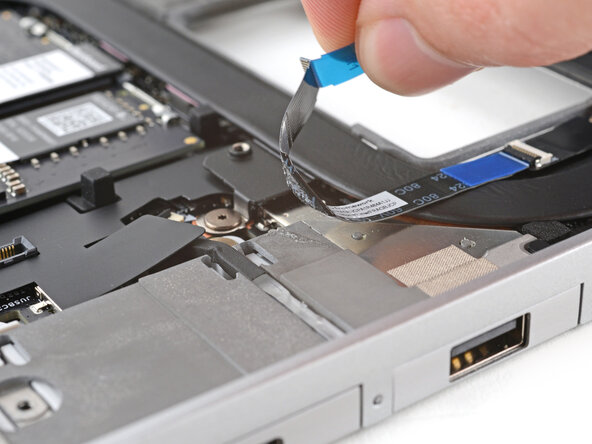
  18. Framework Laptop 16 Webcam Cable Replacement: 步骤 18 中的图像 1,3 Framework Laptop 16 Webcam Cable Replacement: 步骤 18 中的图像 2,3 Framework Laptop 16 Webcam Cable Replacement: 步骤 18 中的图像 3,3
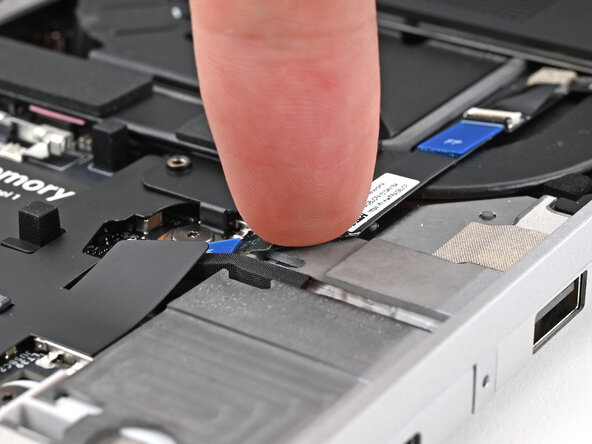
    • The fingerprint reader cable is lightly adhered to the laptop's frame.

    • Use your fingers to peel the fingerprint reader cable away from the frame and separate the adhesive.

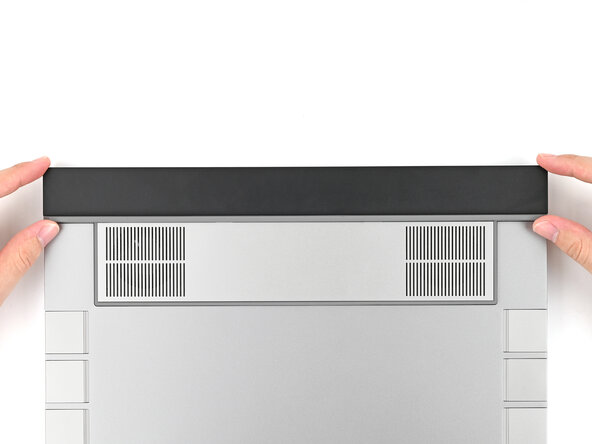
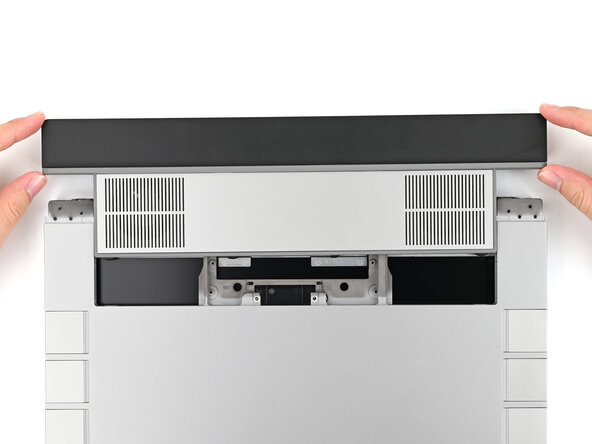
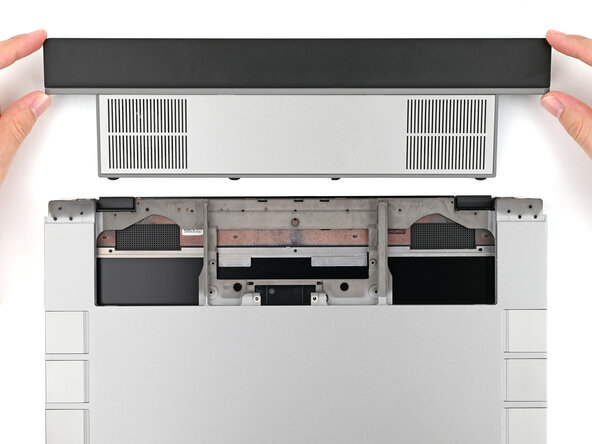
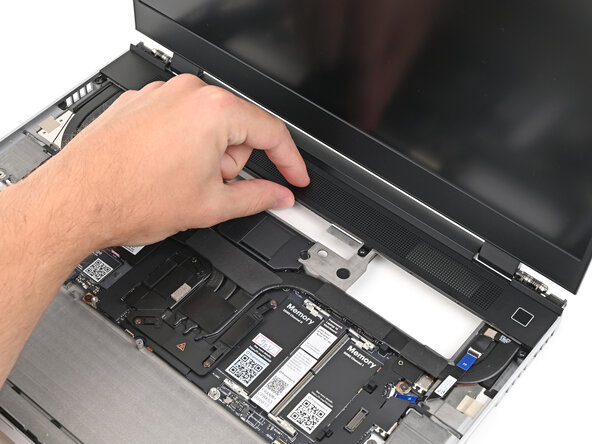
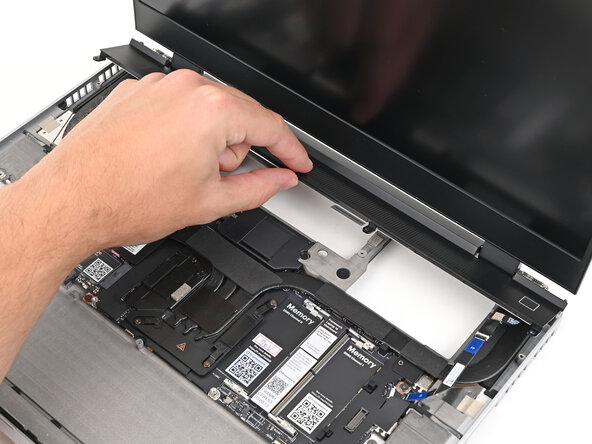
  19. Framework Laptop 16 Webcam Cable Replacement, Remove the ventilation plate: 步骤 19 中的图像 1,3 Framework Laptop 16 Webcam Cable Replacement, Remove the ventilation plate: 步骤 19 中的图像 2,3 Framework Laptop 16 Webcam Cable Replacement, Remove the ventilation plate: 步骤 19 中的图像 3,3
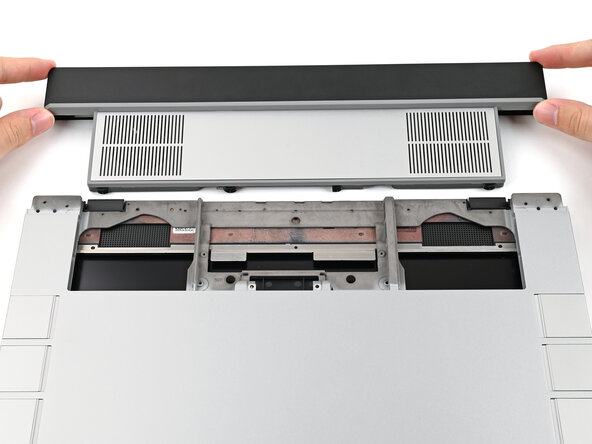
    • The ventilation plate is held in place with magnets.

    • Lift the bottom of the ventilation plate and pull it away from the laptop until the magnets release.

    • Remove the ventilation plate.

  20. Framework Laptop 16 Webcam Cable Replacement, Create a gap: 步骤 20 中的图像 1,3 Framework Laptop 16 Webcam Cable Replacement, Create a gap: 步骤 20 中的图像 2,3 Framework Laptop 16 Webcam Cable Replacement, Create a gap: 步骤 20 中的图像 3,3
    • The bezel is secured with magnets.

    • Slide your fingernail under the inside edge of either bottom corner of the bezel.

    • Pull the bezel away from the screen to release the first few magnets.

  21. Framework Laptop 16 Webcam Cable Replacement, Remove the bezel: 步骤 21 中的图像 1,3 Framework Laptop 16 Webcam Cable Replacement, Remove the bezel: 步骤 21 中的图像 2,3 Framework Laptop 16 Webcam Cable Replacement, Remove the bezel: 步骤 21 中的图像 3,3
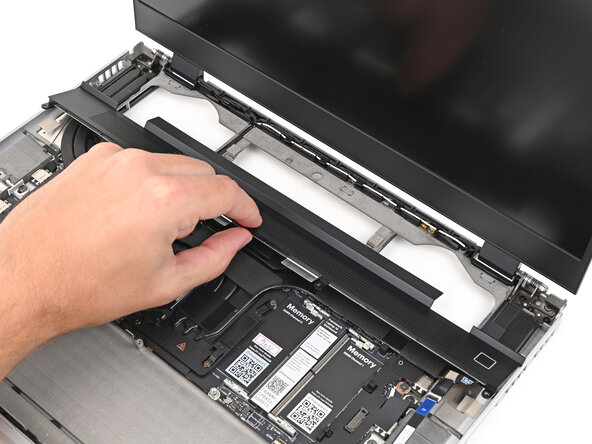
    • Lift the bezel around the perimeter of the screen until all of its magnets are released.

    • Remove the bezel.

  22. Framework Laptop 16 Webcam Cable Replacement, Disconnect the display cables: 步骤 22 中的图像 1,3 Framework Laptop 16 Webcam Cable Replacement, Disconnect the display cables: 步骤 22 中的图像 2,3 Framework Laptop 16 Webcam Cable Replacement, Disconnect the display cables: 步骤 22 中的图像 3,3
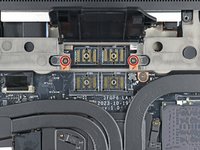
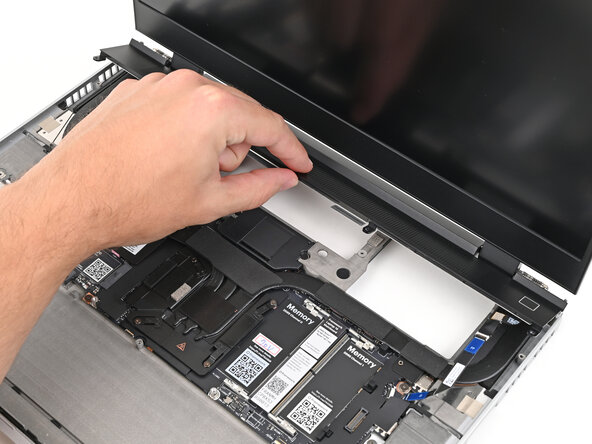
    • Grip the eDP cable connector to the right of the Wi-Fi module slot by its pull tab and lift up to disconnect it.

    • Repeat for the webcam cable connector next to it.

  23. Framework Laptop 16 Webcam Cable Replacement, Reroute the cables: 步骤 23 中的图像 1,3 Framework Laptop 16 Webcam Cable Replacement, Reroute the cables: 步骤 23 中的图像 2,3 Framework Laptop 16 Webcam Cable Replacement, Reroute the cables: 步骤 23 中的图像 3,3
    • Lift the eDP, webcam, and antenna cables out of their vertical slot in the Bottom Cover.

  24. Framework Laptop 16 Webcam Cable Replacement: 步骤 24 中的图像 1,3 Framework Laptop 16 Webcam Cable Replacement: 步骤 24 中的图像 2,3 Framework Laptop 16 Webcam Cable Replacement: 步骤 24 中的图像 3,3
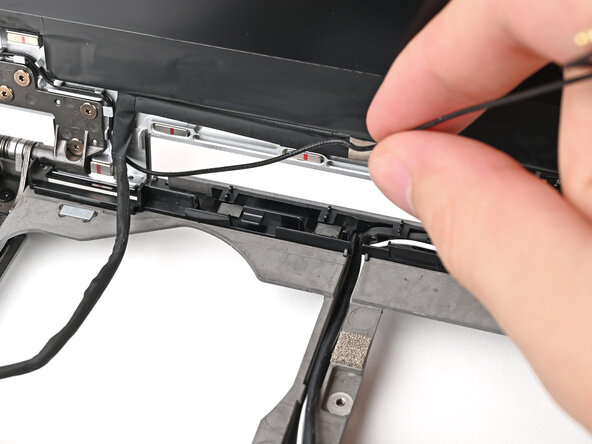
    • Use your fingers to guide the eDP cable out of its clips along the top left edge of the Bottom Cover.

  25. Framework Laptop 16 Webcam Cable Replacement: 步骤 25 中的图像 1,3 Framework Laptop 16 Webcam Cable Replacement: 步骤 25 中的图像 2,3 Framework Laptop 16 Webcam Cable Replacement: 步骤 25 中的图像 3,3
    • Repeat the previous step for the black antenna cable.

  26. Framework Laptop 16 Webcam Cable Replacement: 步骤 26 中的图像 1,3 Framework Laptop 16 Webcam Cable Replacement: 步骤 26 中的图像 2,3 Framework Laptop 16 Webcam Cable Replacement: 步骤 26 中的图像 3,3
    • Use your fingers to guide the white antenna cable out of its clips along the top right edge of the Bottom Cover.

  27. Framework Laptop 16 Webcam Cable Replacement: 步骤 27 中的图像 1,3 Framework Laptop 16 Webcam Cable Replacement: 步骤 27 中的图像 2,3 Framework Laptop 16 Webcam Cable Replacement: 步骤 27 中的图像 3,3
    • Repeat the previous step for the webcam cable.

  28. Framework Laptop 16 Webcam Cable Replacement, Peel off the eDP cable: 步骤 28 中的图像 1,3 Framework Laptop 16 Webcam Cable Replacement, Peel off the eDP cable: 步骤 28 中的图像 2,3 Framework Laptop 16 Webcam Cable Replacement, Peel off the eDP cable: 步骤 28 中的图像 3,3
    • The eDP cable is lightly adhered to the Top Cover at its "bend" near the bottom left corner.

    • Grip the eDP cable near its bend and peel it off the Top Cover.

  29. Framework Laptop 16 Webcam Cable Replacement, Remove the display screws: 步骤 29 中的图像 1,3 Framework Laptop 16 Webcam Cable Replacement, Remove the display screws: 步骤 29 中的图像 2,3 Framework Laptop 16 Webcam Cable Replacement, Remove the display screws: 步骤 29 中的图像 3,3
    • While supporting the display with one hand, use your Framework Screwdriver to remove the four 2.4 mm‑long T5 Torx screws securing the display.

  30. Framework Laptop 16 Webcam Cable Replacement, Remove the display: 步骤 30 中的图像 1,3 Framework Laptop 16 Webcam Cable Replacement, Remove the display: 步骤 30 中的图像 2,3 Framework Laptop 16 Webcam Cable Replacement, Remove the display: 步骤 30 中的图像 3,3
    • Grab the display and pull it straight off the Top Cover to free it from its alignment pegs.

    • Remove the display.

  31. Framework Laptop 16 Webcam Cable Replacement, Disconnect the Hall Effect sensor: 步骤 31 中的图像 1,2 Framework Laptop 16 Webcam Cable Replacement, Disconnect the Hall Effect sensor: 步骤 31 中的图像 2,2
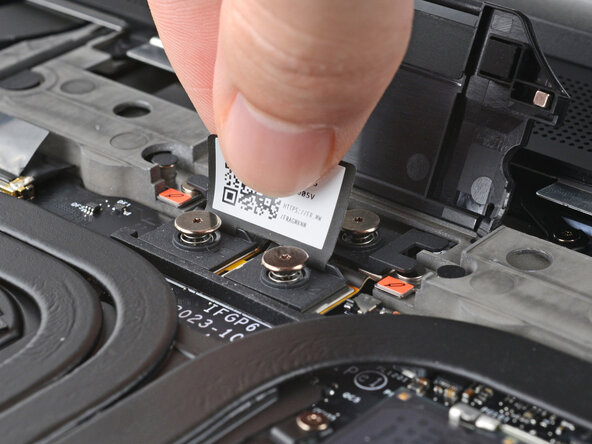
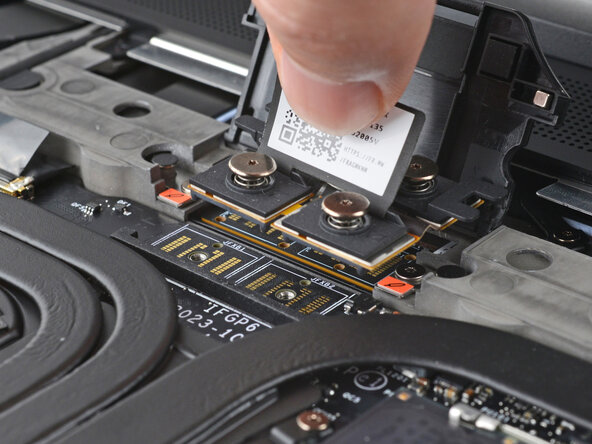
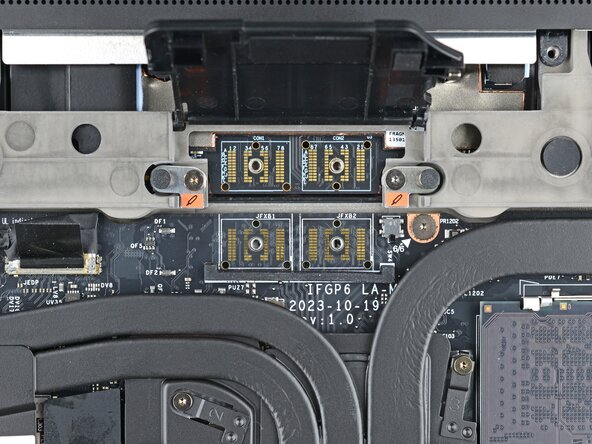
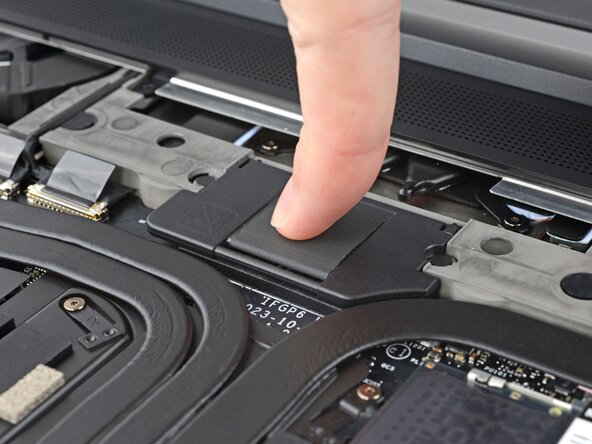
    • Grip the Hall Effect cable connector by its black pull tab and slide it straight out of its socket.

  32. Framework Laptop 16 Webcam Cable Replacement, Disconnect the webcam: 步骤 32 中的图像 1,2 Framework Laptop 16 Webcam Cable Replacement, Disconnect the webcam: 步骤 32 中的图像 2,2
    • While supporting the Top Cover with one hand, use the flat end of your Framework Screwdriver, or a clean fingernail, to lift up the locking tab on the webcam ZIF connector.

  33. Framework Laptop 16 Webcam Cable Replacement: 步骤 33 中的图像 1,3 Framework Laptop 16 Webcam Cable Replacement: 步骤 33 中的图像 2,3 Framework Laptop 16 Webcam Cable Replacement: 步骤 33 中的图像 3,3
    • Slide the flat end of your Framework Screwdriver under the webcam cable, near the ZIF connector, and twist to slide the connector out of its socket.

    • Alternatively, you can use your fingers to slide out the cable.

  34. Framework Laptop 16 Webcam Cable Replacement, Separate the webcam cable adhesive: 步骤 34 中的图像 1,2 Framework Laptop 16 Webcam Cable Replacement, Separate the webcam cable adhesive: 步骤 34 中的图像 2,2
    • Use your fingers to peel off the flat portion of the webcam cable from its adhesive near the top edge of the Top Cover.

  35. Framework Laptop 16 Webcam Cable Replacement: 步骤 35 中的图像 1,2 Framework Laptop 16 Webcam Cable Replacement: 步骤 35 中的图像 2,2
    • Continue peeling to separate the cable from the adhesive near the center of the Top Cover.

  36. Framework Laptop 16 Webcam Cable Replacement: 步骤 36 中的图像 1,3 Framework Laptop 16 Webcam Cable Replacement: 步骤 36 中的图像 2,3 Framework Laptop 16 Webcam Cable Replacement: 步骤 36 中的图像 3,3
    • Use your fingers to peel off the thick portion of the webcam cable from its adhesive near the bottom edge of the Top Cover.

  37. Framework Laptop 16 Webcam Cable Replacement: 步骤 37 中的图像 1,3 Framework Laptop 16 Webcam Cable Replacement: 步骤 37 中的图像 2,3 Framework Laptop 16 Webcam Cable Replacement: 步骤 37 中的图像 3,3
    • Grip the webcam cable near its bend and peel it off the Top Cover.

  38. Framework Laptop 16 Webcam Cable Replacement, Remove the webcam cable: 步骤 38 中的图像 1,1
    • At this point, the webcam cable should be free and you can remove it.

  39. Framework Laptop 16 Webcam Cable Replacement, Disassembly complete: 步骤 39 中的图像 1,1
    • Congratulations on completing disassembly! The remaining steps will show how to reassemble your Framework Laptop.

  40. Framework Laptop 16 Webcam Cable Replacement, Connect the Hall Effect sensor: 步骤 40 中的图像 1,2 Framework Laptop 16 Webcam Cable Replacement, Connect the Hall Effect sensor: 步骤 40 中的图像 2,2
    • Grip the Hall Effect cable connector by its black pull tab and slide it straight into its socket.

  41. Framework Laptop 16 Webcam Cable Replacement, Connect the webcam: 步骤 41 中的图像 1,2 Framework Laptop 16 Webcam Cable Replacement, Connect the webcam: 步骤 41 中的图像 2,2
    • Use your fingers to slide the webcam cable straight into its socket.

  42. Framework Laptop 16 Webcam Cable Replacement: 步骤 42 中的图像 1,2 Framework Laptop 16 Webcam Cable Replacement: 步骤 42 中的图像 2,2
    • Use the flat end of your Framework Screwdriver, or a clean fingernail, to press down the locking tab on the webcam ZIF connector.

  43. Framework Laptop 16 Webcam Cable Replacement, Re‑adhere the webcam cable: 步骤 43 中的图像 1,3 Framework Laptop 16 Webcam Cable Replacement, Re‑adhere the webcam cable: 步骤 43 中的图像 2,3 Framework Laptop 16 Webcam Cable Replacement, Re‑adhere the webcam cable: 步骤 43 中的图像 3,3
    • Align the thick portion of the webcam cable with the adhesive near the bottom edge of the Top Cover.

    • Press the cable to the Top Cover to re‑adhere it.

    • Press the bend in the webcam cable to the Top Cover to re‑adhere it, making sure it sits against its vertical protrusion.

  44. Framework Laptop 16 Webcam Cable Replacement: 步骤 44 中的图像 1,3 Framework Laptop 16 Webcam Cable Replacement: 步骤 44 中的图像 2,3 Framework Laptop 16 Webcam Cable Replacement: 步骤 44 中的图像 3,3
    • Grip the thin portion of the webcam cable and pull it downward so it sits flat against the Top Cover.

    • Press the cable to the adhesive near the center of the Top Cover to re‑adhere it.

  45. Framework Laptop 16 Webcam Cable Replacement: 步骤 45 中的图像 1,3 Framework Laptop 16 Webcam Cable Replacement: 步骤 45 中的图像 2,3 Framework Laptop 16 Webcam Cable Replacement: 步骤 45 中的图像 3,3
    • Press the cable to the adhesive near the top edge of the Top Cover to re‑adhere it.

    • Slide your finger down the cable to smooth out any creases.

  46. Framework Laptop 16 Webcam Cable Replacement, Place the display: 步骤 46 中的图像 1,2 Framework Laptop 16 Webcam Cable Replacement, Place the display: 步骤 46 中的图像 2,2
    • Align the display with its alignment pegs and place it on the Top Cover.

  47. Framework Laptop 16 Webcam Cable Replacement, Install the display screws: 步骤 47 中的图像 1,3 Framework Laptop 16 Webcam Cable Replacement, Install the display screws: 步骤 47 中的图像 2,3 Framework Laptop 16 Webcam Cable Replacement, Install the display screws: 步骤 47 中的图像 3,3
    • While supporting the display with one hand, use your Framework Screwdriver to install the four 2.4 mm‑long T5 Torx screws securing the display.

  48. Framework Laptop 16 Webcam Cable Replacement, Re-adhere the eDP cable: 步骤 48 中的图像 1,2 Framework Laptop 16 Webcam Cable Replacement, Re-adhere the eDP cable: 步骤 48 中的图像 2,2
    • Press the bend in the eDP cable onto the Top Cover to re‑adhere it.

  49. Framework Laptop 16 Webcam Cable Replacement, Reroute the cables: 步骤 49 中的图像 1,3 Framework Laptop 16 Webcam Cable Replacement, Reroute the cables: 步骤 49 中的图像 2,3 Framework Laptop 16 Webcam Cable Replacement, Reroute the cables: 步骤 49 中的图像 3,3
    • Use the flat end of your Framework Screwdriver, or your fingers, to press the webcam cable into its clips at the top right edge of the Bottom Cover.

  50. Framework Laptop 16 Webcam Cable Replacement: 步骤 50 中的图像 1,3 Framework Laptop 16 Webcam Cable Replacement: 步骤 50 中的图像 2,3 Framework Laptop 16 Webcam Cable Replacement: 步骤 50 中的图像 3,3
    • Repeat the previous step for the white antenna cable.

  51. Framework Laptop 16 Webcam Cable Replacement: 步骤 51 中的图像 1,2 Framework Laptop 16 Webcam Cable Replacement: 步骤 51 中的图像 2,2
    • Use the flat end of your Framework Screwdriver, or your fingers, to press the black antenna cable into its clips at the top left edge of the Bottom Cover.

  52. Framework Laptop 16 Webcam Cable Replacement: 步骤 52 中的图像 1,2 Framework Laptop 16 Webcam Cable Replacement: 步骤 52 中的图像 2,2
    • Repeat the previous step for the eDP cable.

  53. Framework Laptop 16 Webcam Cable Replacement: 步骤 53 中的图像 1,3 Framework Laptop 16 Webcam Cable Replacement: 步骤 53 中的图像 2,3 Framework Laptop 16 Webcam Cable Replacement: 步骤 53 中的图像 3,3
    • Press the eDP, webcam, and antenna cables into their vertical slot in the Bottom Cover.

  54. Framework Laptop 16 Webcam Cable Replacement, Connect the display cables: 步骤 54 中的图像 1,2 Framework Laptop 16 Webcam Cable Replacement, Connect the display cables: 步骤 54 中的图像 2,2
    • Press the eDP and webcam cable connectors straight down into their sockets to connect them.

  55. Framework Laptop 16 Webcam Cable Replacement, Install the bezel: 步骤 55 中的图像 1,2 Framework Laptop 16 Webcam Cable Replacement, Install the bezel: 步骤 55 中的图像 2,2
    • Align the bezel over the perimeter of the display and let the magnets pull the bezel into place.

    • The bezel should "snap" into place. If it doesn't, realign it and make sure it sits flush with the display.

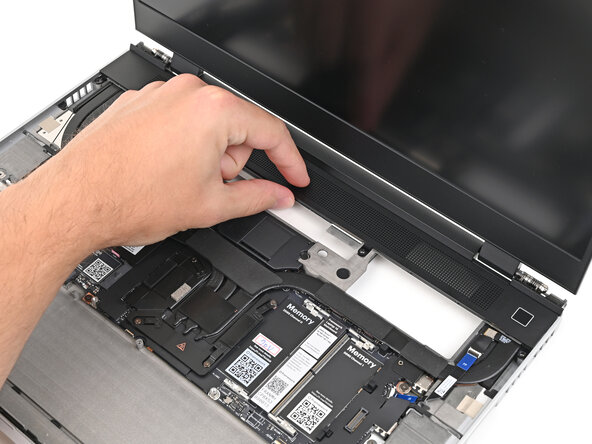
  56. Framework Laptop 16 Webcam Cable Replacement, Place the ventilation plate: 步骤 56 中的图像 1,2 Framework Laptop 16 Webcam Cable Replacement, Place the ventilation plate: 步骤 56 中的图像 2,2
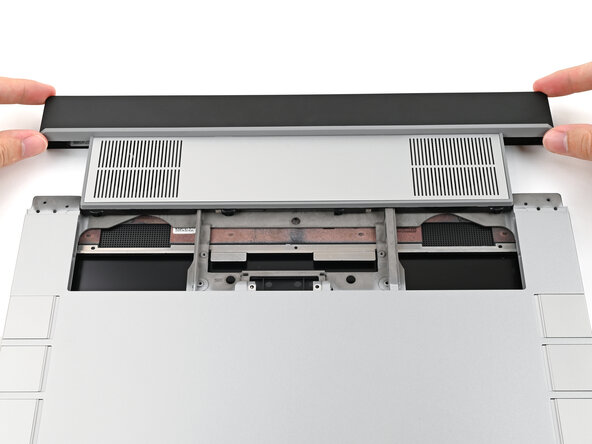
    • Lay the ventilation plate along the top edge of the laptop and let its magnets pull into place.

  57. Framework Laptop 16 Webcam Cable Replacement, Connect the fingerprint reader: 步骤 57 中的图像 1,2 Framework Laptop 16 Webcam Cable Replacement, Connect the fingerprint reader: 步骤 57 中的图像 2,2
    • Use your fingers to grip the blue pull tab and slide the fingerprint reader cable straight into its socket.

  58. Framework Laptop 16 Webcam Cable Replacement: 步骤 58 中的图像 1,2 Framework Laptop 16 Webcam Cable Replacement: 步骤 58 中的图像 2,2
    • Use the flat end of your Framework Screwdriver, or a clean fingernail, to press down the locking tab on the fingerprint reader ZIF connector.

  59. Framework Laptop 16 Webcam Cable Replacement: 步骤 59 中的图像 1,1
    • Press the fingerprint reader cable to the frame to re-adhere it.

  60. Framework Laptop 16 Webcam Cable Replacement, Lift the interposer door: 步骤 60 中的图像 1,2 Framework Laptop 16 Webcam Cable Replacement, Lift the interposer door: 步骤 60 中的图像 2,2
    • Close the interposer door.

  61. Framework Laptop 16 Webcam Cable Replacement, Tighten the interposer screws: 步骤 61 中的图像 1,3 Framework Laptop 16 Webcam Cable Replacement, Tighten the interposer screws: 步骤 61 中的图像 2,3 Framework Laptop 16 Webcam Cable Replacement, Tighten the interposer screws: 步骤 61 中的图像 3,3
    • If you have the Graphics Module installed, your interposer will have four screws. If you have the Expansion Bay Shell installed, you'll have three screws instead.

    • If you have the Graphics Module, use your Framework Screwdriver to tighten the four captive T5 Torx screws securing the interposer.

    • If you have the Expansion Bay Shell, use your Framework Screwdriver to tighten the three captive T5 Torx screws securing the interposer.

    • Close the interposer door.

  62. Framework Laptop 16 Webcam Cable Replacement, Place the interposer: 步骤 62 中的图像 1,2 Framework Laptop 16 Webcam Cable Replacement, Place the interposer: 步骤 62 中的图像 2,2
    • Place the interposer over its spot between the Mainboard and the module.

    • Depending on if you're installing a Graphics Module or the Expansion Bay Shell, the interposer should be oriented so either rubber grommets or metal tabs cover the Expansion Bay screws.

  63. Framework Laptop 16 Webcam Cable Replacement, Tighten the Expansion Bay Module screws: 步骤 63 中的图像 1,2 Framework Laptop 16 Webcam Cable Replacement, Tighten the Expansion Bay Module screws: 步骤 63 中的图像 2,2
    • Use your Framework Screwdriver to tighten the two captive T5 Torx screws securing the Expansion Bay Module.

  64. Framework Laptop 16 Webcam Cable Replacement, Insert the Expansion Bay Module: 步骤 64 中的图像 1,2 Framework Laptop 16 Webcam Cable Replacement, Insert the Expansion Bay Module: 步骤 64 中的图像 2,2
  65. Framework Laptop 16 Webcam Cable Replacement, Place the Mid Plate: 步骤 65 中的图像 1,3 Framework Laptop 16 Webcam Cable Replacement, Place the Mid Plate: 步骤 65 中的图像 2,3 Framework Laptop 16 Webcam Cable Replacement, Place the Mid Plate: 步骤 65 中的图像 3,3
    • Place the Mid Plate on the laptop, making sure it sits evenly on its alignment pegs.

  66. Framework Laptop 16 Webcam Cable Replacement, Tighten the Mid Plate screws: 步骤 66 中的图像 1,2 Framework Laptop 16 Webcam Cable Replacement, Tighten the Mid Plate screws: 步骤 66 中的图像 2,2
    • Use your Framework Screwdriver to tighten the 16 captive T5 Torx screws in order (starting with 2) to secure the Mid Plate evenly.

  67. Framework Laptop 16 Webcam Cable Replacement, Connect the Mid Plate cable: 步骤 67 中的图像 1,2 Framework Laptop 16 Webcam Cable Replacement, Connect the Mid Plate cable: 步骤 67 中的图像 2,2
    • Align the Mid Plate cable press connector over its socket and press down to connect it.

  68. Framework Laptop 16 Webcam Cable Replacement, Install the Input Modules: 步骤 68 中的图像 1,3 Framework Laptop 16 Webcam Cable Replacement, Install the Input Modules: 步骤 68 中的图像 2,3 Framework Laptop 16 Webcam Cable Replacement, Install the Input Modules: 步骤 68 中的图像 3,3
    • Your Input Module(s) might be different, but the procedure to remove them is the same.

    • Align the top edge of the Input Module with the top edge of the laptop.

    • Lay the Input Module on the laptop and let the magnets pull the keyboard into place

    • Make sure the Input Module is seated properly on its alignment pegs and sits flush with the edges of the laptop.

    • Repeat for any remaining Input Modules.

  69. Framework Laptop 16 Webcam Cable Replacement, Install the keyboard: 步骤 69 中的图像 1,3 Framework Laptop 16 Webcam Cable Replacement, Install the keyboard: 步骤 69 中的图像 2,3 Framework Laptop 16 Webcam Cable Replacement, Install the keyboard: 步骤 69 中的图像 3,3
    • Align the top edge of the keyboard with the top edge of the laptop.

    • Lay the keyboard on the laptop and let the magnets pull the keyboard into place

    • Make sure the keyboard is seated properly on its alignment pegs and sits flush with the edges of the laptop.

  70. Framework Laptop 16 Webcam Cable Replacement, Install the Touchpad Module: 步骤 70 中的图像 1,2 Framework Laptop 16 Webcam Cable Replacement, Install the Touchpad Module: 步骤 70 中的图像 2,2
    • Place the Touchpad Module flat on its cutout so its clips are properly aligned.

    • Press the Touchpad Module down and slide it into place so it lines up evenly with the bottom edge of the laptop.

  71. Framework Laptop 16 Webcam Cable Replacement, Install the Touchpad Spacers: 步骤 71 中的图像 1,3 Framework Laptop 16 Webcam Cable Replacement, Install the Touchpad Spacers: 步骤 71 中的图像 2,3 Framework Laptop 16 Webcam Cable Replacement, Install the Touchpad Spacers: 步骤 71 中的图像 3,3
    • Place the Touchpad Spacer over its spot on the laptop with the bottom edge overhanging slightly.

    • Slide the Touchpad Spacer towards the top of the laptop to secure it.

    • Repeat the same procedure for the other Touchpad Spacer.

结论

You finished fixing your Framework Laptop!

Take your e-waste to an R2 or e-Stewards certified recycler.

If you need help, contact Framework support.

Alex Diaz-Kokaisl

于01/16/22注册

236,116 声望

创作了1,168篇指南

0指南评论

添加评论

浏览统计数据:

过去 24 小时: 0

过去 7 天: 2

过去 30 天: 6

总计 81