跳转到主内容

Flashforge Finder 2 Fan Cleaning or Replacement

你所需要的

  1. Flashforge Finder 2 Fan Cleaning or Replacement, Work safely: 步骤 1 中的图像 1,1
    • Shut down the back switch and disconnect the printer power supply

    • If used recently wait for the extruder to cool down

  2. Flashforge Finder 2 Fan Cleaning or Replacement, Remove extruder cover: 步骤 2 中的图像 1,3 Flashforge Finder 2 Fan Cleaning or Replacement, Remove extruder cover: 步骤 2 中的图像 2,3 Flashforge Finder 2 Fan Cleaning or Replacement, Remove extruder cover: 步骤 2 中的图像 3,3
    • Remove the three screws on the extruder top with a 2.5 Allen key or an appropriate screwdriver bit

    • Gently lift up the extruder cover

    • Pay attention to the flat cable while lifting the cover

  3. Flashforge Finder 2 Fan Cleaning or Replacement, Disconnect the fan: 步骤 3 中的图像 1,1
    • Using a spudger, disconnect the fan connector

    • Route the cable to free it

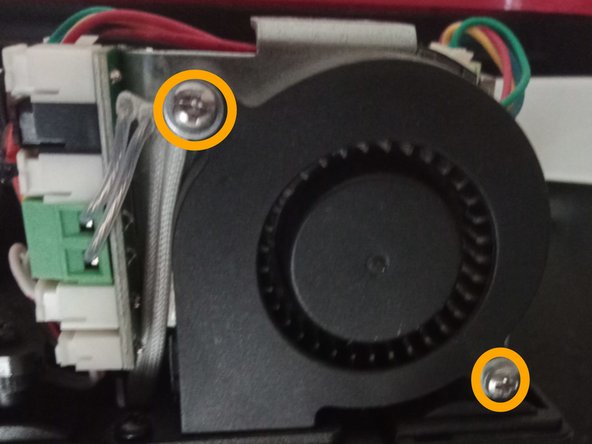
  4. Flashforge Finder 2 Fan Cleaning or Replacement, Unscrew the fan: 步骤 4 中的图像 1,2 Flashforge Finder 2 Fan Cleaning or Replacement, Unscrew the fan: 步骤 4 中的图像 2,2
    • Remove the two Phillips screw holding the fan

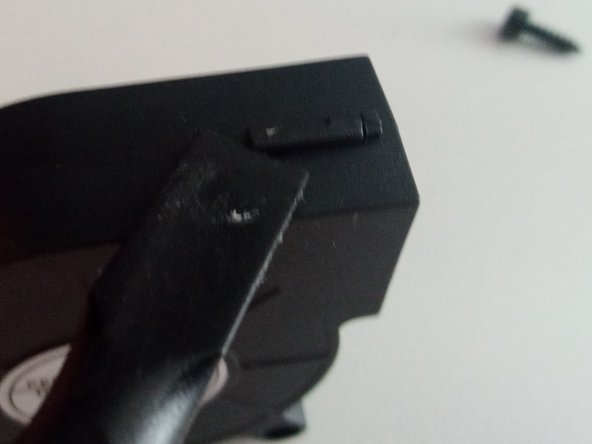
  5. Flashforge Finder 2 Fan Cleaning or Replacement, (Optional) Disassemble the fan: 步骤 5 中的图像 1,2 Flashforge Finder 2 Fan Cleaning or Replacement, (Optional) Disassemble the fan: 步骤 5 中的图像 2,2
    • The fan can now be removed from the extruder. If you need to replace it, just follow the steps in reverse order with the new fan

    • If you are cleaning the fan, release the three clips holding it together with a spudger

  6. Flashforge Finder 2 Fan Cleaning or Replacement, Clean the fan: 步骤 6 中的图像 1,1
    • Using compressed air and a brush, clean the fan from dust and debris

结论

To reassemble your device, follow these instructions in reverse order.

dinoo_fixit

于03/22/22注册

1,706 声望

创作了4篇指南

0指南评论

添加评论

浏览统计数据:

过去 24 小时: 2

过去 7 天: 4

过去 30 天: 15

总计 228