简介
Replacing the USB port requires a little bit of work, however it is easier than soldering a new port onto the existing board. Once again as with most of the repairs on this device it is relatively straight forward, the only thing it requires is a couple tools, also, the only hazard to note is to not use metal tools if possible because it is a circuit board with electrical connections that could short out. For example, if a metal spudger were to make a connection between two components on the board it could render the board useless.
你所需要的
-
-
Slide one of the plastic opening tools in the crack on the side of the device with the windows button.
-
Slide the other plastic opening tool facing the opposite way in the crack next to the first one and pry the back cover off a little bit at a time or slide them around the edge as necessary.
-
Finally, slide the two plastic opening tools all around the case until it is open.
-
-
-
-
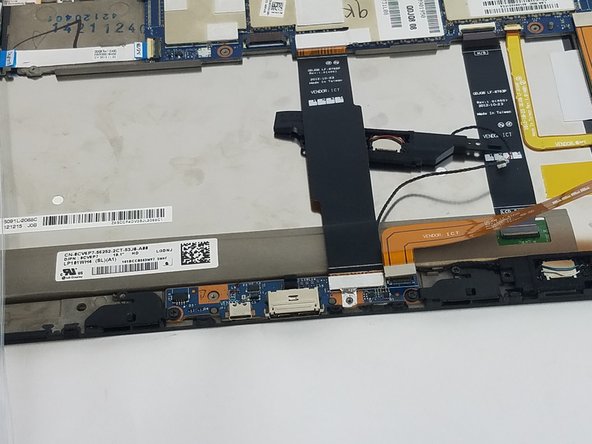
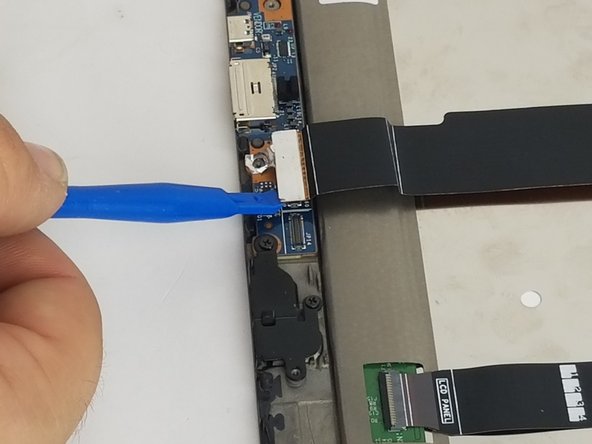
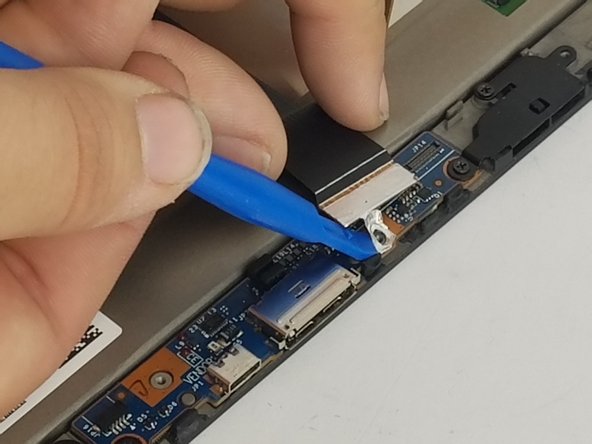
Use the plastic opening tools to lift up the black cable shown in the picture.
-
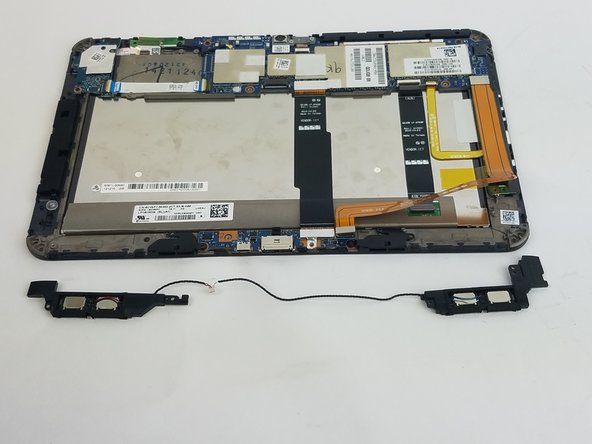
Slide one end of the speaker to the other side and the speaker will be out.
-
-
-
Unscrew the three screws shown in the picture.
-
3 mm screws.
-
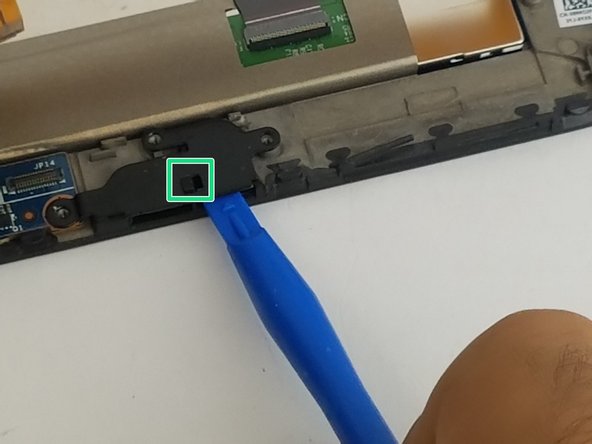
Slide the small piece shown in green square on both black pieces and lift them up using the plastic tool as shown in the picture.
-
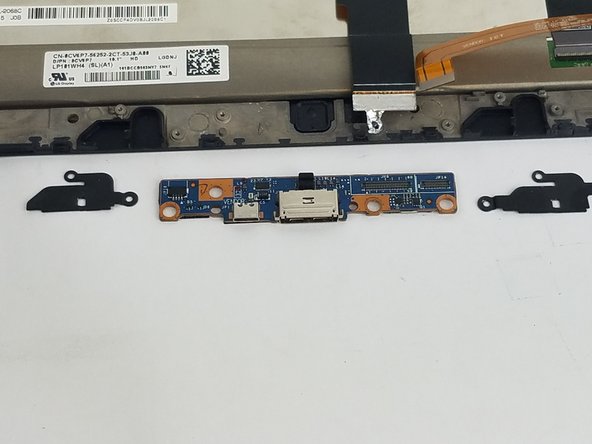
Finally, take the USB port out. You will have three pieces out: the port and the two black pieces as shown in the picture.
-




To reassemble your device, follow these instructions in reverse order.
To reassemble your device, follow these instructions in reverse order.



团队

USF Tampa, Team 2-1, Nance Fall 2016 USF Tampa, Team 2-1, Nance Fall 2016 的会员
USFT-NANCE-F16S2G1
3 名成员
创作了5篇指南
