简介
If your Dell Inspiron 16-7610 laptop touchpad is no longer clicking or working the way it should, it might be time to replace it. The touchpad allows the computer to click and scroll through numerous applications. Before beginning this repair, be sure you have troubleshoted different possibilities for fixing your touchpad. A replacement may not be necessary, but if it is, continue following this guide. If you plan to proceed, power off your laptop and disconnect from the AC adapter.
你所需要的
-
-
Flip the device over, so the backside is facing up.
-
Use a Phillips #00 screwdriver to remove four 4.00 mm screws.
-
Use the Phillips #00 screwdriver to unscrew or loosen two captive screws at the right and left corner near the hinges.
-
Three of the screws are dummy screws, only screwed into retainers. They are not holding anything in and can be left in place for simplicity.
-
-
-
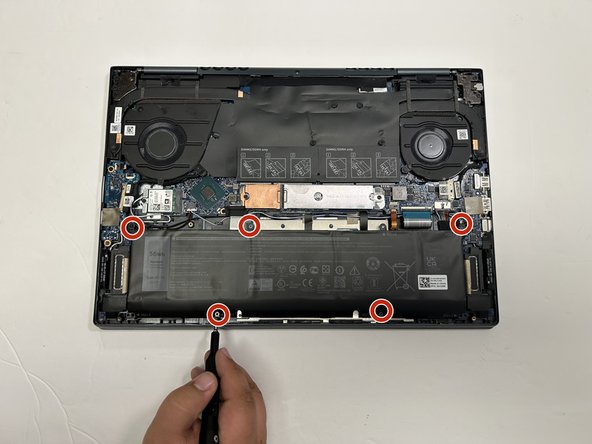
Use a Phillips #00 to remove the five screws securing the battery to the laptop.
-
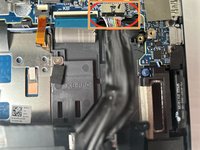
Use the wide end of a spudger to push on the connector tab to slide it out of its socket.
-
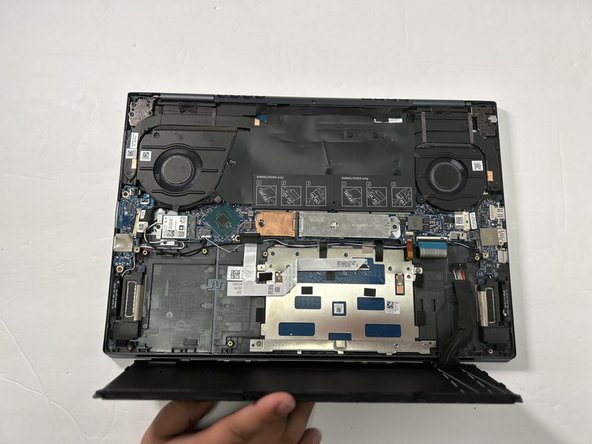
Use both hands to remove the battery from the laptop.
-



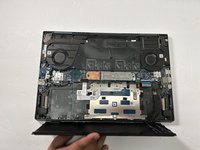


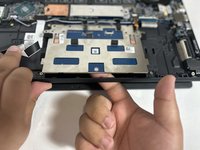
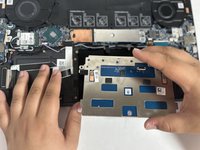
After installing the new touchpad on the Dell Inspiron, retrace the previous steps to put the Dell Inspiron back together. Take your e-waste to an R2 or e-Stewards certified recycler.
另外一个人完成了本指南。


团队

Gateway, Team 1-3, Pee Spring 2023 Gateway, Team 1-3, Pee Spring 2023 的会员
GCC-PEE-S23S1G3
4 名成员
创作了6篇指南
