跳转到主内容
加入维修社区 - 创建账户

Dell Inspiron 1545 Keyboard Replacement

你所需要的

    1. Dell Inspiron 1545 Keyboard Replacement, Battery: 步骤 1 中的图像 1,1
      • Before attempting to remove the battery ensure that the laptop is disconnected from all power sources and turned off.

      • Turn the laptop over to its back.

      询问修复机器人

      添加评论

    2. Dell Inspiron 1545 Keyboard Replacement: 步骤 2 中的图像 1,1
      • Slide the release latch while simultaneously pulling backwards on the battery.

      询问修复机器人

      添加评论

    3. Dell Inspiron 1545 Keyboard Replacement: 步骤 3 中的图像 1,1
      • Slide the battery out of the battery bay.

      询问修复机器人

      添加评论

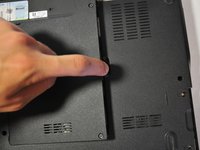
    1. Dell Inspiron 1545 Keyboard Replacement, Base Cover: 步骤 4 中的图像 1,1
      • Unscrew the four screws (3mm Phillips #1) that hold the base cover in place.

      • The top 3 screws are "captive" (held in by a retaining ring) and will not come out.

      询问修复机器人

      添加评论

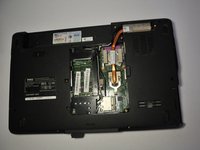
    2. Dell Inspiron 1545 Keyboard Replacement: 步骤 5 中的图像 1,2 Dell Inspiron 1545 Keyboard Replacement: 步骤 5 中的图像 2,2
      • Carefully lift the base cover vertically away from the laptop.

      询问修复机器人

      添加评论

    1. Dell Inspiron 1545 Keyboard Replacement, Center Control Cover: 步骤 6 中的图像 1,1
      • After removing the battery, remove the two screws (3mm Phillips #1) beneath it. These screws hold the Center Control Cover in place.

      询问修复机器人

      添加评论

    2. Dell Inspiron 1545 Keyboard Replacement: 步骤 7 中的图像 1,1
      • Flip the laptop over to the front and open the display as far as possible.

      询问修复机器人

      添加评论

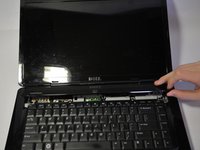
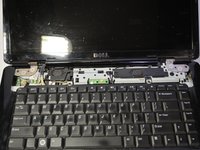
    3. Dell Inspiron 1545 Keyboard Replacement: 步骤 8 中的图像 1,3 Dell Inspiron 1545 Keyboard Replacement: 步骤 8 中的图像 2,3 Dell Inspiron 1545 Keyboard Replacement: 步骤 8 中的图像 3,3
      • The Center Control Cover is VERY fragile, be careful when using prying tools.

      • Pry the Center Control Cover from the laptop. On the right there is a small divot, it is advised that you start removing the panel from here.

      • Carefully lift the Center Control Cover away from the laptop.

      询问修复机器人

      添加评论

    1. Dell Inspiron 1545 Keyboard Replacement, Keyboard: 步骤 9 中的图像 1,1
      • Remove the two screws (5mm Phillips #1) at the top of the keyboard.

      询问修复机器人

      添加评论

    2. Dell Inspiron 1545 Keyboard Replacement: 步骤 10 中的图像 1,1
      • Slide the keyboard out and away from the laptop and lift it up to access the keyboard connector.

      • Do not pull hard on the keyboard while removing it, you may damage the keyboard or the keyboard connector.

      询问修复机器人

      添加评论

    3. Dell Inspiron 1545 Keyboard Replacement: 步骤 11 中的图像 1,1
      • Lift the connector latch that secures the keyboard cable to the connector on the motherboard and remove the cable.

      添加评论

    4. Dell Inspiron 1545 Keyboard Replacement: 步骤 12 中的图像 1,1
      • Lift the keyboard up and away from the laptop.

      询问修复机器人

      添加评论

结论

To reassemble your device, follow these instructions in reverse order.

取消:我没有完成这个指南。

15等其他人完成本指南。

Nathan Lemay

于04/16/14注册

3,160 声望

创作了15篇指南

团队

Cal Poly, Team 9-14, Regan Spring 2014 Cal Poly, Team 9-14, Regan Spring 2014 的会员

CPSU-REGAN-S14S9G14

4 名成员

创作了90篇指南

3指南评论

Step 4 and 5 are not needed.

James Thrun - 回复 分享

Steps 4 and 5 are unnecessary for removing the keyboard. Other than that, well done.

lee - 回复 分享

The connector latch is broken. What should I do?

Mjeed - 回复 分享

添加评论

浏览统计数据:

过去 24 小时: 1

过去 7 天: 10

过去 30 天: 59

总计 8,019