跳转到主内容
加入维修社区 - 创建账户
Dell Inspiron 15-7537 USB Board Replacement

你所需要的

    1. Dell Inspiron 15-7537 USB Board Replacement, Bottom Case: 步骤 1 中的图像 1,1
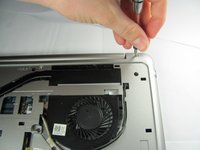
      • Make sure the display is closed. Then, flip the computer over so that you can see the bottom cover.

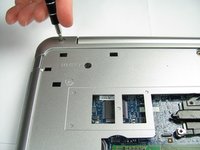
      • Loosen the two 5 mm Phillips #0 on the upper edge of the cover.

      • These screws will stay captive to the case.

      询问修复机器人

      添加评论

    2. Dell Inspiron 15-7537 USB Board Replacement: 步骤 2 中的图像 1,1
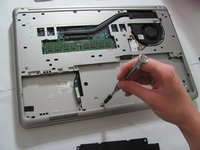
      • Remove the two 5 mm interior screws that connect the cover to the assembly using the same Philips head screwdriver from the previous step.

      询问修复机器人

      添加评论

    3. Dell Inspiron 15-7537 USB Board Replacement: 步骤 3 中的图像 1,1
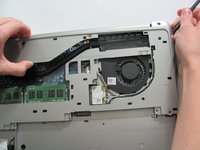
      • Use a spudger to remove the base cover from the rest of bottom cover.

      添加评论

    1. Dell Inspiron 15-7537 USB Board Replacement, Battery: 步骤 4 中的图像 1,1
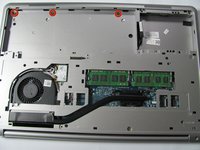
      • Remove the three 5mm Phillips #0 screws that keep the battery connected to the computer.

      询问修复机器人

      添加评论

    2. Dell Inspiron 15-7537 USB Board Replacement: 步骤 5 中的图像 1,1
      • Ground the system board by turning over the computer, opening the display, and holding the power button down for about 5 seconds before proceeding.

      • Using the pull tab on the battery, lift the battery out of the computer.

      添加评论

    1. Dell Inspiron 15-7537 USB Board Replacement, Hard Drive: 步骤 6 中的图像 1,1
      询问修复机器人

      添加评论

    1. Dell Inspiron 15-7537 USB Board Replacement, Removing the Keyboard: 步骤 7 中的图像 1,1
      • Remove the single 5mm screw that connects the keyboard to the palm assembly with the Phillips head screwdriver.

      询问修复机器人

      添加评论

    2. Dell Inspiron 15-7537 USB Board Replacement: 步骤 8 中的图像 1,1
      • Flip over the computer and open the display as far as it can go.

      • Use the spudger to remove the keyboard from the palm assembly.

      询问修复机器人

      添加评论

    3. Dell Inspiron 15-7537 USB Board Replacement: 步骤 9 中的图像 1,1
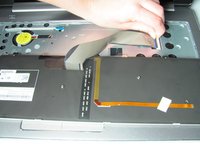
      • Gently flip over the keyboard and place it on the palm rest assembly.

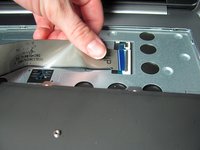
      • Lift the connector latches and disconnect the keyboard and the keyboard back-light cables.

      询问修复机器人

      添加评论

    4. Dell Inspiron 15-7537 USB Board Replacement: 步骤 10 中的图像 1,3 Dell Inspiron 15-7537 USB Board Replacement: 步骤 10 中的图像 2,3 Dell Inspiron 15-7537 USB Board Replacement: 步骤 10 中的图像 3,3
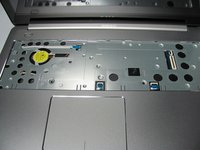
      • Take the keyboard off the palm rest assembly.

      添加评论

    1. Dell Inspiron 15-7537 USB Board Replacement, Bottom Cover: 步骤 11 中的图像 1,1
      • Unscrew the two black 5 mm screws underneath the keyboard using a Phillips head screwdriver.

      询问修复机器人

      添加评论

    2. Dell Inspiron 15-7537 USB Board Replacement: 步骤 12 中的图像 1,2 Dell Inspiron 15-7537 USB Board Replacement: 步骤 12 中的图像 2,2
      • Flip the computer and remove the two silver 5 mm screws on the corners of the base cover with the Phillips head screwdriver.

      询问修复机器人

      添加评论

    3. Dell Inspiron 15-7537 USB Board Replacement: 步骤 13 中的图像 1,1
      • Unscrew the three black 5 mm screws with the Phillips head screwdriver.

      询问修复机器人

      添加评论

    4. Dell Inspiron 15-7537 USB Board Replacement: 步骤 14 中的图像 1,2 Dell Inspiron 15-7537 USB Board Replacement: 步骤 14 中的图像 2,2
      • Remove the three silver 2 mm screws (with large flat circular heads) from where the battery was taken out with the Phillips head screwdriver.

      询问修复机器人

      添加评论

    5. Dell Inspiron 15-7537 USB Board Replacement: 步骤 15 中的图像 1,2 Dell Inspiron 15-7537 USB Board Replacement: 步骤 15 中的图像 2,2
      • Place a plastic spudger underneath the base cover and move it along the outside of the cover. Once the cover is disconnected lift the off the base cover.

      • To fully take off the base cover the wires that connect to the WiFi card need to be pulled off and pulled through its hole in the base cover

      询问修复机器人

      添加评论

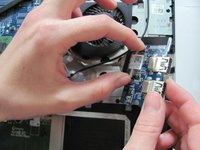
    1. Dell Inspiron 15-7537 USB Board Replacement, USB Board: 步骤 16 中的图像 1,2 Dell Inspiron 15-7537 USB Board Replacement, USB Board: 步骤 16 中的图像 2,2
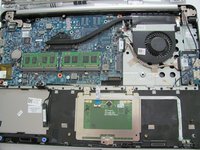
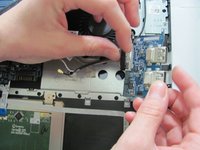
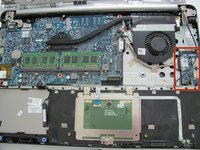
      • Pull back the tape that is securing the cable to the USB board.

      询问修复机器人

      添加评论

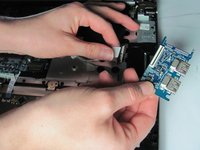
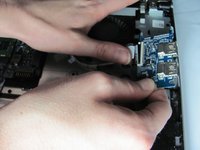
    2. Dell Inspiron 15-7537 USB Board Replacement: 步骤 17 中的图像 1,3 Dell Inspiron 15-7537 USB Board Replacement: 步骤 17 中的图像 2,3 Dell Inspiron 15-7537 USB Board Replacement: 步骤 17 中的图像 3,3
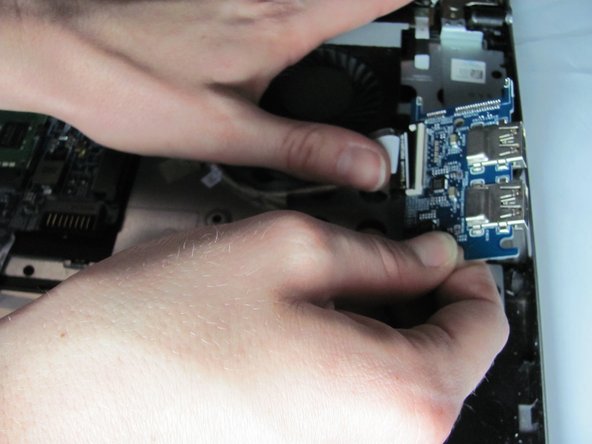
      • Lift the black latch and remove the USB cable from the USB board.

      询问修复机器人

      添加评论

结论

To reassemble your device, follow these instructions in reverse order.

取消:我没有完成这个指南。

团队

Cal Poly, Team 18-2, Maness Winter 2015 Cal Poly, Team 18-2, Maness Winter 2015 的会员

CPSU-MANESS-W15S18G2

4 名成员

创作了96篇指南

0指南评论

添加评论

浏览统计数据:

过去 24 小时: 0

过去 7 天: 9

过去 30 天: 27

总计 2,473