跳转到主内容

Battery Disconnection

仅作为前提条件
本指南仅提供前提条件!本指南是另一个程序的一部分,不能单独使用。

你所需要的

  1. Battery Disconnection, Remove the rubber feet: 步骤 1 中的图像 1,3 Battery Disconnection, Remove the rubber feet: 步骤 1 中的图像 2,3 Battery Disconnection, Remove the rubber feet: 步骤 1 中的图像 3,3
    • Before you begin, power down your laptop and unplug it.

    • There are two kinds of rubber feet along the top and bottom of the rear case. Keep track of their position as you remove them.

    • Insert an opening pick between the rubber foot and the rear case.

    • Pry up with the opening pick to release the clips securing the foot.

    • Remove the foot.

    • Repeat this procedure for the three remaining feet.

    • During reassembly, press the feet into their correct slot to reinsert them. Mismatched feet won't fit correctly.

  2. Battery Disconnection, Unfasten the rear case: 步骤 2 中的图像 1,2 Battery Disconnection, Unfasten the rear case: 步骤 2 中的图像 2,2
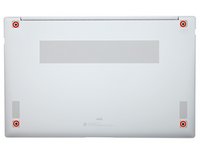
    • Use a Phillips screwdriver to remove the four 4.5 mm-long screws securing the rear case.

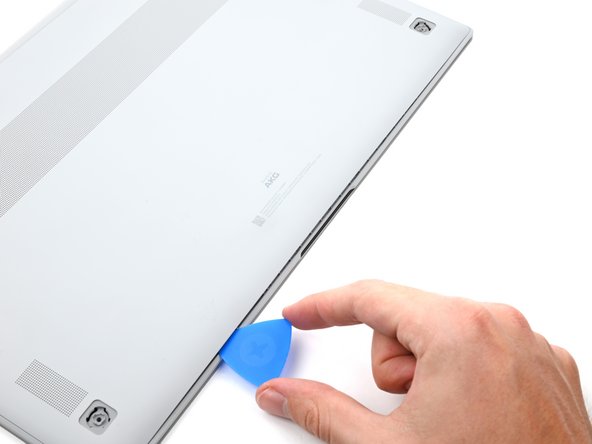
  3. Battery Disconnection, Insert an opening pick: 步骤 3 中的图像 1,3 Battery Disconnection, Insert an opening pick: 步骤 3 中的图像 2,3 Battery Disconnection, Insert an opening pick: 步骤 3 中的图像 3,3
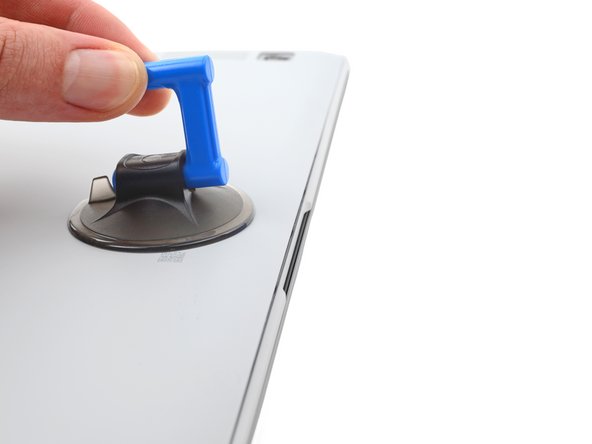
    • Apply a suction cup to the rear case, as close to the center of the bottom edge as possible.

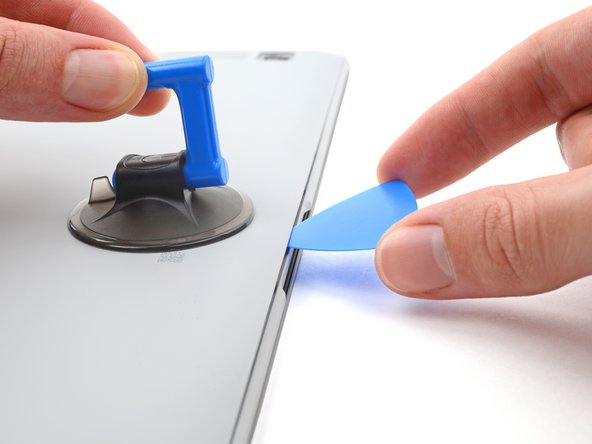
    • Pull up on the suction cup with strong, steady force to create a gap between the rear case and the frame.

    • Insert an opening pick into the gap.

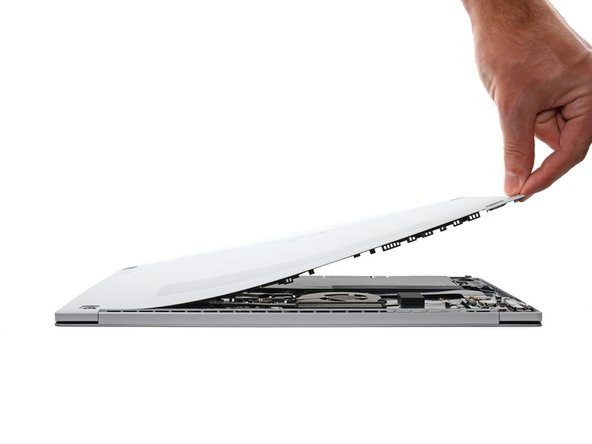
  4. Battery Disconnection, Release the clips: 步骤 4 中的图像 1,3 Battery Disconnection, Release the clips: 步骤 4 中的图像 2,3 Battery Disconnection, Release the clips: 步骤 4 中的图像 3,3
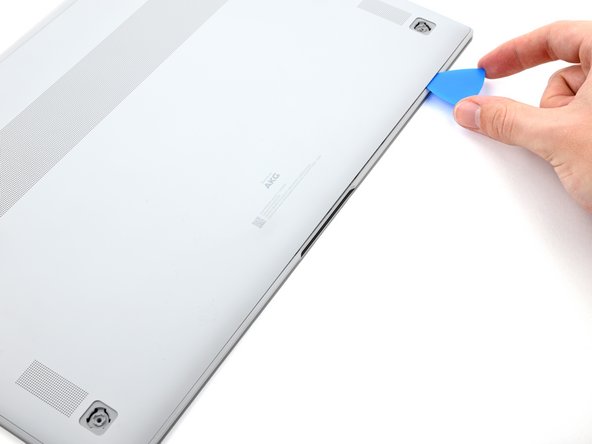
    • Slide the pick along the bottom edge of the rear case to release its plastic clips.

    • Repeat this process for the left and right edges, but stop before reaching the top edge.

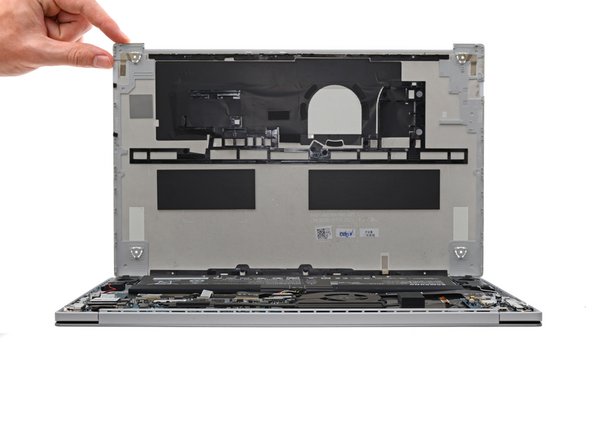
  5. Battery Disconnection, Remove the rear case: 步骤 5 中的图像 1,3 Battery Disconnection, Remove the rear case: 步骤 5 中的图像 2,3 Battery Disconnection, Remove the rear case: 步骤 5 中的图像 3,3
    • The top edge of the rear case is lightly adhered to the frame.

    • Pull the top of the rear case away from the frame to separate the adhesive and release the remaining clips.

    • If you're having trouble separating the adhesive, use an iOpener, hair dryer, or heat gun to soften it.

    • Remove the rear case.

    • During reassembly, perform the following:

    • If you're using a using a genuine Samsung replacement rear case, be sure to peel off any adhesive liners from the rear case before securing the top edge's clips.

    • If you're reusing your rear case, you can use some pre-cut adhesive to re-adhere the top edge if your existing adhesive is no longer sticky.

    • This is a good point to power on your laptop and test all functions before sealing it up. Be sure to power your laptop back down completely before you continue working.

  6. Battery Disconnection, Disconnect the battery: 步骤 6 中的图像 1,2 Battery Disconnection, Disconnect the battery: 步骤 6 中的图像 2,2
    • Insert a spudger between the frame and the bottom of the battery cable connector.

    • Pry up and disconnect the battery cable connector.

结论

To reassemble your device, follow these instructions in reverse order.

Alex Diaz-Kokaisl

于01/16/22注册

215,654 声望

创作了1,046篇指南

团队

iFixit iFixit 的会员

Staff

123 名成员

创作了23,828篇指南

0指南评论

添加评论

浏览统计数据:

过去 24 小时: 0

过去 7 天: 0

过去 30 天: 1

总计 45