跳转到主内容
加入维修社区 - 创建账户
Battery Disconnect

仅作为前提条件
本指南仅提供前提条件!本指南是另一个程序的一部分,不能单独使用。

你所需要的

  1. Battery Disconnect, Prepare your laptop for disassembly: 步骤 1 中的图像 1,2 Battery Disconnect, Prepare your laptop for disassembly: 步骤 1 中的图像 2,2
    • Allow your laptop's battery to drain below 25% before starting this repair—a charged battery may catch fire if damaged.

    • Unplug all cables and fully shut down your laptop.

  2. Battery Disconnect, Unfasten the back cover: 步骤 2 中的图像 1,2 Battery Disconnect, Unfasten the back cover: 步骤 2 中的图像 2,2
    • Use a Phillips screwdriver to remove the ten screws securing the back cover:

    • Six 7.6 mm-long screws

    • Four 4.7 mm-long screws

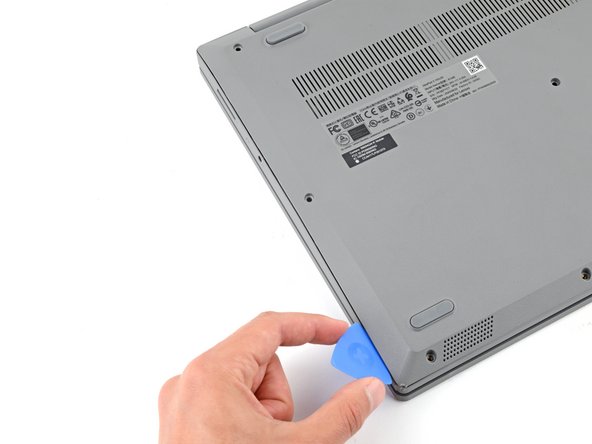
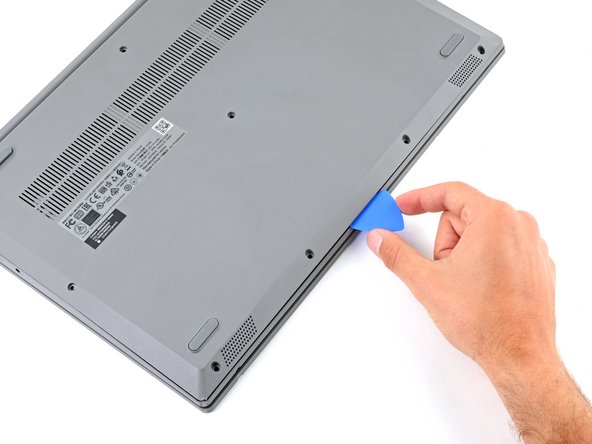
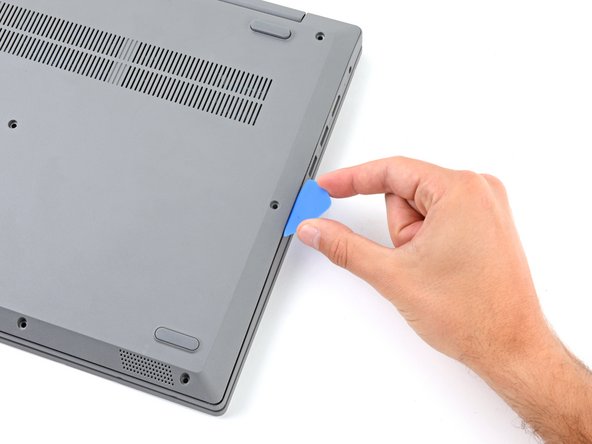
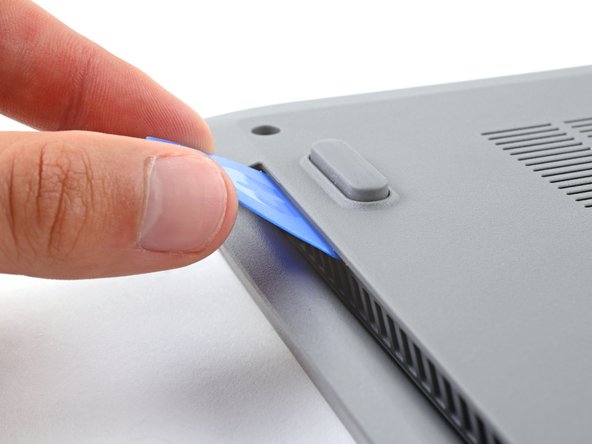
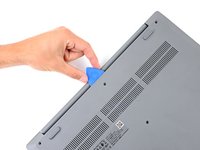
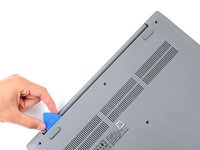
  3. Battery Disconnect, Insert an opening pick: 步骤 3 中的图像 1,3 Battery Disconnect, Insert an opening pick: 步骤 3 中的图像 2,3 Battery Disconnect, Insert an opening pick: 步骤 3 中的图像 3,3
    • Plastic clips secure the back cover to the frame. You'll hear and feel the clips release.

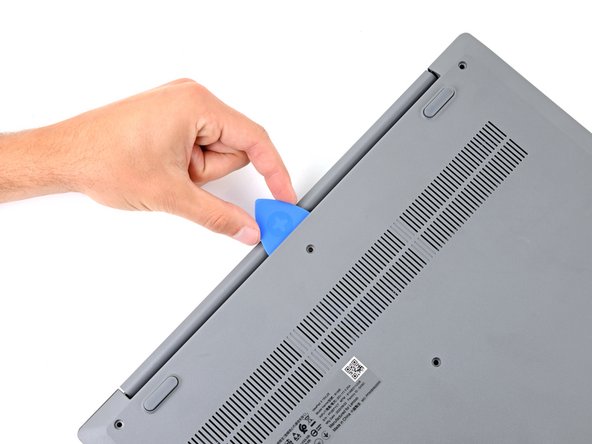
    • Insert the flat side of an opening pick between the top left corner of the back cover and frame.

    • Angle the pick down to about 45 degrees.

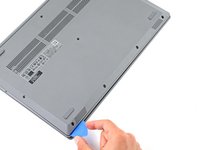
  4. Battery Disconnect, Release the left clips: 步骤 4 中的图像 1,3 Battery Disconnect, Release the left clips: 步骤 4 中的图像 2,3 Battery Disconnect, Release the left clips: 步骤 4 中的图像 3,3
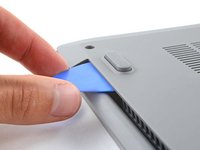
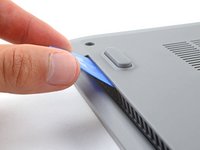
    • Keep the opening pick angled down at about 45 degrees while sliding it along the front and side edges to help release the clips.

    • Slide the pick to the bottom left corner of the laptop to release the left clips.

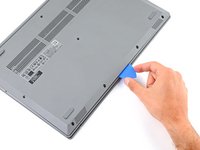
  5. Battery Disconnect, Release the bottom clips: 步骤 5 中的图像 1,3 Battery Disconnect, Release the bottom clips: 步骤 5 中的图像 2,3 Battery Disconnect, Release the bottom clips: 步骤 5 中的图像 3,3
    • Slide the opening pick to the bottom right corner to release the bottom clips.

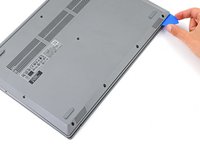
  6. Battery Disconnect, Release the right clips: 步骤 6 中的图像 1,3 Battery Disconnect, Release the right clips: 步骤 6 中的图像 2,3 Battery Disconnect, Release the right clips: 步骤 6 中的图像 3,3
    • Slide the opening pick to the top right corner to release the right clips.

  7. Battery Disconnect, Insert an opening pick: 步骤 7 中的图像 1,2 Battery Disconnect, Insert an opening pick: 步骤 7 中的图像 2,2
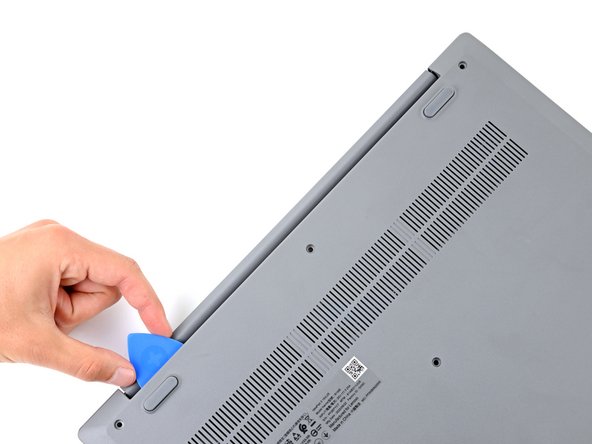
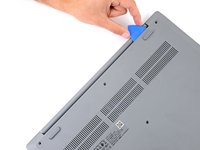
    • Insert the flat end of an opening pick between the back cover and frame, to the left of the right hinge.

    • Pry the back cover up with the pick to release the top right clips.

    • Leave the pick inserted next to the right hinge.

  8. Battery Disconnect, Release the top clips: 步骤 8 中的图像 1,3 Battery Disconnect, Release the top clips: 步骤 8 中的图像 2,3 Battery Disconnect, Release the top clips: 步骤 8 中的图像 3,3
    • Angle the pick up to about 45 degrees.

    • Slide the opening pick to the top left corner to release the remaining clips.

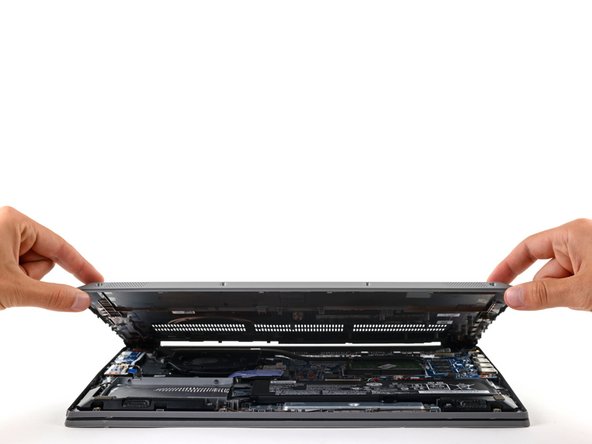
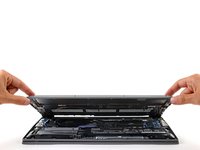
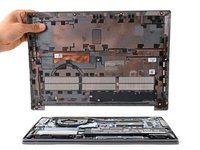
  9. Battery Disconnect, Remove the back cover: 步骤 9 中的图像 1,3 Battery Disconnect, Remove the back cover: 步骤 9 中的图像 2,3 Battery Disconnect, Remove the back cover: 步骤 9 中的图像 3,3
    • Remove the back cover.

    • During reassembly, lay the back cover on the frame and press firmly around the perimeter to engage all the clips.

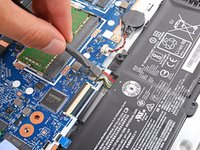
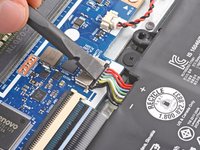
  10. Battery Disconnect, Disconnect the battery: 步骤 10 中的图像 1,3 Battery Disconnect, Disconnect the battery: 步骤 10 中的图像 2,3 Battery Disconnect, Disconnect the battery: 步骤 10 中的图像 3,3
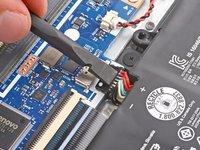
    • Use the flat end of a spudger to gently push the battery connector out of its socket on the motherboard.

结论

To reassemble your device, follow these instructions in reverse order.

Spencer Day

于09/14/22注册

163,418 声望

创作了1,043篇指南

团队

iFixit iFixit 的会员

Staff

124 名成员

创作了24,235篇指南

0指南评论

添加评论

浏览统计数据:

过去 24 小时: 0

过去 7 天: 1

过去 30 天: 1

总计 28