跳转到主内容

AirPort Time Capsule A1409 HDD Replacement

  1. AirPort Time Capsule A1409 HDD Replacement, Hard Disk Drive: 步骤 1 中的图像 1,3 AirPort Time Capsule A1409 HDD Replacement, Hard Disk Drive: 步骤 1 中的图像 2,3 AirPort Time Capsule A1409 HDD Replacement, Hard Disk Drive: 步骤 1 中的图像 3,3
    • Put the unit upside down and take off the rubber bottom cover. It is better to start at a corner.

    • Rubber becomes brittle as it ages. Depending on air temperature and how set the adhesive is, you may need to spend some time warming the back plate with a hot plate (on low) or hair dryer.

  2. AirPort Time Capsule A1409 HDD Replacement: 步骤 2 中的图像 1,3 AirPort Time Capsule A1409 HDD Replacement: 步骤 2 中的图像 2,3 AirPort Time Capsule A1409 HDD Replacement: 步骤 2 中的图像 3,3
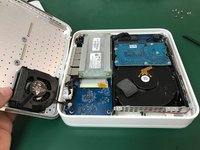
    • Remove the # 10 Phillips # 00 screws that hold the Time Capsule's lower metal bracket.

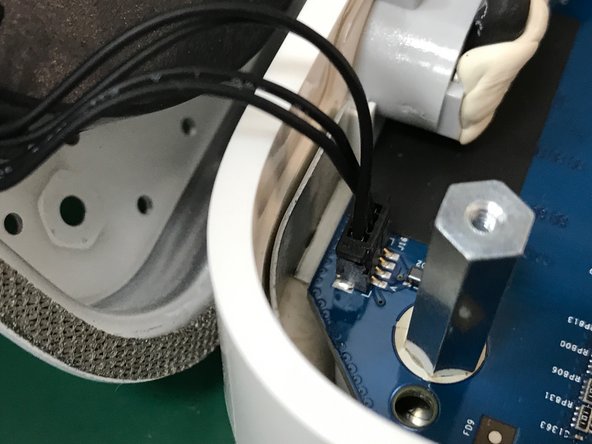
    • Open to the left leaving the network connectors on that side. Do not open it fully to avoid breaking the fan cable.

  3. AirPort Time Capsule A1409 HDD Replacement: 步骤 3 中的图像 1,2 AirPort Time Capsule A1409 HDD Replacement: 步骤 3 中的图像 2,2
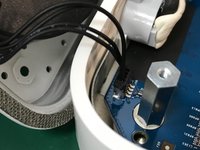
    • With the tip of a spudger carefully remove the fan connector then remove the metal bottom cover.

  4. AirPort Time Capsule A1409 HDD Replacement: 步骤 4 中的图像 1,3 AirPort Time Capsule A1409 HDD Replacement: 步骤 4 中的图像 2,3 AirPort Time Capsule A1409 HDD Replacement: 步骤 4 中的图像 3,3
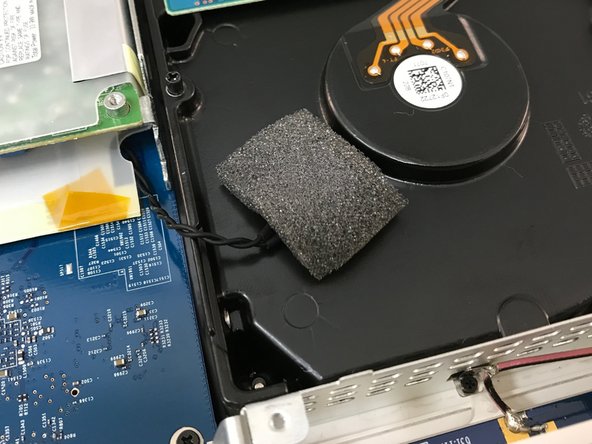
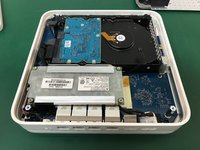
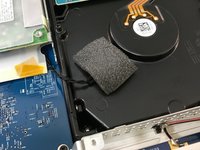
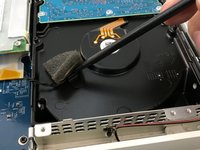
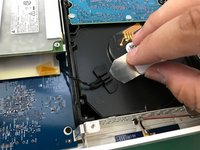
    • Find the temperature sensor on the surface of the hard disk.

    • Carefully remove the tape covering the temperature sensor.

  5. AirPort Time Capsule A1409 HDD Replacement: 步骤 5 中的图像 1,2 AirPort Time Capsule A1409 HDD Replacement: 步骤 5 中的图像 2,2
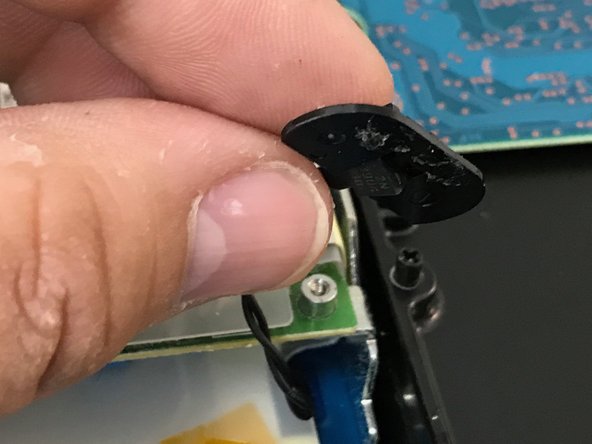
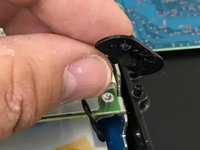
    • Remove the clip that holds the temperature sensor and remove both.

  6. AirPort Time Capsule A1409 HDD Replacement: 步骤 6 中的图像 1,2 AirPort Time Capsule A1409 HDD Replacement: 步骤 6 中的图像 2,2
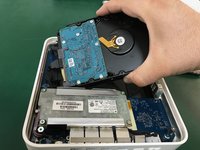
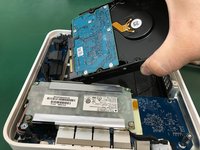
    • Lift the hard drive a bit without pulling too hard to not cause damage to the power and data connectors of the hard disk. Removing the power connector from the hard drive

    • Remove the data connector from the hard disk.

  7. AirPort Time Capsule A1409 HDD Replacement: 步骤 7 中的图像 1,2 AirPort Time Capsule A1409 HDD Replacement: 步骤 7 中的图像 2,2
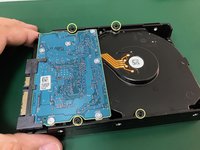
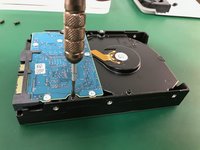
    • Once we have the disc out of the Time Capsule, we remove the 4 Phillips head # 00 pillars and place them in the new unit.

结论

To reassemble your gadget, follow these instructions backward.

50等其他人完成本指南。

由衷感谢以下译者:

es en

100%

这些译者帮助我们修补全世界! 您也想加入吗?
开始翻译 ›

David Medrano

于12/22/13注册

1,786 声望

撰写一个指南

团队

Tecnico Center Teatinos, S.L. Tecnico Center Teatinos, S.L. 的会员

Business

1 名成员

创作了4篇指南

15指南评论

I replaced a dead drive in about 30 mins following these instructions. The steps are clear, straight forward and the photos were extremely helpful. Many thanks as I now have a renovated AirPort Time Capsule.

Peter Long - 回复

I just replaced the 2 TB WDC Green with a WD Red Pro 4 TB with this guide in less than 30 min. Except for the fan cable it was a cake walk.

Alex Senger - 回复

Successfully upgraded my A1409 to a Western Digital - WD100PURZ - 5400 RPM Class SATA 6 Gb/s 256MB Cache 3.5. There are two additional steps: (a), there is a rubber strip around the original drive that reduces noise and protects the drive, gently remove from the original drive and place on the new drive; (b) once the rubber strip is on the drive, it is hard to get into place, angle the drive towards the connector side, and press in.

Brunob00 - 回复

12 TB WD RED (inbuilt version WD120EMAZ) just confirmed for 1409 (G4 version).

you are welcome

AD G - 回复

Hola. Reemplacé el disco con toda facilidad pero, desgraciadamente, la Utilidad AirPort no lo está reconociendo ni consigue borrarlo para activarlo. El HD nuevo es un WD Red de 10 TB. Si alguien puede ayudarme a resolver el problema, agradezco mucho.

I MM - 回复

添加评论

浏览统计数据:

过去 24 小时: 21

过去 7 天: 106

过去 30 天: 434

总计 29,036